How to Launch an App via ADB Commands

There can be quite a few instances wherein you would want to launch an app via ADB Commands. One of the most common instances is when the stock launcher isn’t working along the expected lines. As a result of this, you won’t be able to launch the required app of your choice from the app drawer. While you can still launch the app from the Settings > Apps menu, however, not every OEM supports this feature.
Moreover, it isn’t the most viable or feasible way of getting the job done either. Likewise, if you own an Android TV and are unable to launch the app the conventional way, then it might lead to quite a challenging and infuriating issue. Moreover, if you are a developer and wish to test an app in an emulation environment, then also this method will come in handy. So on that note, let’s make you aware of the steps to launch the Android app of your choice via ADB Commands. Follow along.
How to Launch an App via ADB Commands
- Download and install the Android SDK Platform Tools on your PC.
- Then go to Settings > About Phone > Tap on Build Number 7 times.
- After that, head over to the Settings > System > Developer Options.
- Now enable USB Debugging and connect the device to the PC via USB.
- Next, open the Command Prompt inside the platform-tools folder.
- Now download the desired APK and transfer it to the platform tools.
- Then get hold of the app package name using any of these methods .
- Now install the Activity Launcher app from the Play Store.
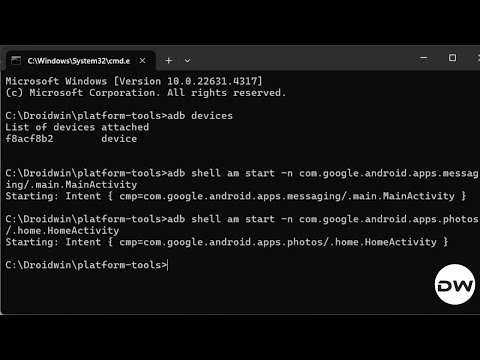
- Then get hold of the name of the activity of the desired app. Make sure to use the Main Activity name. For example, in the case of Google Messages, it is .main.MainActivity.[If an app does not have a Main Activity, then you can use its Home Activity].
- Finally, type the below command [replace package name and activity name accordingly. ] adb shell am start -n your.package.name/Activity Name
- For example, if you want to start Google Messages, then the aforementioned command will become: adb shell am start -n com.google.android.apps.messaging/.main.MainActivity
- ADB Tool for Galaxy S24 Ultra is Now Live!
- Edit Touch and Hold Delay Timings on Android via ADB Commands
- Expand and Collapse Notifications on Android via ADB Commands
- Debloat/Uninstall Bloatware from OnePlus via ADB Commands

(Cancel Reply)
Δ
