How to Launch Terminal in Current Folder on Mac
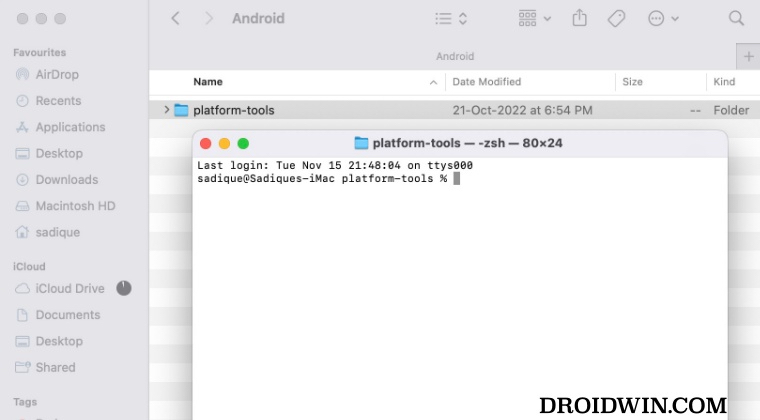
In this guide, we will show you the steps to launch Terminal in the current folder on your Mac. There could be quite a few instances wherein you might want to open the Terminal window inside a particular folder. One way of doing so is by opening Terminal from Launchpad or Finder, then using the cd [change directory] command syntax followed by the desired location.
However, this is quite a lengthy approach of getting things done. Turns out there is another nifty method through which you could carry out the said task. And in this guide, we will make you aware of just that. So without further ado, let’s get started with the steps to directly launch Terminal in the current folder on your Mac.
How to Launch Terminal in the Current Folder on Mac
- Click on the Apple logo situated at the top right and select System Settings.
- Then select Keyboard from the left-hand side and click on Keyboard Shortcut.
- Now select Services from the left-hand side and expand the Files and Folders section.
- Then select New Terminal at Folder, assign it the desired shortcut, and hit Done.
- Now open Finder, select the desired folder, and use that shortcut to open the Terminal in that directory.
- You could also select that folder, click on the Finder menu at the top, select Services, and choose New Terminal at Folder.
- Schedule Shutdown missing in macOS Ventura: How to Fix
- macOS Installer File missing from Application folder [Fix]
- How to Turn off Time Machine in macOS Ventura
- How to repeat a key in Mac while holding it down?

(Cancel Reply)
Δ
