How to Make Transparent Widgets Blurred in Samsung One UI 7
In this guide, we will show you a nifty workaround using which you can make transparent widgets blurred on Samsung devices running the latest One UI 7. I recently stumbled upon this Reddit post wherein a user had asked why the widgets became transparent all of a sudden, even though he hadn’t carried out any tweaks from his end.
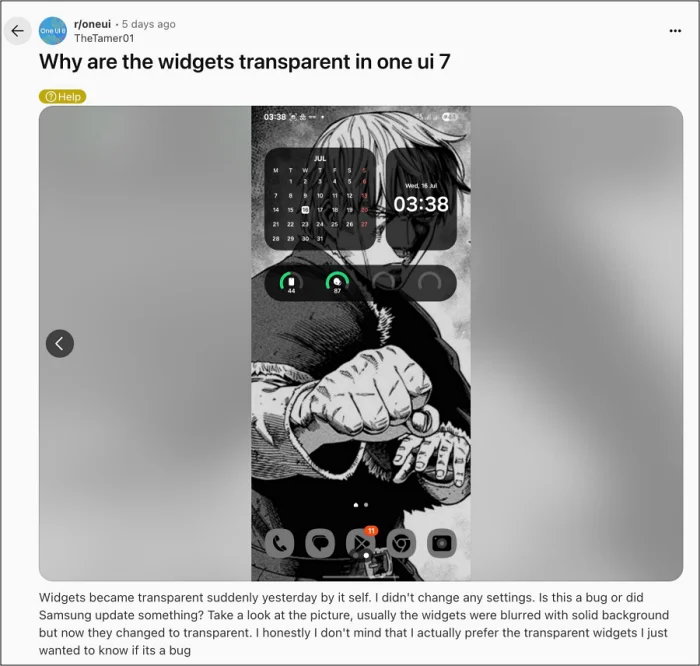
But you might ask, what’s the issue with a widget being transparent? Well, since a widget always overlaps with the wallpaper, a transparent one might prove to be quite difficult to read its contents. So what can be done in such cases? Well, there exists a workaround using which you can make their background blurred. And in this guide, we will show you how to get this job done. Follow along.
Here’s How to Make Transparent Widgets Blurred in Samsung One UI 7

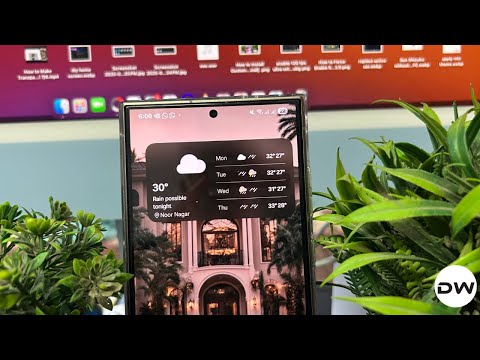
For the sake of reference, we will be using the Weather widget; however, the steps are applicable across all the other widgets as well, even to some of the third-party ones. So with that in mind, let’s get started. [Credits: Redditor obkbo].
- First off, download Good Lock from the Play Store / Galaxy Store .
- Then launch it and download the Home Up module.
- Now open Home Up, select Home Screen, and enable DIY Home.
- Then create a new note, tap on the period key once, and hit Enter around 15-20 times above the period key so that the full stop goes to the end of the notes.
- Now long-press in an empty region on the home screen > select Widgets > Notes > add the ‘Bake a Cake’ widget template to the home screen.
- Then long-press on the widget, select Settings, and send the Transparency slider to the extreme left.
- Now tap on this widget and choose the blank note that we had just created earlier. So we now have a blurred background for our next widget.
- Then bring up the widget menu and select the one that you want to make transparent, let’s say, the widget weather. So add it to the homescreen.
- Now long tap on [weather widget], select Settings, and turn off Background.
- Again, long-press on any empty region in the home screen and tap DIY Home at the top right.
- Then overlap the weather widget with the notes one and press the up/down arrow to bring the weather widget to the top of the notes one.
- Bluetooth Not Working on Samsung One UI 7: How to Fix
- Best Battery Saving Tips for Samsung Devices on One UI 7
- One UI 7 Setup Wizard Notification: How to Remove it
- Now Bar Not Working on Samsung One UI 7: How to Fix

(Cancel Reply)
Δ
