How to Open Text File Size of More Than 2MB in Solid Explorer
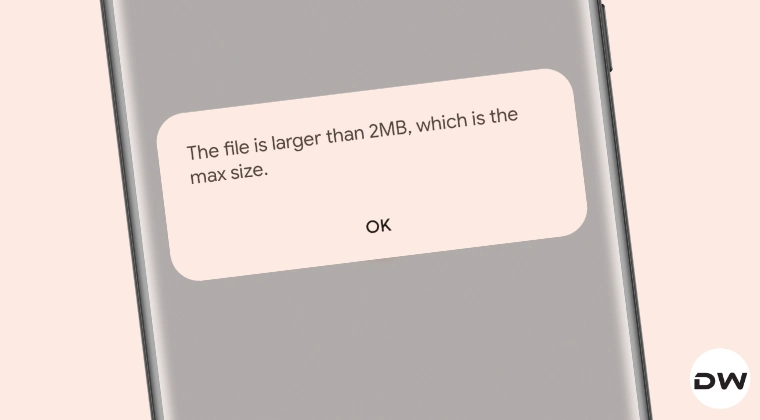
When you try to open a text file that is more than 2MB in size in Solid Explorer File Manager, you’ll be greeted with the following error message: The file size is larger than 2MB, which is the max file size. I get that some devices get really slow down upon opening. aheavy text file size, but the majority of devices nowadays can easily handle these files. So the file manager should either have first checked the device’s hardware requirements and prevented the opening of the file if it doesn’t qualify their requirements [such as RAM <1GB].

Left: Before | Right: After
Or a much better approach will be to simply give users a warning that the file is greater than 2MB in size, which might slow down your device, so are you sure you want to proceed with it? Unfortunately, neither of the two things happens, thereby impacting the user’s workflow. Well, not anymore! I have managed to find around 4-5 different types of tweaks that will help you bypass this restriction. So without any further ado, let’s check them out.
- How to Open Text File Size of More Than 2MB in Solid Explorer Without Root Using Root
- Video Guide
How to Open Text File Size of More Than 2MB in Solid Explorer
It is recommended to go through each of these methods and then try out the one that is in sync with your requirements. Also, take a complete device backup, just to be on the safe side. Droidwin and its members wouldn’t be held responsible in case of a thermonuclear war, your alarm doesn’t wake you up, or if anything happens to your device and data by performing the below steps.
Without Root
- Download and install the MT Manager app from APK Mirror
- Then launch it and grant it the required storage access.
- Now open Solid File Manager and long-press on the 2MB+ text file.
- Then tap on the overflow icon and select Open With MT Manager Text Editor.
- Choose Only Once or Always, depending on your need.
Using Root
- To begin with, download and install the Revanced app from its site.
- Then, launch it > go to Patcher > Select an app > Solid File Explorer.
- Now tap on Patch. Once done, hit Install > Mount > give it root access. The regular install method doesn’t require root, but it doesn’t seem to work either. That’s why we had to opt for the root method
- Finally, hit Open. That’s it. You’ll now be able to open large text files.
Video Guide

- How to Flash Files via EDL Tool [Supports Locked Bootloader]
- How to Unzip Various ZIP Files [.zip.001 .zip.002 .zip.003] into One
- Guide to Access Files on Android via New Linux Terminal
- How to Show Network Speed on Samsung via cscfeatures.xml File

(Cancel Reply)
Δ
