How to paste a cutout from a photo onto another photo on iOS 16
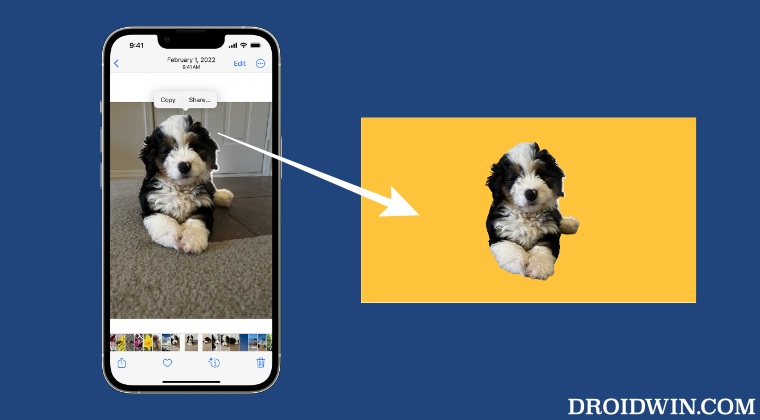
In this guide, we will show you the steps to paste a cutout from a photo onto another photo on iOS 16. The sixteenth iteration of the OS has bought in quite a few noteworthy features. One among them that didn’t get the appreciation that it deserves was the ability to cut or isolate the subject of a picture from its background and then paste it on your preferred apps, such as Notes and iMessage.
You no longer have to go to your Mac and remove the background or take the help of a third-party app, all this could easily be done directly from your phone itself. However, there is just one issue with this feature- you cannot paste the cutout from one photo onto another photo on iOS 16, you could only do so on the aforementioned apps.
While we get that Apple never intended to design its Photos app as a photo editor, but when it has gone great lengths to add this feature, it could have covered a few additional miles as well. But while that isn’t the case, you could still get this job done via a nifty workaround. So without further ado, let’s check out how this could be carried out.
How to paste a cutout from a photo onto another photo on iOS 16
- Cannot Add Security Keys On iOS 16.3: How To Fix
- Screen Time not working on iOS 16.2: How to Fix
- WiFi not auto-connecting on iOS 16.2: How to Fix
- Stop Account Recovery Method Needed prompt on iOS 16

(Cancel Reply)
Δ
