How to re-trigger Windows Firewall Notification
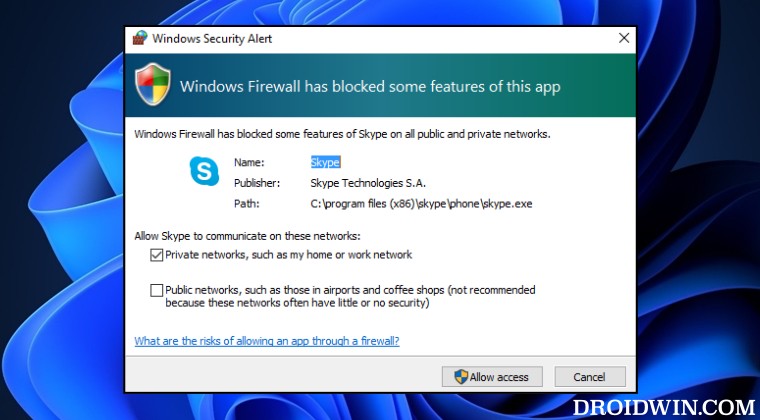
In this guide, we will show you the various methods to re-trigger the Windows Firewall Notification. While there are quite a few third-party firewall extensions and applications but for most users, it’s the built-in one that manages to checkmark their prerequisites. In this regard, when you launch any app for the first time on your PC, the firewall straightaway comes into action and will bring up a prompt asking whether or not you want that app to have access to the internet.
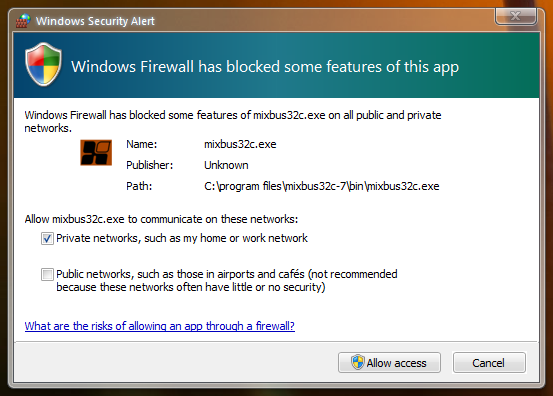
However, there could be a few instances wherein you end up clicking on an incorrect response, or in rare cases, the prompt didn’t even come up in the first place. While you have the option to manually tweak this setting and add/remove the app from the Firewall whitelist, however, that is usually quite a long route. Fortunately, you could re-trigger the Windows Firewall Notifications using a few nifty workarounds. And in this guide, we will show you how to do just that. Follow along.
- How to re-trigger Windows Firewall Notification FIX 1 Toggle Firewall Notification Setting FIX 2 Tweak Firewall Display Notification Setting FIX 3 Using Registry Editor FIX 4: Restore Firewall to Default
How to re-trigger Windows Firewall Notification
It is recommended that you try out each of the below-mentioned workarounds and then see which one spells out success. So with that in mind, let’s get started.
FIX 1 Toggle Firewall Notification Setting
- Open Windows Defender Firewall and click on Change Notification Settings from the left-hand side.
- Then uncheck “Notify me when Windows Firewall blocks a new app” and hit OK.
- Now wait for a few seconds, then recheck the aforementioned option, and hit OK.
- Now relaunch the concerned app and check if the Windows Firewall notification gets re-triggered.
FIX 2 Tweak Firewall Display Notification Setting
- Open Windows Defender Firewall and click on Advanced Settings from the left-hand side.
- Then select Properties from the right-hand side and click Customize under Settings.
- Now select No under Display a notification and hit OK to save it. Then revert this setting back to Yes.
- Relaunch the concerned app and check if the Windows Firewall notification gets re-triggered.
FIX 3 Using Registry Editor
This tweak will come in handy for those users who have mistakenly chosen the incorrect option in the Windows Firewall notification dialog box. Moroever, before starting, please take a registry backup beforehand.
- Launch Registry Editor and head over to the below location: HKEY_LOCAL_MACHINE\SYSTEM\CurrentControlSet\Services\SharedAccess\Parameters\FirewallPolicy\FirewallRules
- Then delete both the TCP Query User and/or UDP Query User files.
- Now relaunch the concerned app and check if the Windows Firewall notification gets re-triggered.
FIX 4: Restore Firewall to Default
If none of the aforementioned methods spelled out success, then your last course of action should be to restore the Firewall settings to their default state and then make the notification re-appear. Here’s how it could be done:
- Open Windows Defender Firewall from the Start menu
- Then click on Restore Default from the left-hand side.
- Finally, click on Restore Default and check out the result.
- Block an App from accessing the Internet in Windows 11 [via Firewall Outbound Rules]
- How to Allow Apps Through Firewall in Windows 11 | Add to Exception/Exclusion List
- Block IP Address via Windows Defender Firewall in Windows 11
- Allow Chrome Through Firewall in Windows 11: Add it to Exception List

(Cancel Reply)
Δ
