How to Relock Bootloader on Samsung Devices
In this guide, we will walk you through the steps to relock the bootloader on your Samsung device. When it comes to custom development, Samsung ends up taking a different route more often than not. Download Mode instead of Fastboot Mode, using a dedicated tool for flashing firmware instead of Fastboot Commands, and also the inability to unlock the bootloader via the fastboot flashing unlock command.
You’ll have to boot to Download Mode, followed by Device Unlock Mode , to get this job done. As a result of this, relocking the bootloader isn’t as simple as using the fastboot flashing lock command. There’s a specific set of instructions that needs to be followed.

But before you do so, keep in mind that relocking the bootloader would not make the Knox in its original state; it will stay in its tripped state, which is 0x1. So whatever problems or drawbacks you had with Knox [such as Samsung Pay not working] will continue to be there even after relocking the bootloader on your Samsung device. So if that’s all well and good, then let’s get started with the instructions.
How to Relock Bootloader on Samsung Devices

Before starting, please take a complete device backup as the process will reset your device. Droidwin and its members wouldn’t be held responsible in case of a thermonuclear war, your alarm doesn’t wake you up, or if anything happens to your device and data by performing the steps below.
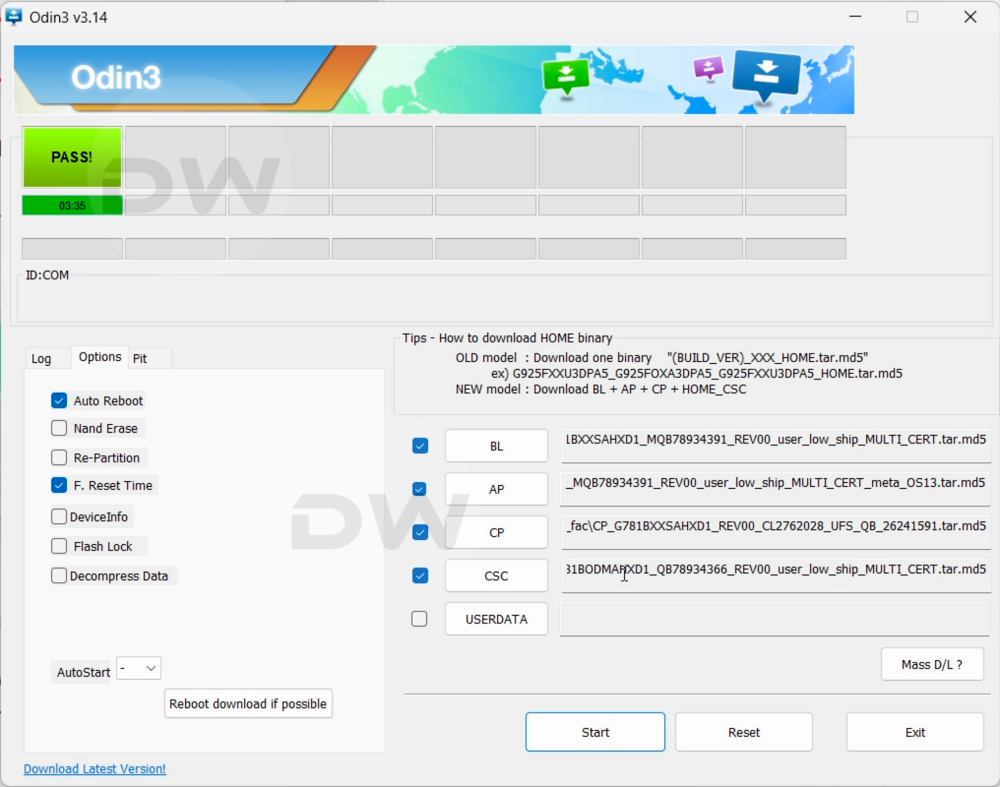
First off, you’ll have to go back to stock [if you are on custom ROM], remove root, TWRP, modules, custom kernels, and any other custom binary insalled on your device. Manually doing so will end up taking ages. A easier and shorter way is to simply flash the stock firmware via Odin , using the CSC file instead of Home_CSC because we want to do a format as well. Once that is done, you may then refer to the below steps.
- To begin with, power off your device. Then press and hold the Volume Up and Down keys.
- While holding both the keys, connect your device to the PC via the USB cable.
- Your device will now be in Download Mode. Long-press the Volume Up key to enter the Device Unlock Mode.
- Finally, press the Volume Up key to relock the bootloader.
- Your device will undergo a reset, and the bootloader will be locked.
- Samsung Removes OEM Unlocking from One UI 8!
- How to Find Samsung Bootloader Version for Downgrading OS
- Unlocking Bootloader on Samsung Does Not Trip Knox!
- Camera not working in Samsung after Bootloader Unlock [Fix]

(Cancel Reply)
Δ
