How to Remove Account from Deep Testing App
Gone are the days when you can simply switch between ColorOS and OxygenOS by flashing the desired region firmware via Fastboot Mode. With the latest OnePlus device, things have taken a turn for the worse. Let’s understand the fiasco that has engulfed these devices . Users usually prefer to get their hands on a OnePlus 15 from China as it is cheaper than the global variant. However, it comes with ColorOS out of the box, which isn’t in sync with many users’ requirements.
So they ask for a device that has been converted to OxygenOS and still has an unlocked bootloader [which was done via the Deep Testing APK ]. Now, I have seen many users relock their bootloader on OxygenOS as they wish to mark them safe from numerous issues that arise from an unlocked bootloader [such as Play Integrity failure, Widevine Certification getting downgraded to L3, and the inability of banking and payments apps to function].

However, once you relock the bootloader on your OnePlus 15, which has been converted from ColorOS to OxygenOS, you will no longer be able to access Fastboot Mode . As a result of this, you wouldn’t be able to unlock the bootloader via the fastboot flashing unlock command. Your only way out is to shell out some bucks and opt for an EDL flashing back to ColorOS [EDL flashing does not require an unlock bootloader].
So once we are on ColorOS, we can now easily unlock the bootloader using the Deep Testing app, right? Unforutnately no! This is because the app is already bound to the account that was used the first time its bootloader was unlocked on ColorOS.In other words, the Deep Testing app still has your seller’s account linked to it. You can only use that app and unlock the bootloader using that account. Good luck finding that!
So what can be done in such instances? Well, this is where this guide will help you out. Here, we will show you a nifty workaround using which you can remove the seller’s account from the Deep Testing app, add your own, and then easily unlock the bootloader on your OnePlus device running ColorOS. So without any further ado, let’s show you how this could be carried out.
How to Remove Account from the Deep Testing App
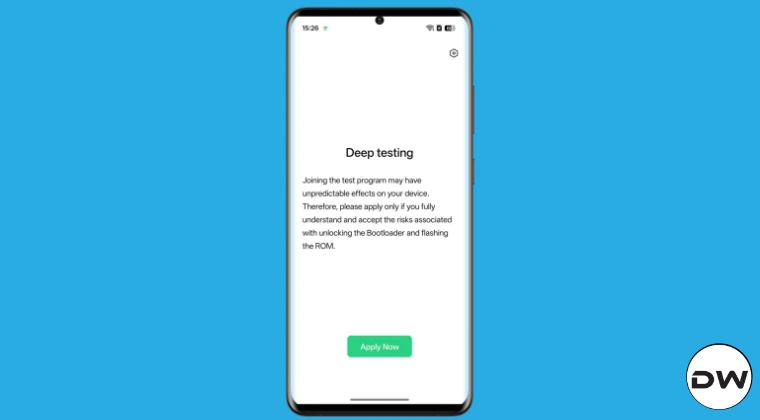
At this point in time, you should be on ColorOS, having an unlocked bootloader, and not converted to OxygenOS. This trick will not work if you are coming back to ColorOS from OxygenOS [because in that case, the bootloader will still be locked]. So, rather than a fix, you can call this guide a fail-safe mechanism because after carrying out the steps mentioned here, you can come back to ColorOS via EDL and then easily unlock the bootloader without being dependent on the seller’s account, which was linked to the Deep Testing app.
Just to reiterate, the steps mentioned here are not going to help you flash ColorOS over OxygenOS; that is still to be done via the EDL Method only. It will help you unlock the bootloader on ColorOS when you have just come back from OxygenOS. So if that’s all well and good, then let’s get started. Droidwin and its members wouldn’t be held responsible in case of a thermonuclear war, your alarm doesn’t wake you up, or if anything happens to your device and data by performing the below steps.
- First off, root your device using Magisk / KernelSU / APatch .
- Then, flash the Tricky Store module and restart the device.
- Next up, back up the oplusreserve1 partition via ADB/root .
- Now go to the Deep Testing app and “request to exit deeptesting”.
- Since Tricky Store spoofs a locked bootloader, the Deep Testing app lets you exit the process even when the device is still unlocked. However, Fastboot Mode will not be accessible after this. So let’s fix it.
- Now reboot your device to FastbootD Mode using the below command: adb reboot fastboot
- Finally, flash the oplusreserve1 partition using the below command: fastboot flash oplusreserve1 oplusreserve1.img
- If the file’s extension is BIN instead of IMG in your case, then make that change in the command: fastboot flash oplusreserve1 oplusreserve1.bin
- Once done, you’ll now be able to boot to the Fastboot Mode and the OS. Let’s first boot to the OS, so use: fastboot reboot
- Now type in the below command to boot to the Fastboot/Bootloader Mode: adb reboot bootloader
- You may now unlock the bootloader via Deep Testing by adding your own account to the app.
Moreover, if you ever decide to go to OxygenOS and then lock the bootloader, then use the EDL Mode to come back to ColorOS, there’s going to be no issues in unlocking the bootloader now. This is because the app is now linked to your account, and you can now easily use it as and when required.
- How to Unlock Bootloader after Flashing OxygenOS on OnePlus 15
- USB File Transfer Greyed Out on OnePlus 15? Try this fix!
- Cannot Boot to Fastboot Mode on OnePlus 15? Here’s Why [Fix]
- Don’t Buy a Chinese ColorOS Converted to OxygenOS OnePlus 15 with Locked Bootloader

(Cancel Reply)
Δ
