How to Remove AI Shortcut from Google Search Bar on Android
In this guide, we will show you the steps to remove the AI shortcut from the Google search bar on your Android device. The Silicon Valley giant is doing its level best to force its users into jumping aboard its AI train, whether they have any intention of doing so or not doesn’t count. For instance, recently it added the AI Mode in the first position on the Search results page.
This section is reserved for ‘All’, which most of you are used to interacting with. Thanks to our muscle memory and the fact that both start with A, some of us might still interact with it as before, thinking it to be still the All section, and will straightaway be taken to its AI world. And that’s not it.

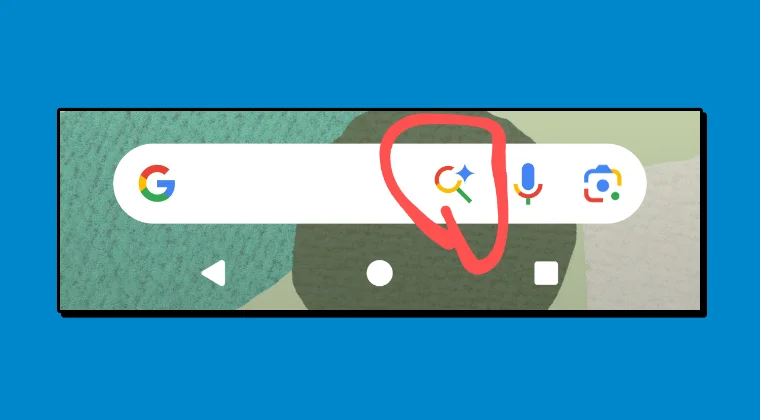
The AI overview in the Search results and the Gemini being embedded throughout the Android OS are two of the recent changes that haven’t gone down too well with most of the users [the former more so than the latter]. And now, it has made another similar change. Google has added an AI search icon right next to the search bar, or in some cases, inside it!
Not only does it make the UI more cluttered, but there have been many instances wherein a user unintentionally ends up tapping on the AI search icon instead of the normal one. And in classic Google style, they haven’t given us any option to disable or remove this icon [see Update below].
Well, fret not! We have found a couple of handy workarounds that should help you remove the AI shortcut from the Google search bar on your Android device. So, without further ado, let’s show you how this could be carried out.
- How to Remove AI Shortcut from Google Search Bar on Android How Did We Find This Command?
- UPDATE: You can now remove AI Shortcut without ADB Commands!
How to Remove AI Shortcut from Google Search Bar on Android
- First off, download and extract the Android SDK Platform Tools on your PC.
- Enable USB Debugging on your device and connect it to the PC via USB cable.
- Now open the Command Prompt inside the platform-tools folder and type in: adb shell pm uninstall -k –user 0 com.google.android.googlequicksearchbox/com.google.android.googlequicksearchbox.OneSearchAimActivity -a “android.intent.action.MAIN”
- The AI shortcut is now removed from the Google search bar on your Android device.
How Did We Find This Command?
That’s a great question! So what we did was install the Activity Launcher app, searched for AIM [which is part of the OneSearchAimActivity], and then used it with the generic ‘adb shell pm uninstall’ command.
UPDATE: You can now remove AI Shortcut without ADB Commands!
Well, it seems that Google has finally paid heed to the tons of criticism that it has been receiving over the addition of this feature. You can now easily remove this feature simply by disabling a toggle. The catch? As of now, it is still in the testing phase [Google app version 16.26.64.sa.arm64] and might take some time before it rolls out for the general audience. But once it does, here’s how you make full use of this functionality:
- Head over to the Settings of Google App.
- Then, go to Customize Pixel Search Box.
- Finally, turn off the toggle next to AI Mode.
That’s it. These were the steps to remove the AI shortcut from the Google search bar on your Android device. As and when the Settings menu shortcut goes live, we will update this guide accordingly, for now, the ADB Command is the only way out.
- Google AI Edge Gallery: Use AI Offline on your Device!
- Pixel VIPs missing from Contacts App: How to Fix
- Pixel Device Stuck on Shutting Down Screen: How to Fix
- How to Enable Osaifu Keitai in Non-Japanese Pixel Devices

(Cancel Reply)
Δ
