How to Remove Evaluation Copy Watermark from Windows 11
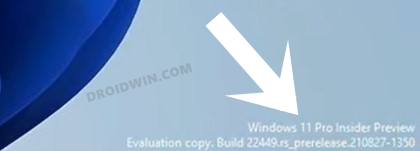
It will show the current OS build number, the Edition of Windows you are using, and its variant. While some watermarks such as ‘Your copy of Windows is not genuine’ is undoubtedly concerning (well, you already know why!), this evaluation one might not be too much troublesome. But still, there are a few users who wish to remove this evaluation copy watermark from their Windows 11 PC.
If you also echo this thought, then this guide is here to help you out. Follow along for the detailed instructions. Droidwin and its members wouldn’t be held responsible in case of a thermonuclear war, your alarm doesn’t wake you up, or if anything happens to your device and data by performing the below steps.
- How to Remove Evaluation Copy Watermark from Windows 11 Instruction Steps
- How to Bring Back the Windows 11 Evaluation Watermark
How to Remove Evaluation Copy Watermark from Windows 11
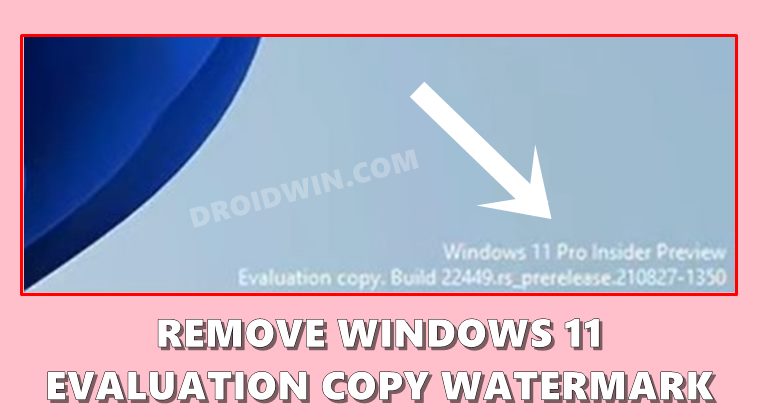
To carry out this task, we will be using a popular third-party app known as Universal Watermark Disabler. However, there’s a word of caution before you proceed with the usage of this app. To remove the watermark, it will directly modify two system files, namely basebrd.dll.mui, and shell32.dll.mui. This might prove to be a risky bet, considering that you are using it just for the sake of removal of a watermark. But if you have made up your mind and are ready to bid adieu to the Evaluation watermark, then let’s get started.
Instruction Steps
- To begin with, download the Universal Watermark Disabler.
- Then extract it to any convenient location on your PC.
- Now double click on the uwd.ee file to launch the tool.
- After that, click Install in the setup screen that appears.
- Then click Yes in the confirmation dialog box.
- Once the installation is complete, you will be signed out of your account.
- A pop-up will also notify you of the same, click OK to close it.
- Now sign back into your account and the watermark would have been removed.
How to Bring Back the Windows 11 Evaluation Watermark
If for some reason, you wish to get back this watermark, then it’s quite easy to do so. Here’s what needs to be done:
- Double-click on the uwd.ee file to launch the tool.
- Then click on the Uninstall button.
- Finally, hit OK in the confirmation dialog box.
- How to Enable Group Policy Editor in Windows 11 Home
- [5 Methods] Stop or Disable Windows 11 Update
- How to Remove Recommended Section from Windows 11 Start Menu
- How to Disable or Uninstall Cortana in Windows 11

- harlock59 4 years ago Reply Hello, that method is working but is not permanent, i’ve tried it but every once a while i have to relaunch and reinstall uwd.exe… if someone could send me a permanent method ? or post it in the comments…
(Cancel Reply)
Δ
