How to Remove Fingerprint Icon from Lock Screen on Android
In this guide, we will show you the steps to remove the fingerprint icon from the lock screen on your Android device. Thanks to the open-source nature of the OS, you can carry out a plethora of tweaks on your device. While most of them tend to add new features or remove the unnecessary ones, there are a few that might leave some of your heads scratching. And the one which we are discussing here is just that.
There’s no use case or benefit as such for removing the fingerprint icon from the lock screen on your Android device [well, apart from giving you a cleaner lock screen!], but after all, not every tweak deserves an explanation, and some are done just for fun. And the one which we are discussing here falls in this category. So, on that note, let’s hop onto this intriguing journey and show you the steps to get this job done right away!
- How to Remove the Fingerprint Icon from the Lock Screen on Android
- How to Remove the Fingerprint Icon from the AOD Screen on Android
- How to Bring Back the Fingerprint Icon
How to Remove the Fingerprint Icon from the Lock Screen on Android

This tweak has been tested on Samsung devices, including the latest S25 series. It may or may not work on other Android devices, though you may still give it a try because there’s nothing to lose!
- First off, download and install the SetEdit app from the Play Store.
- Now download & extract Android SDK Platform Tools on your PC.
- Then enable USB Debugging on your device and connect it to your PC.
- Now open Command Prompt inside the platform-tools folder and type: adb shell pm grant by4a.setedit22 android.permission.WRITE_SECURE_SETTINGS
- Now launch SetEdit and select Secure Table from the right-hand side.
- Finally, set the value of the “fingerprint_screen_on_icon_lock” to 0.
How to Remove the Fingerprint Icon from the AOD Screen on Android

Change the value of “fingerprint_screen_off_icon_aod” to 0 from 2 to remove the fingerprint icon from the AOD screen.
How to Bring Back the Fingerprint Icon
Change the value of “fingerprint_screen_on_icon_lock” back to its default value, which is 2, and the fingerprint icon will be back in the lock screen. Likewise, change the value of “fingerprint_screen_off_icon_aod” to 2 to bring back the icon on the AOD screen.
- WhatsApp Fingerprint Lock not working [Fixed]
- How to Add Genshin Fingerprint Animation on OnePlus
- Google Wallet crashes via Fingerprint on Lock Screen [Fixed]
- Fix Fingerprint Sensor not working on Pixel Android 14

(Cancel Reply)
Δ
How to Remove Fingerprint Icon from Lock Screen on Android
In this guide, we will show you the steps to remove the fingerprint icon from the lock screen on your Android device. Thanks to the open-source nature of the OS, you can carry out a plethora of tweaks on your device. While most of them tend to add new features or remove the unnecessary ones, there are a few that might leave some of your heads scratching. And the one which we are discussing here is just that.
There’s no use case or benefit as such for removing the fingerprint icon from the lock screen on your Android device [well, apart from giving you a cleaner lock screen!], but after all, not every tweak deserves an explanation, and some are done just for fun. And the one which we are discussing here falls in this category. So, on that note, let’s hop onto this intriguing journey and show you the steps to get this job done right away!
- How to Remove the Fingerprint Icon from the Lock Screen on Android
- How to Remove the Fingerprint Icon from the AOD Screen on Android
- How to Bring Back the Fingerprint Icon
How to Remove the Fingerprint Icon from the Lock Screen on Android
This tweak has been tested on Samsung devices, including the latest S25 series. It may or may not work on other Android devices, though you may still give it a try because there’s nothing to lose!
- First off, download and install the SetEdit app from the Play Store.
- Now download & extract Android SDK Platform Tools on your PC.
- Then enable USB Debugging on your device and connect it to your PC.
- Now open Command Prompt inside the platform-tools folder and type: adb shell pm grant by4a.setedit22 android.permission.WRITE_SECURE_SETTINGS
- Now launch SetEdit and select Secure Table from the right-hand side.
- Finally, set the value of the “fingerprint_screen_on_icon_lock” to 0.
How to Remove the Fingerprint Icon from the AOD Screen on Android
Change the value of “fingerprint_screen_off_icon_aod” to 0 from 2 to remove the fingerprint icon from the AOD screen.
How to Bring Back the Fingerprint Icon
Change the value of “fingerprint_screen_on_icon_lock” back to its default value, which is 2, and the fingerprint icon will be back in the lock screen. Likewise, change the value of “fingerprint_screen_off_icon_aod” to 2 to bring back the icon on the AOD screen.
- WhatsApp Fingerprint Lock not working [Fixed]
- How to Add Genshin Fingerprint Animation on OnePlus
- Google Wallet crashes via Fingerprint on Lock Screen [Fixed]
- Fix Fingerprint Sensor not working on Pixel Android 14
(Cancel Reply)
Δ
How to Remove Fingerprint Icon from Lock Screen on Android
In this guide, we will show you the steps to remove the fingerprint icon from the lock screen on your Android device. Thanks to the open-source nature of the OS, you can carry out a plethora of tweaks on your device. While most of them tend to add new features or remove the unnecessary ones, there are a few that might leave some of your heads scratching. And the one which we are discussing here is just that.
There’s no use case or benefit as such for removing the fingerprint icon from the lock screen on your Android device [well, apart from giving you a cleaner lock screen!], but after all, not every tweak deserves an explanation, and some are done just for fun. And the one which we are discussing here falls in this category. So, on that note, let’s hop onto this intriguing journey and show you the steps to get this job done right away!
- How to Remove the Fingerprint Icon from the Lock Screen on Android
- How to Remove the Fingerprint Icon from the AOD Screen on Android
- How to Bring Back the Fingerprint Icon
How to Remove the Fingerprint Icon from the Lock Screen on Android
This tweak has been tested on Samsung devices, including the latest S25 series. It may or may not work on other Android devices, though you may still give it a try because there’s nothing to lose!
- First off, download and install the SetEdit app from the Play Store.
- Now download & extract Android SDK Platform Tools on your PC.
- Then enable USB Debugging on your device and connect it to your PC.
- Now open Command Prompt inside the platform-tools folder and type: adb shell pm grant by4a.setedit22 android.permission.WRITE_SECURE_SETTINGS
- Now launch SetEdit and select Secure Table from the right-hand side.
- Finally, set the value of the “fingerprint_screen_on_icon_lock” to 0.
How to Remove the Fingerprint Icon from the AOD Screen on Android
Change the value of “fingerprint_screen_off_icon_aod” to 0 from 2 to remove the fingerprint icon from the AOD screen.
How to Bring Back the Fingerprint Icon
Change the value of “fingerprint_screen_on_icon_lock” back to its default value, which is 2, and the fingerprint icon will be back in the lock screen. Likewise, change the value of “fingerprint_screen_off_icon_aod” to 2 to bring back the icon on the AOD screen.
- WhatsApp Fingerprint Lock not working [Fixed]
- How to Add Genshin Fingerprint Animation on OnePlus
- Google Wallet crashes via Fingerprint on Lock Screen [Fixed]
- Fix Fingerprint Sensor not working on Pixel Android 14
(Cancel Reply)
Δ
How to Remove Fingerprint Icon from Lock Screen on Android
In this guide, we will show you the steps to remove the fingerprint icon from the lock screen on your Android device. Thanks to the open-source nature of the OS, you can carry out a plethora of tweaks on your device. While most of them tend to add new features or remove the unnecessary ones, there are a few that might leave some of your heads scratching. And the one which we are discussing here is just that.
There’s no use case or benefit as such for removing the fingerprint icon from the lock screen on your Android device [well, apart from giving you a cleaner lock screen!], but after all, not every tweak deserves an explanation, and some are done just for fun. And the one which we are discussing here falls in this category. So, on that note, let’s hop onto this intriguing journey and show you the steps to get this job done right away!
- How to Remove the Fingerprint Icon from the Lock Screen on Android
- How to Remove the Fingerprint Icon from the AOD Screen on Android
- How to Bring Back the Fingerprint Icon
How to Remove the Fingerprint Icon from the Lock Screen on Android
This tweak has been tested on Samsung devices, including the latest S25 series. It may or may not work on other Android devices, though you may still give it a try because there’s nothing to lose!
- First off, download and install the SetEdit app from the Play Store.
- Now download & extract Android SDK Platform Tools on your PC.
- Then enable USB Debugging on your device and connect it to your PC.
- Now open Command Prompt inside the platform-tools folder and type: adb shell pm grant by4a.setedit22 android.permission.WRITE_SECURE_SETTINGS
- Now launch SetEdit and select Secure Table from the right-hand side.
- Finally, set the value of the “fingerprint_screen_on_icon_lock” to 0.
How to Remove the Fingerprint Icon from the AOD Screen on Android
Change the value of “fingerprint_screen_off_icon_aod” to 0 from 2 to remove the fingerprint icon from the AOD screen.
How to Bring Back the Fingerprint Icon
Change the value of “fingerprint_screen_on_icon_lock” back to its default value, which is 2, and the fingerprint icon will be back in the lock screen. Likewise, change the value of “fingerprint_screen_off_icon_aod” to 2 to bring back the icon on the AOD screen.
- WhatsApp Fingerprint Lock not working [Fixed]
- How to Add Genshin Fingerprint Animation on OnePlus
- Google Wallet crashes via Fingerprint on Lock Screen [Fixed]
- Fix Fingerprint Sensor not working on Pixel Android 14
(Cancel Reply)
Δ
WhatsApp Fingerprint Lock not working [Fix]
In this guide, we will show you a nifty workaround that should help you mitigate the issue of fingerprint lock not working on WhatsApp. When it comes to instant messaging services, then there’s hardly an iota of doubt that the offering from Meta is the best in this domain. While there’s always a privacy risk involved whenever Meta is associated with a service, however, in this app, all the chats and associated data are end-to-end encrypted and it cannot be deciphered by anyone.
To further enhance the security, you could opt for app-based protection measures as well, such as implementing two-factor authentication and a lock screen. if we talk about the latter, then you have the option to protect your chats via a fingerprint. However, as of late, it’s giving quite a tough time to many. Numerous users have voiced their concern that the fingerprint lock isn’t working along the expected lines with WhatsApp.
According to the users, if they open the app for the first time, they do get the fingerprint prompt, but that’s just about it. From subsequent times, no such prompt appears and anyone could easily open the app and access the chats, which could translate to a major privacy scare. So is there a way out? Well, there does exist a nifty workaround that might help you mitigate this issue. So without further ado, let’s check it out.
Fix WhatsApp Fingerprint Lock not working

To rectify this issue, you just need to close the app from the Recent Apps screen. So wipe up from the bottom of the screen and leave it midway. This will bring up the Recent Apps, from there, simply swipe up WhatsApp to close. Now relaunch the app and you should get the fingerprint prompt. Apart from that, you may also force stop the app [via Settings > Apps > All Apps > WhatsApp > Force Stop > OK] to rectify this issue, however, it’s a tad bit lengthier process when compared to its counterpart.
Anyway, the choice is all yours, try out either of the two methods and it should help you fix the issue of the fingerprint lock not working on WhatsApp. As far as the official stance on this matter is concerned, the developers are yet to acknowledge this issue, let alone give out any ETA for the rollout of a fix. As and when any of these two things happen, we will update this guide accordingly. In the meantime, the aforementioned workarounds are your best bet.
- Deleting Contact will delete WhatsApp Chat on iOS 17!
- WhatsApp Notification not working on iOS 17: How to Fix
- Move WhatsApp chats from Android to iPhone: Something went wrong [Fix]
- WhatsApp Account Banned on Xiaomi: How to Unban it
(Cancel Reply)
Δ
How to Add Genshin Fingerprint Animation on OnePlus
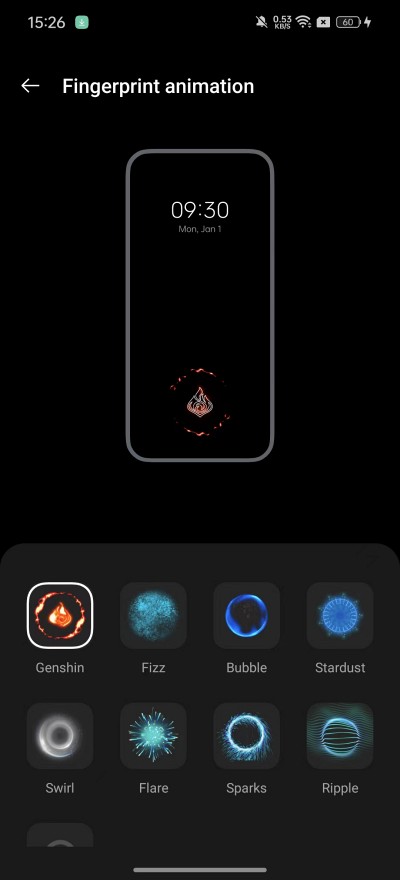
In this guide, we will show you the steps to add the Genshin fingerprint animation on your OnePlus device. The devices from the Chinese OEM house the OxygenOS/ColorOS and are well known for beholding a slew of customization tweaks. From themes to icon packs and even the likes of fingerprint animations, there’s a lot to look forward to. However, if we talk about the latter one, then OnePlus already beholds a slew of animations to choose from [7 to be precise].
These include the likes of Fizz, Bubble, Stardust, Cosmos, Ripple, Strikes, and Fireworks. While there’s no built-in option to add a custom fingerprint, but for many the preset ones should be enough to checkmark their requirement. Well, except for the die-hard Genshin fans! If you are among them, then fret not as we have got you covered! From this post, you can download and install the Genshin fingerprint animation on your OnePlus 12. So without further ado, let’s get started.
How to Add Genshin Fingerprint Animation on OnePlus
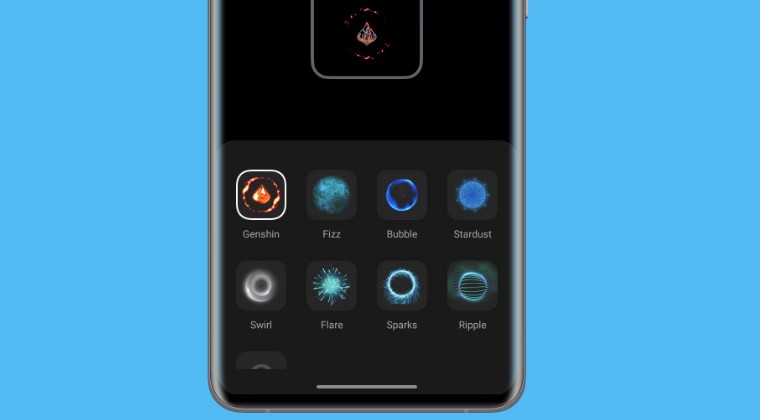
Carrying out this tweak requires a rooted device. So if you haven’t done so, then check out our guide on How to Root OnePlus 12 via Magisk Patched Init Boot [Video] . Once that is done, simply download and install the Genshin Fingerprint APK on your device. Then launch it and give it the SuperUser request. Once done, head over to the Fingerprint animation section from the Settings menu and Genshin should now be present there. Just select it and your task stands complete.
- How to Install Viper4Android on OnePlus 12
- How to Flash Custom Boot Animation on OnePlus 12
- How to Install Custom Boot Logo Splash Screen on OnePlus
- OnePlus 12 might actually be DSDS instead of DSDA!
(Cancel Reply)
Δ
Google Wallet crashes via Fingerprint on Lock Screen [Fixed]
In this guide, we will show you various methods to fix the issue of Google Wallet crashing when launching it from the lock screen and authenticating via Fingerprint. This mobile payment service from the Silicon Valley giant has streamlined the process to carry out in-app, online, and in-person contactless purchases. However, in spite of all the goodies that it has to offer, it isn’t free from its fair share of issues either.
For instance, as of now, numerous users have voiced their concern that the Google Wallet app is crashing when launching it from their lock screen and then authenticating via Fingerprint. The issue started with the December update and has been bugging the users ever since. If you are also in the same boat, then this guide will make you aware of numerous workarounds to rectify this bug. Follow along.
- Google Wallet crashes via Fingerprint on Lock Screen FIX 1: Community Shared Workaround FIX 2: Use a Different Lock Screen Method FIX 3: Use Wallet After Unlock FIX 4: Delete Wallet Data FIX 5: Downgrade Google Wallet
Google Wallet crashes via Fingerprint on Lock Screen

It is recommended that you try out each of the below-mentioned workarounds and then see which one spells out success. So with that in mind, let’s get started.
FIX 1: Community Shared Workaround
Many users on the Google Support Forum have tried the below-listed workaround and it seems to have worked out for them. So let’s give it a try and check out the result:
- Click on the Wallet lock screen icon.
- Then select the Show All option.
- Now unlock the device via fingerprint.
- Wallet will no longer crash on your device.
FIX 2: Use a Different Lock Screen Method
Instead of a fingerprint, you could consider using a different lock screen unlock method for the time being. This will prevent the issue from originating in the first place and will temporarily rectify the issue. So let’s out this fix to the teat right away:
- Head over to Settings > Security and Privacy > Device Unlock.
- Then input your current credentials to verify the credibility.
- Now choose a different lock screen unlock style from the list.
- This should fix the Google Wallet Fingerprint crashing issue.
FIX 3: Use Wallet After Unlock
While this is the most obvious workaround that many of you might already be aware of but still, it deserves a mention as it would help you mitigate this issue [and more so if you aren’t ready to give up on the fingerprint unlock method]. So with that said, you should consider launching the Google Wallet app only after unlocking the device, or in other words, use it from the app drawer or the quick settings toggle. The app will then no longer crash on your device.
FIX 4: Delete Wallet Data
The issue might also occur if the app’s data gets corrupted. Therefore, you should consider deleting the data and then repopulating it from scratch [however, do note that this will also delete your saved cards, and you might have to re-add them]. Here’s how it could be done:
- Head over to Settings > Apps > All Apps > Google Wallet.
- Then go to Storage and Cache and tap on Delete Data > OK.
- Now relaunch Wallet, set it up, and then check out the results.
FIX 5: Downgrade Google Wallet
Since the issue came to light after the latest update, downgrading the OS might prove to be quite an aggressive approach [if you still prefer to take that route, then you may check out our guide on downgrading via Fastboot Commands and Android Flash Tool ]. Instead, you could opt for downgrading the app to its earlier stable build and then check if it works out in your favor. Here’s how it could be done:
- Head over to Settings > Apps > All Apps > Google Wallet.
- Then tap on Uninstall followed by OK in the prompt.
- Now download and install its older build from here.
- Once done, launch Wallet, set it up, and then check out the results.
That’s it. These were the various different methods to rectify the issue of Google Wallet crashing when launching it from the lock screen and authenticating via Fingerprint. As far as the official stance on this matter is concerned, the developers are yet to acknowledge this issue, let alone give out any ETA for the rollout of a fix. As and when any of these two things happen, we will update this guide accordingly. In the meantime, the aforementioned workarounds are your best bet.
- Google Wallet Quick Tile Unavailable/Greyed Out: How to Fix
- Fix Google Wallet not working on Android 14 QPR1 Beta
- Google Wallet will not run on Galaxy Z Flip 5 Outer Display!
- Google Wallet not working on Fitbit Sense 2 & Versa 4 [Fix]
(Cancel Reply)
Δ
Fix Fingerprint Sensor not working on Pixel Android 14 QPR Beta 2
In this guide, we will show you the steps to fix the fingerprint sensor not working issue on Pixel after installing the latest Android 14 QPR Beta 2. Apart from the usual security patch updates releases, the Silicon Valley giant also releases Feature Drops as well as Quarterly Platform Releases. If you are part of the beta testing group of the latter, then you are among the first in line to get blessed with new updates, much quicker than your stable counterparts.
However, this is just one side of the coin. Being a beta update, it goes along the expected lines that they will have a few bugs and issues. And that has indeed been the case this time around as well. Numerous users have voiced their concern that the fingerprint sensor is not working issue on their Pixel after installing the latest Android 14 QPR Beta 2 update.
This issue is mostly prominent on the Pixel 7 Pro and users are constantly getting a prompt/toast message to contact Google customer support to rectify this issue. If you are also in the same boat, then this guide will make you aware of the steps to rectify this issue once and for all. Follow along.
Fix Fingerprint Sensor not working on Pixel Android 14 QPR Beta 2
In order to resolve this bug, you just need to recalibrate the sensors from the official Pixel Repair website. Here’s how it could be done:
- To begin with, power off your device.
- Then press and hold the Power and Volume Down buttons
- Release the keys once the device boots to the Fastboot Mode.
- Now connect your device to the PC via a USB cable.
- Then go to the Pixel Software Repair page and click Connect Device.
- Now proceed with the on-screen instructions to re-calibrate the sensors.
- Google Pixel fingerprint scanner disabled by Family Link [Fixed]
- Google Pixel 7A Fingerprint Not Working: How to Fix
- Pixel 7/Pro Fingerprint not working: How to Fix
- Pixel 6/Pro Device was locked manually: Enter PIN instead of Fingerprint
(Cancel Reply)
Δ
How to Remove Fingerprint Icon from Lock Screen on Android
In this guide, we will show you the steps to remove the fingerprint icon from the lock screen on your Android device. Thanks to the open-source nature of the OS, you can carry out a plethora of tweaks on your device. While most of them tend to add new features or remove the unnecessary ones, there are a few that might leave some of your heads scratching. And the one which we are discussing here is just that.
There’s no use case or benefit as such for removing the fingerprint icon from the lock screen on your Android device [well, apart from giving you a cleaner lock screen!], but after all, not every tweak deserves an explanation, and some are done just for fun. And the one which we are discussing here falls in this category. So, on that note, let’s hop onto this intriguing journey and show you the steps to get this job done right away!
- How to Remove the Fingerprint Icon from the Lock Screen on Android
- How to Remove the Fingerprint Icon from the AOD Screen on Android
- How to Bring Back the Fingerprint Icon
How to Remove the Fingerprint Icon from the Lock Screen on Android
This tweak has been tested on Samsung devices, including the latest S25 series. It may or may not work on other Android devices, though you may still give it a try because there’s nothing to lose!
- First off, download and install the SetEdit app from the Play Store.
- Now download & extract Android SDK Platform Tools on your PC.
- Then enable USB Debugging on your device and connect it to your PC.
- Now open Command Prompt inside the platform-tools folder and type: adb shell pm grant by4a.setedit22 android.permission.WRITE_SECURE_SETTINGS
- Now launch SetEdit and select Secure Table from the right-hand side.
- Finally, set the value of the “fingerprint_screen_on_icon_lock” to 0.
How to Remove the Fingerprint Icon from the AOD Screen on Android
Change the value of “fingerprint_screen_off_icon_aod” to 0 from 2 to remove the fingerprint icon from the AOD screen.
How to Bring Back the Fingerprint Icon
Change the value of “fingerprint_screen_on_icon_lock” back to its default value, which is 2, and the fingerprint icon will be back in the lock screen. Likewise, change the value of “fingerprint_screen_off_icon_aod” to 2 to bring back the icon on the AOD screen.
- WhatsApp Fingerprint Lock not working [Fixed]
- How to Add Genshin Fingerprint Animation on OnePlus
- Google Wallet crashes via Fingerprint on Lock Screen [Fixed]
- Fix Fingerprint Sensor not working on Pixel Android 14
(Cancel Reply)
Δ
