How to Remove ‘From Publishers You Follow’ in Google Search
In this guide, we will show you the steps to remove the ‘From Publishers You Follow’ section in Google Search results. The Silicon Valley giant keeps on changing its search algorithm from time to time. Most of these tweaks happen in the backend, due to as a result of which, the end users aren’t impacted much [or only for good]. Unfortunately, the same might not be said for the latest change.
With the latest update, if you search for a query in Google, then it will bring up a set of results under the ‘From Publishers You Follow’ section. And trust me when I say this, not only are the results outdated, but more often than not they are not in sync with my requirements. Every time I ultimately have to scroll down [thereby skipping this unwanted section] until I reach the intended actual results where I get the desired results, as before.
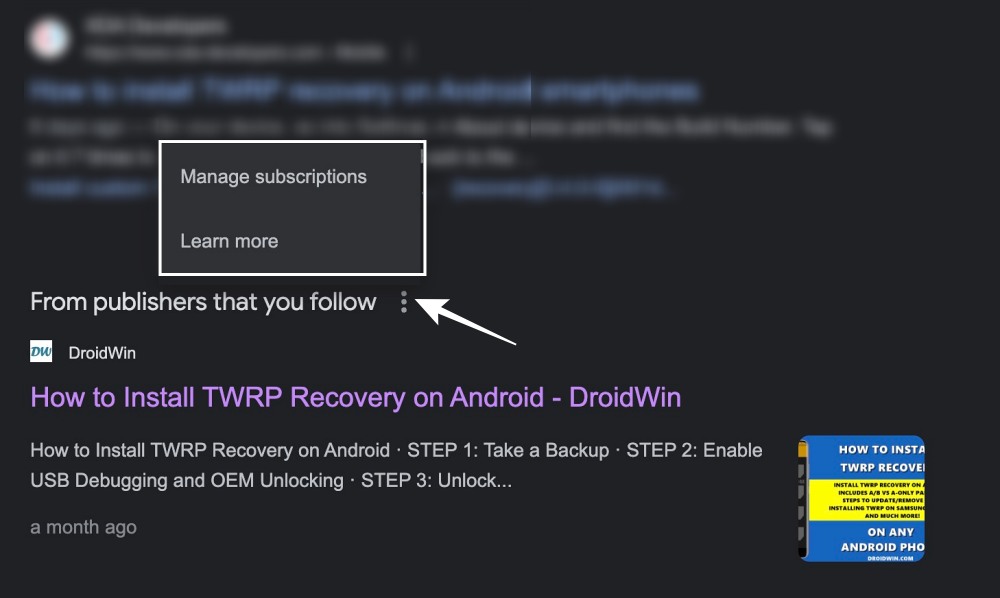
Well, it couldn’t be by design but rather it’s just a break in the UI/UX, but who knows? Anyways, coming back to the topic of discussion, let’s now make you aware of the steps to actually bid adieu to this section for good.
- How to Remove ‘From Publishers You Follow’ in Google Search Remove Individual Source Browse in Incognito Mode
How to Remove ‘From Publishers You Follow’ in Google Search
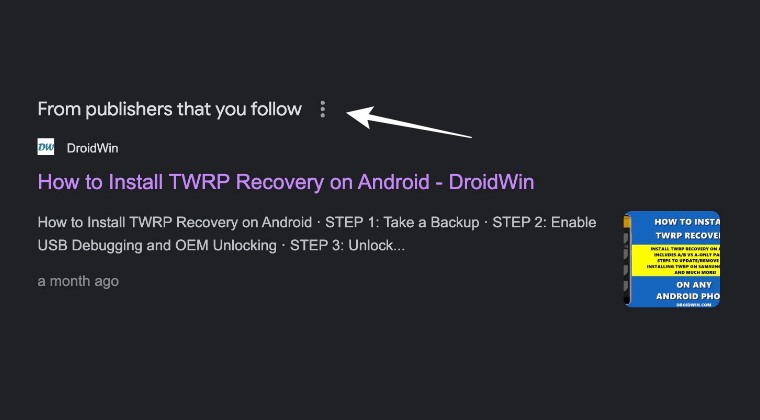
There exist two different methods that will help you get this job done. Both have their fair share of issues and perks. So go through them once and then try out the one that is in sync with your requirements.
Remove Individual Source
As is evident from its name, this tweak will take a considerable amount of time. However, at the time of writing, there isn’t a single switch that will disable all the sources at once [more on that in the second fix]. So you could opt for this method because the changes will remain synced with your Google account across all the linked devices.
- To begin with, head over to the Google News website
- Then go to the Following tab and scroll to Sources.
- Now click on the overflow icon next to the source that you want to remove.
- Finally, select Remove from Library. Do so for all the other sources.
Browse in Incognito Mode
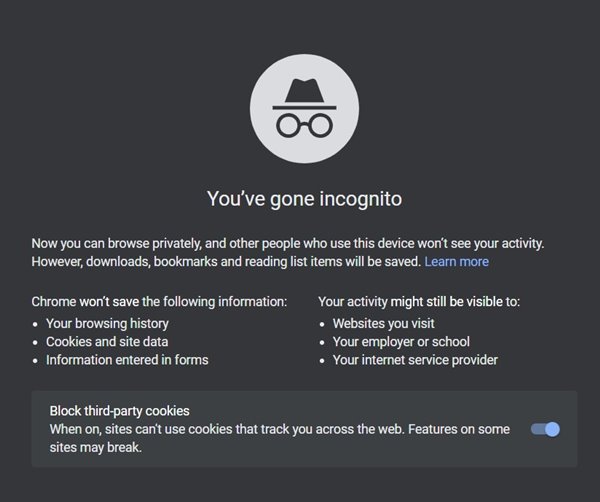
As of now, this change is being slowly rolled out and hasn’t been received by every Google account. So you may either switch over to a different Google account and check if has been impacted by this change or not or browse in a private mode. Unfortunately, your search results won’t be synced across all your linked devices when you browse in Incognito Mode.
- Wikipedia not appearing in Google search results [Fix]
- Fix Cannot Call via Google Search Result
- Fix Cannot Open Apps from Google Search Bar on Android
- Google Search results changes to two-column layout and is ruined!

(Cancel Reply)
Δ
