How to Remove List All Tabs Button from Firefox
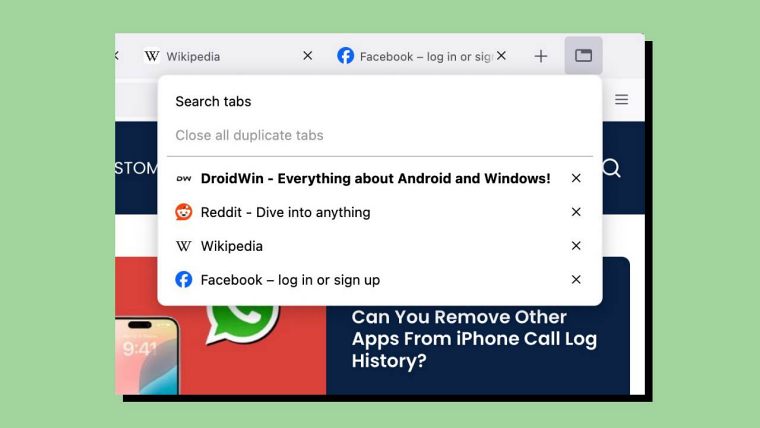
In this guide, we will show you the steps to remove the List All Tabs Button from Firefox. When it comes to privacy-enriched browsers, then the offering from Mozilla usually occupies the top-most position in the pecking order. However, from time to time, it ends up making some questionable decisions that are not only non-sensical but tend to ruin the entire usage experience as well. The latest one in this regard is the addition of the List All Tabs button in Firefox.
- What is List All Tabs
- Why Firefox Doesn’t Allow Removal of “List All Tabs”
- How to Remove List All Tabs Button from Firefox METHOD 1: Via about:config Page METHOD 2: Via CSS
What is List All Tabs
As is evident by its name, the List All Tabs feature brings up a list of all the currently opened tabs. However, this takes up considerable space in the Tabs bar and only ends up cluttering it even further. To make matters worse, Mozilla hasn’t given any option to remove this feature as well. So this forceful implementation of functionality without giving the users any degree of granular control is the worst UI/UX experience a company could offer.

Why Firefox Doesn’t Allow Removal of “List All Tabs”
Well, here’s the response from one of the Firefox developers:
From my perspective, the main thing stopping us from allowing users to remove the button is that it contains the hidden tabs sub menu, which is sort of a stop-gap solution for add-ons hiding tabs that could be malicious or that don’t provide a good UI for re-showing tabs. It’s a safeguard for a theoretical concern, that in practice shouldn’t get much usage (which is often part of the nature of a safeguard). Note that disabling/uninstalling such add-ons re-shows hidden tabs too. I wouldn’t be opposed to allowing users to remove the button if add-ons and Product folks think the risk is acceptable.
How to Remove List All Tabs Button from Firefox

Even though Firefox doesn’t natively allow the removal of List All Tabs, a couple of nifty workarounds exist that will help you get this job done. Go through both these methods once and then try out the one that is in sync with your requirements.
METHOD 1: Via about:config Page
UPDATE: This method no longer works beginning with version 108
- Open Firefox and head over to the below location: about:config
- Click “Accept the Risk and Continue” and hit “Show All”.
- Hit Ctrl+F and search the below flag: browser.tabs.tabmanager.enabled
- Now change its state from True to False
- Finally, restart the browser and check out the results.
METHOD 2: Via CSS
- Click on the hamburger menu and select Help.
- Then Select More troubleshooting information.
- Now go to Profile Folder and click Open Folder .
- Then create a new folder and name it chrome.
- Inside that, create a new text file called userChrome.css.
- Make sure to save the file as CSS and not TXT.
- Now open the file in Notepad and type in: #alltabs-button { display: none !important; }
- Now save the file. Then launch Firefox and go to: about:config
- Bring up Find via Ctrl+F and search: toolkit.legacyUserProfileCustomizations.stylesheets
- Change its value to True and restart the browser.
- YouTube start video with 5 second delay with ad blocker on Firefox
- Cannot Access about:config in Firefox Android [Fixed]
- Pixel 8/Pro Visual Glitch on Firefox: How to Fix
- Firefox YouTube Videos Darker with Higher Contrast: How to Fix

- Anton 1 year ago Reply Thank you, I absolutely hate the fact that I have to have some buttons I that don’t even need
- Stefano 1 year ago Reply Thank you for this. While method 1 did not work for me (no such option in about:config) method 2 was successful Sadique Hassan 1 year ago Reply Glad that it worked out for you…
(Cancel Reply)
Δ
