How to Remove Orange State Warning on OnePlus
In this guide, we will show you various methods to remove the Orange State Warning on your OnePlus device. Beginning with OxygenOS 13, if your device’s bootloader is unlocked and it is rooted via Magisk, then you will get a warning message every time your device boots up. While it wouldn’t lead to any issues as such but it would surely lead to a delay in the normal boot-up process.
Moreover, no one likes a warning prompt on their device before it boots to the OS. While both the Orange and Red State Warnings are nothing new and have been present on MediaTek devices for ages, however, it is the first time that we are witnessing this on OnePlus phones. So we performed a few tests on the OnePlus 9 Pro and found that this warning wasn’t present in the last Android 12 firmware [F11] and only came into existence after the first Android 13 update [F16].
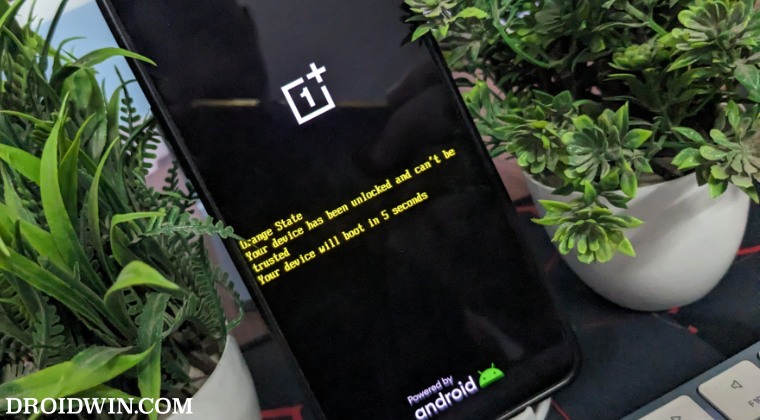
So to rectify it, we flashed the F11 firmware’s abl.img file [that houses the bootloader information] onto the latest F16 firmware [at the time of writing, for OnePlus 9 series] along with a few tweaks and the warning message disappeared. Making use of the same tweak, this guide will show you the steps to remove the Orange State Warning message on your OnePlus device. Follow along.
- How to Remove Orange State Warning on OnePlus METHOD 1: By Flashing Firmware METHOD 2: Using Firmware ABL file METHOD 3: Via Commands METHOD 4: Using Magisk METHOD 5: Using Hex Editor
How to Remove Orange State Warning on OnePlus

Droidwin and its members wouldn’t be held responsible in case of a thermonuclear war, your alarm doesn’t wake you up, or if anything happens to your device and data by performing the below steps.
METHOD 1: By Flashing Firmware

The easiest and most recommended method is to simply flash the firmware. The firmware comes built-in with the modified abl.img file, and upon flashing it, the Orange State will be removed from your device. So, refer to our detailed guide on How to Flash OxygenOS Firmware on any OnePlus [Video] [refer to the second method given in that guide] and get this job done right away.
METHOD 2: Using Firmware ABL file
- To begin with, make sure that your device is rooted via Magisk.
- Then download the F11 firmware and extract its payload.bin.
- Now copy the abl.img from the extracted firmware and send it to your device [not inside any folder].
- Then enable USB Debugging and connect your device to your PC via a USB cable.
- Now download and extract Android SDK Platform Tools on your PC.
- Then type in CMD in the platform-tools folder address bar and hit Enter.
- This will launch Command Prompt. Type in the below command to open the shell environment adb shell
- After that, type in the below command to get hold of your current slot: getprop ro.boot.slot_suffix
- If it is A, then execute the following commands [you will get a Magisk prompt after executing the su command, make sure to tap Grant]: su dd if=/dev/block/by-name/abl_a of=/sdcard/abl.img.bak blockdev –setrw /dev/block/by-name/abl_a dd if=/sdcard/abl.img of=/dev/block/by-name/abl_a
- On the other hand, if your active slot is B, then execute the below commands [you will get a Magisk prompt after executing the su command, make sure to tap Grant]: su dd if=/dev/block/by-name/abl_b of=/sdcard/abl.img.bak blockdev –setrw /dev/block/by-name/abl_b dd if=/sdcard/abl.img of=/dev/block/by-name/abl_b
- You may now reboot your device to the OS and it will boot without any warning!
METHOD 3: Via Commands
- Download the OnePlus 9 Pro Android 12 Firmware version F11.
- Then extract its payload.bin and get hold of the abl.img file.
- Now transfer this file to your device’s Internet Storage [not inside any folder].
- Then enable USB Debugging and connect your device to your PC via a USB cable.
- Now download and extract Android SDK Platform Tools on your PC.
- Then type in CMD in the platform-tools folder address bar and hit Enter.
- This will launch Command Prompt, Execute the below command to open the root shell su
- You will now get a Magisk prompt on your device, tap on Allow/Grant.
- NOTE: In the below command [STEP 10], in our case, the abl partition was sde13, make sure to check yours using the below command and then make the changes to that command accordingly: adb shell cd /dev/block/platform ls -la /dev/block/bootdevice/by-name
- After that, type in the below command to make the partition re-writeable: blockdev –setrw /dev/block/sde13
- Finally, execute the below command to flash the F11 version abl.img dd if=/sdcard/abl.img of=/dev/block/sde13
- You may now reboot your device to the OS and it will boot without any warning!
METHOD 4: Using Magisk
- Download the OnePlus 9 Pro Android 12 Firmware version F11.
- Then extract its payload.bin and get hold of the abl.img file.
- Now download the OnePlus 9 Pro Android 13 Firmware version F16.
- Then extract its payload.bin and get the boot.img file.
- Transfer both abl.img and boot.img to your device’s Internet Storage [not inside any folder].
- Now launch Magisk and tap on Install > Select and Patch a file.
- Then choose the boot.img and it will be patched.
- Once done, tap on Uninstall Magisk > Restore Images.
- Then enable USB Debugging and connect your device to your PC via a USB cable.
- Now download and extract Android SDK Platform Tools on your PC.
- Then type in CMD in the platform-tools folder address bar and hit Enter.
- This will launch Command Prompt. Execute the below command to get your current active slot: getprop ro.boot.slot_suffix
- Then execute the below command to open the root shell su
- You will now get a Magisk prompt on your device, tap on Allow/Grant.
- After that, type in the below command to make the partition re-writeable: blockdev –setrw /dev/block/sde13
- Then execute the below command to flash the F11 version abl.img dd if=/sdcard/abl.img of=/dev/block/sde13
- After that, execute one of the below commands to flash the F16 boot.img to the inactive slot [if you got value ‘a’ in STEP 12, then flash the patched boot.img to Slot B and vice versa]: fastboot flash boot_a magisk_patched_boot.img fastboot flash boot_b magisk_patched_boot.img
- You may now reboot your device to the OS and it will boot without any warning!
METHOD 5: Using Hex Editor
- To begin with, download a Hex Editor software on your PC.
- Then download the firmware that is currently installed on your device.
- Now extract its payload.bin and get hold of the abl.img file.
- After that, drag and drop the abl.img to the Hex Editor to open it.
- Now search 0007A2C0 offset value and then delete the following value [see image]: 00 4F 72 61 6E 67 65 20 53 74 61 74 65
- The above value corresponds to the Orange State keyword. So delete it and then hit the Ctrl+S to save it.
- Then enable USB Debugging and connect your device to your PC via a USB cable.
- Now download and extract Android SDK Platform Tools on your PC.
- Then type in CMD in the paltform-tools folder address bar and hit Enter.
- This will launch Command Prompt, Execute the below command to open the root shell su
- You will now get a Magisk prompt on your device, tap on Allow/Grant.
- Then transfer the abl.img file to the platform tools folder on your PC.
- After that, type in the below command to make the partition re-writeable: blockdev –setrw /dev/block/sde13
- Finally, execute the below command to flash the modified abl.img dd if=/sdcard/abl.img of=/dev/block/sde13
- You may now reboot your device to the OS and it will boot without any warning!
- OnePlus Bluetooth not working after Android 13 update [Fix]
- OnePlus Health App not working on Android 13 [Fixed]
- Downgrade OnePlus 9/Pro/9R from Android 13 to Android 12
- Downgrade OnePlus 10 Pro from Android 13 to Android 12

- thedhamibro 9 months ago Reply Will this work on oneplus 8?
- Lukasz 2 years ago Reply It good to first extract abl.img If you put abl.img straight to hex editor it will be not show it a lots of weird hash signs etc Need extrac img first
- Ankit 2 years ago Reply after right this cmd fone goes to bootloopdd if=/sdcard/abl.img of=/dev/block/sde13
- Unknown 2 years ago Reply I tried it on one plus 11 android 14.0.0.201. Got hard bricked.. Don’t try it. No good.
- Jame 2 years ago Reply Hi everyone I have realme gt2 master explorer android 12. I’ve tried to mod abl.img but didn’t find the word Orange state. Please help. thank you
- Jose 3 years ago Reply Tengo un mensaje en el arranque Orange State ..Funciona para oneplus 10T ?? Ayudame
- Shadab Kiani 3 years ago Reply Hi. I’m on OnePlus 9. I’m running OOS 13 (F.20 update) with Magisk root. I have the orange state warning. I tried you Hex editor method, but cannot find Orange State. 00 4F 72 61 6E 67 65 20 53 74 61 74 65 is not to be found. The line 0007A2C0 offset is already nulled, yet I get Orange State message at boot. Have they changed the mechanism?
- Daniel 3 years ago Reply Method 2 “without Magisk” Step 8 You will now get a Magisk prompt… Lukasz 2 years ago Reply Lol you need findd “Orange state “keyworld and delete “Your device has been unlocked and cant be trusted” find keyworld and delete “Your device will be boot in 5 seconds” find keyworld and delete And now it is ready to save like CTRL+S OR save . Next reboot to fastbootd and fastboot flash abl abl.img Fastboot reboot and ready finito , or boot in bootloader “Fastboot flash –slot all abl abl.img ” If not just “Fastboot flash abl abl.img ” and “Fastboot flash –slot other abl abl.img ” After this fastboot reboot And gone😉
- Oleg 3 years ago Reply On Oneplas 10 pro ColorOS/C.26 failed to do.
- Silverfox 3 years ago Reply Hi, first sorry for my bad english maybe. This Workaround doesn’t work on my Oneplus 8 EU Version – i tried all steps in this post. Unless the hex editor one doesn’t work bc in the OnePlus 8 abl.img this “orange state” section was not existing (not in the last android 12 version and not in the android 13 version). Any other solutions avaiable ? thx alot in advance
(Cancel Reply)
Δ
