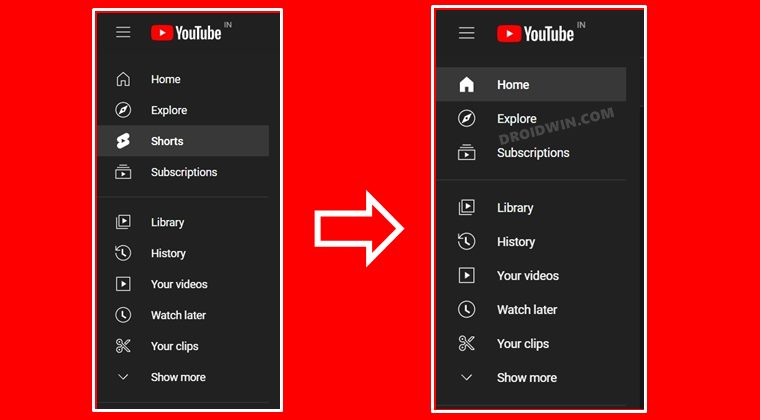
How to Remove Shorts from YouTube Website
[Updated with three new methods!]In this guide, we will show you the steps to remove the Shorts as well as the Shorts section from the YouTube website. While it boils down to personal preference, I have never been a fan of those 10-20 short video clips. To be fair, Vine was the first and last platform that nailed it brilliantly, everything from there on went completely downwards. Be it TikTok, Instagram Reels, or Facebook Stories, each of them played a major role in degrading their parent company.
However, they are and will forever be a major source of revenue for the company as well as the “content creators”. This is the reason why you will see these short clips being more aggressively pushed to your feed while others are slowly pushed into oblivion. And more often than not, we don’t have any say in that. Fortunately, that isn’t the case with YouTube as you could easily remove the Shorts section from its website. So without further ado, let’s check out how this blissful task could be carried out.
- How to Remove Shorts Section from YouTube Website
- How to Bring Back the Shorts Section on YouTube
- FAQ: How to Change the Shorts Layout to YouTube Video Layout
- [NEW] How to Completely Remove Shorts from YouTube [3 Methods] Prerequisite: Install uBlock Extension Using Short Script Using Long Script By Blocking the Element
How to Remove Shorts Section from YouTube Website
- Head over to the Chrome Web Store, search UBlock Origin [ direct link ] and click on Add to Chrome.
- Then click on Add Extension in the confirmation dialog box that appears. The extension will now be installed.
- Once done, click on its icon present right of the address bar and click on the Settings icon.
- Now go to the My Filters tab and type in the following command in the first line: youtube.com##+js(json-prune, items.0.guideSectionRenderer.items.2.guideEntryRenderer)
- Finally, click on the Apply Changes button. That’s it. The Shorts section has now been removed from the YouTube website.
Do you know the best part? It survives the page reloads as well. Not only that, even the browser reload or your PC reboot will have no effect on this trick whatsoever. But what if there’s a change in plan and you wish to recall the Shorts section? We have got you covered for that as well. Follow along.
How to Bring Back the Shorts Section on YouTube
If you are ready to roll down the red carpet for Shorts, then there are quite a few approaches that you could take.
- First off, simply remove the UBlock Origin extension from your browser.
- To do so, copy-paste the below location in the address bar and hit Enter: chrome://extensions
- Then click on the Remove button next to UBlock Origin.
The second approach that you could take is to keep that extension and just remove the Filter that you had created.
- To do so, click on the UBlock Origin extension icon present right of the address bar.
- Then click on Settings and go to the My Filters tab.
- Select it and hit the Delete or Backspace key to remove that filter command.
- Finally, hit the Apply Changes button. That’s it.
As you might have noticed, the Shores layout is mediocre at the very best. A tall aspect ratio in the middle with black borders to its left and rights isn’t something to be a fan of. So could we change the layout of these shorts to the one that a YouTube video has? Well, turns out you could do so pretty easily, without the need for an extension. All you need to do is change the shorts keyword in the URL to watch.
- For example, if the Shorts URL is https://www.youtube.com/ shorts /if7XBzsdxoM
- Then replace the shorts keyword with watch: https://www.youtube.com/ watch /if7XBzsdxoM
- You will now get the Shorts layout similar to that of a YouTube video.
The only caveat is that you will have to carry out this URL tweak every time you open YouTube. To make it permanent, you could try out this automation script.
[NEW] How to Completely Remove Shorts from YouTube [3 Methods]

In this guide, we will show you three different methods to completely remove Shorts from YouTube. While these short video clips are a boon for content creators, the same cannot be said for the viewers. For some, Short is the sole reason why the word ‘cringe’ came into existence! While it may be a tad bit harsh, but still there’s some truth to it. Moreover, most of these clips don’t add any valuable information, but they sure tend to disrupt the entire viewing experience.
And with TikTok facing a ban in the USA and Instagram’s decision to no longer monetize Reels, we might see a massive influx of users making their way over to this video streaming site, so the condition is only about to get worse in the coming months. So before it gets out of control, let’s put an end to this fiasco right away. On that note, let’s make you aware of numerous methods to completely remove Shorts from YouTube.
Prerequisite: Install uBlock Extension
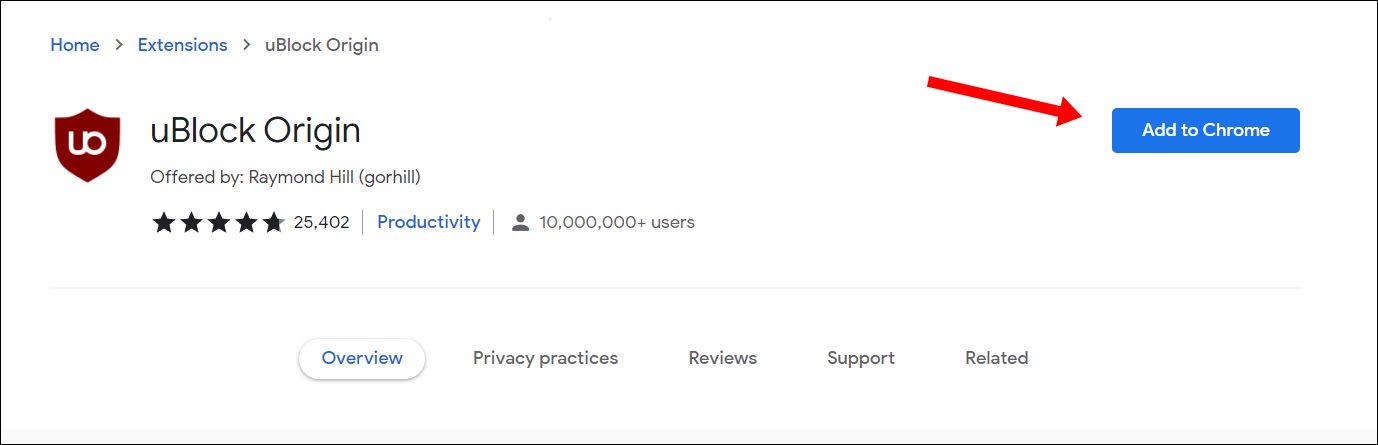
Before you carry out any of these three methods, you will first have to install the uBlock Origin extension. This will provide us with a platform to execute the desired scripts. So download and install it from the Chrome Extension Store right away. Once done, you may then start off with the below methods:
Using Short Script
- Click on the uBlock Origin icon and then click on Settings.
- Then copy-paste this single line of script and hit Apply Changes. www.youtube.com###content > .ytd-rich-section-renderer.style-scope
- Now refresh YouTube and the Shorts will be completely removed.
Using Long Script
- Click on the uBlock Origin icon and then click on Settings.
- Then copy-paste this single line of script and hit Apply Changes. ! Youtube shorts www.youtube.com###guide-content #endpoint[title=“Shorts”]:upward(ytd-guide-entry-renderer) www.youtube.com###items #endpoint[title=“Shorts”]:upward(ytd-mini-guide-entry-renderer) www.youtube.com##ytd-browse ytd-grid-video-renderer:has(span.ytd-thumbnail-overlay-time-status-renderer[aria-label=“Shorts”]) www.youtube.com##ytd-browse ytd-rich-item-renderer:has(span.ytd-thumbnail-overlay-time-status-renderer[aria-label=“Shorts”]) www.youtube.com##ytd-search ytd-video-renderer:has(span.ytd-thumbnail-overlay-time-status-renderer[aria-label=“Shorts”]) www.youtube.com##ytd-watch-next-secondary-results-renderer ytd-compact-video-renderer:has(span.ytd-thumbnail-overlay-time-status-renderer[aria-label=“Shorts”]) www.youtube.com##ytd-rich-section-renderer:has(div ytd-rich-shelf-renderer[is-shorts])
- Now refresh YouTube and the Shorts will be completely removed.
By Blocking the Element
- Right-click anywhere on the Shorts section and select Block Element.
- Then highlight the entire Shorts section and click Create in the bottom right menu.
- Finally, refresh the YouTube website and all the Shorts will be removed.
How to Remove Shorts from YouTube Website
YouTube fix: For now, you can’t change the thumbnail on your Short
YouTube missing 240p & 480p video quality options
Bring Back YouTube Old UI: Send Comments/Description to the Bottom
How to Uninstall YouTube App from Android via ADB Command
How to Bring Back YouTube Dislike Counter in Android
YouTube Music Not Loading Songs on Sprint/T-Mobile [Fixed]
YouTube Android app crashing with Chromecast: How to Fix

(Cancel Reply)
Δ
YouTube Music Not Loading Songs on Sprint/T-Mobile [Fixed]
In this guide, we will show you the steps to fix the issue of YouTube Music not loading songs on Android devices having Sprint/T-Mobile as the carrier. Google Play Music has for long been the go-to choice for Android users and was usually their default music player. However, similar to countless other Google products, it was also sent to Google’s Graveyard. To fill this position, the SiliconValley giants introduced the YouTube Music app which, to be fair, hasn’t yet reached the same level as its predecessor in some aspects.
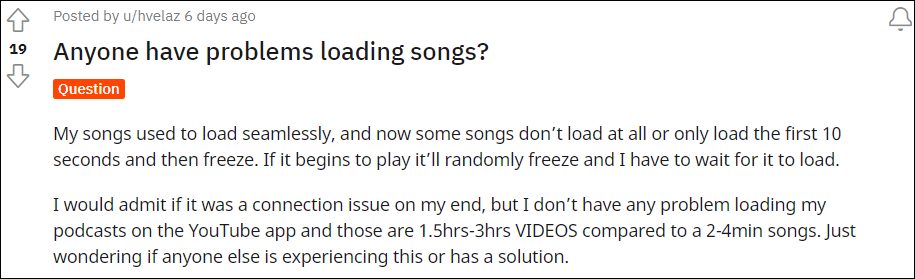
Moreover, it also gets bugged with an issue or two at regular intervals. As of now, various users have voiced their concern that YouTube Music isn’t able to load songs, rather it gets stuck at the buffering period. For others, the song load for the initial 10 seconds, and then it gets frozen. Going through all the reports, the issue seems to be only present while users were on their carrier data, there wasn’t an issue as such on WiFi. So one thing was pretty clear- the carrier network was conflicting with this app.
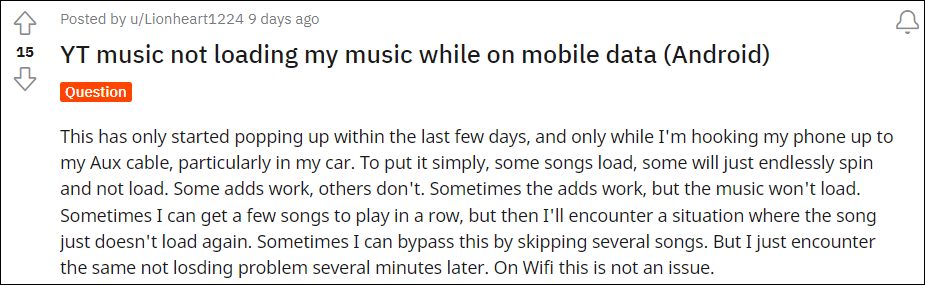
Digging deep into this issue, and is mostly happening with Sprint/T-Mobile users, and only on Android devices. Going even further, I found out that the issue is only present in the Chicago area. Joining all these dots, I found out that the issue stems from the way the APN profile has been configured. So making a few tweaks to the APN should be able to fix the issue of YouTube Music Not Loading Songs on Sprint/T-Mobile. And in this guide, we will show you how to do just that. Follow along.
YouTube Music Not Loading Songs on Sprint/T-Mobile
In order to rectify this issue, you will have to change the default APN Protocol to IPv4, from the current IPv6 or IPv4/IPv6. Here’s how it could be done:
- To begin with, head over to Settings > WiFi & Network.
- Then go to SIM & Network and select your Active SIM.
- After that, go to Access Point Names and select the default APN.
- Now scroll to the APN Protocol section and select IPv4. That’s it.
This should fix the issue of YouTube Music not loading songs on Sprint/T-Mobile. It’s still not clear as to why the app is having trouble establishing a successful connection with IPv6. Moroever, as far as the official stance on this matter is concerned, the developers are yet to acknowledge this issue, let alone give out any ETA for the rollout of a fix. As and when any of these two things happen, we will update this guide accordingly. In the meantime, the aforementioned workaround of choosing IPv4 as the APN Protocol is your best bet.
- How to Fix Cannot Turn Off Restricted Mode in YouTube
- YouTube Music App Not Working/Crashing/Freezing [Fixed]
- Fix YouTube Music Shuffle not shuffling all songs/entire playlist
- YouTube video links/URL redirecting to Your browser is up to date [Fixed]
(Cancel Reply)
Δ
