How to Remove the iCloud Drive Sync Error symbol
In this guide, we will show you a couple of methods to remove the iCloud Drive Sync Error symbol. This cloud service from the Cupertino giant allows users to store and sync data across numerous devices, apps, and services. This allows you to access that data from any of your synced devices that are logged in with the same Apple ID. However, as of late, some users are reportedly having an issue or two with this service.

They have voiced their concern that they are constantly witnessing a Sync Error symbol next to their iCloud Drive. As far as the symbol is concerned, it is an exclamation mark within two circular arrows. If you are also facing a similar issue, then this guide will make you aware of two nifty workarounds to rectify this problem. Follow along.
- How to Remove the iCloud Drive Sync Error symbol FIX 1: Toggle iCloud Drive Sync FIX 2: Re-Sign into iCloud Drive
How to Remove the iCloud Drive Sync Error symbol
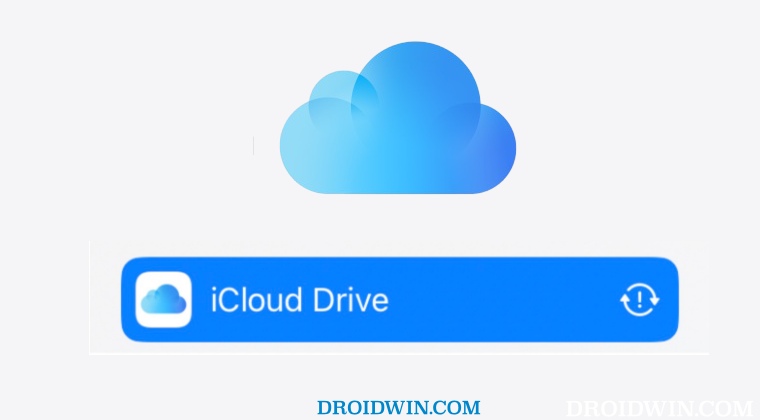
It is recommended that you try out each of the below-mentioned workarounds and then see which one spells out success for you. So with that in mind, let’s get started.
FIX 1: Toggle iCloud Drive Sync
Your first course of action should be to disable and then re-enable the iCloud Drive sync. Here’s how it could be done:
- Head over to Settings > Apple ID > iCloud > iCloud Drive
- Then confirm the deactivation sync of iCloud Drive.
- Now wait for a few seconds and then reactivate the sync.
- Verify if it removes the iCloud Drive Sync Error symbol.
FIX 2: Re-Sign into iCloud Drive
Next up, you should consider signing out of your iCloud Drive and then resign back in. This will refresh your account settings and could well rectify the issue that we are currently dealing with.
- Head over to Settings > username > tap on Sign Out.
- Then enter your Apple ID password and tap Turn Off.
- Once done, go to Settings > Sign in to your [device].
- Finally, enter your Apple ID and password to sign in.
- Apple iCloud Notes not syncing with iPhone/iPad: How to Fix
- WhatsApp Backup not working on iOS 16.2: How to Fix
- Notes App unable to load attachments in iOS 16: How to Fix
- Screen Time not working on iOS 16.2: How to Fix

(Cancel Reply)
Δ
