How to Reset Screenshot Number in Windows 11
In this guide, we will show you the steps to reset the screenshot number on your Windows 11 PC. The OS from the Redmond giant beholds a plethora of methods through which you could take a screenshot. Among them, I usually prefer the Windows+Print Screen shortcut keys. However, there is a rather infuriating implementation of the naming scheme of these images. For the unaware, the screenshots are saved as Screenshot (#).png where # is a number.
For instance, you have taken three screenshots, so the files will be saved as Screenshot (1).png, Screenshot (2).png, and Screenshot (3).png. Now suppose you delete Screenshot (3).png and then take another screenshot, so it should be saved as Screenshot (3).png. But instead of that, it will be saved as Screenshot (4).png [as could be seen in the below image]. Hence in order to maintain uniformity, I’ll have to manually rename it.
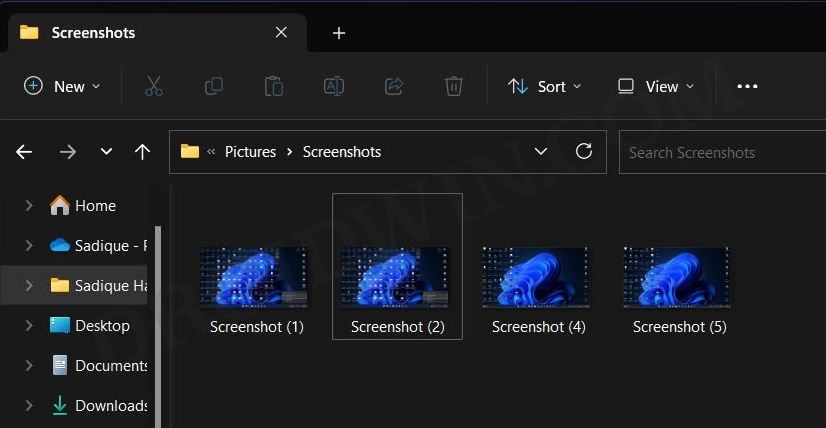
While it might not sound like much of an effort when dealing with an image or two but when handling multiple images throughout the day, this weird UX definitely gets onto the nerves of many users. And that is completely understandable. So in this guide, we will show you the steps to reset the screenshot number on your Windows 11 PC [so that the next screenshot that we take take would actually get named as Screenshot (3).png].
How to Reset Screenshot Number in Windows 11

- Use Windows+R to open Run. Then type in regedit and hit Enter.
- Now copy-paste the below location in the Registry Editor address bar: HKEY_CURRENT_USER\Software\Microsoft\Windows\CurrentVersion\Explorer
- Then go to the right-hand side and open the ScreenshotIndex file.
- By default, its Value Data will be set to the next higher index: For instance, if last file in the Screenshots folder is named Screenshot (5).png, then the index will be 6.
- You just need to change the Value Data to 1 and hit OK to save it.
- This will reset the screenshot number on your Windows 11 PC.
- How to Enable Home Page in Settings Menu on Windows 11
- How to Enable End Task App in Windows 11 Taskbar
- Enable/Disable Local Security Authority Protection in Windows 11
- How to Create Shortcuts of Settings menu items in Windows 11

(Cancel Reply)
Δ
