How to Restart Start Menu in Windows 11 [4 Methods]
However, it seems that so many changes are proving to be a burden for the menu, Various users have voiced their concern that the Start Menu is slow to open, is hanging or freezing, or not working altogether. If you are also getting bugged with any of these issues, then a restart should be enough to resolve the underlying issues. And in this guide, we will show you four different methods through which you could restart the Start Menu on your Windows 11 PC. Follow along.
- How to Restart Start Menu in Windows 11 Via Task Manager Via Command Prompt Via PowerShell Via Context Menu
How to Restart Start Menu in Windows 11
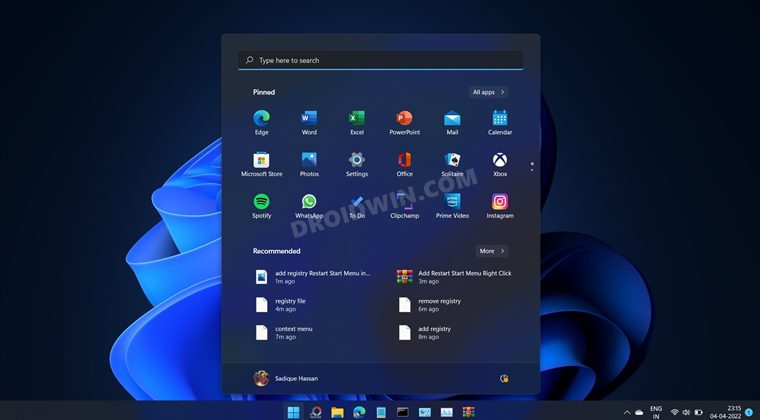
We have listed four different methods through which you could carry out the said job. Go through each of them and then try out the one which is in sync with your requirement.
Via Task Manager
- Bring up the Task Manager via Ctrl+Shift+Esc shortcut keys.
- Then scroll to the Background Process section and select Start.
- Now hit the End Task button situated at the bottom right. OR
- Go to the Details tab and select StartMenuExperienceHost.exe.
- Then click on the End Task button situated at the bottom right.
- Then click on End Process in the confirmation dialog box.
- After that, bring up the Run dialog box via the Windows+R shortcut.
- Then execute the below command to restart the Start Menu in Windows 11: C:\Windows\SystemApps\Microsoft.Windows.StartMenuExperienceHost_cw5n1h2txyewy\StartMenuExperienceHost.exe
Via Command Prompt
- Head over to the Start Menu, search CMD, and launch it as an administrator.
- Then execute the below command to restart the Start Menu process: taskkill /im StartMenuExperienceHost.exe /f
- If that doesn’t work, then use the below command: start C:\Windows\SystemApps\Microsoft.Windows.StartMenuExperienceHost_cw5n1h2txyewy\StartMenuExperienceHost.exe
- That’s it. This will restart the Start menu on your Windows 11 PC.
Via PowerShell
- Head over to the Start Menu, search PowerShell, and launch it as an administrator.
- Then execute the below command to restart the Start menu process: Stop-Process -Name “StartMenuExperienceHost” -Force
- You may also execute the below command to restart Start Menu in Windows 11: Start-Process -FilePath “C:\Windows\SystemApps\Microsoft.Windows.StartMenuExperienceHost_cw5n1h2txyewy\StartMenuExperienceHost.exe”
Via Context Menu
You could also add the Restart Start Menu option to the Windows 11 right-click menu using the Registry Editor. Before trying it out, please take a backup of your registry .
- To begin with, download this Registry pack and extract it to any convenient location on your PC.
- Then double-click on Add Restart Start Menu Right Click.reg followed by YES in the confirmation dialog box.
- Now right-click in an empty location, select Show More followed by Restart Start Menu. That’s it.
- To remove it from the context menu, launch the Remove Restart Start Menu Right Click.reg and click YES.
- Windows 11 Start Menu Not Working: How to Fix [10+ Methods]
- How to Enable Windows 11 Context Menu in Google Chrome
- How to Add Image Preview Option in Windows 11 Context Menu
- Windows 11 Right Click: How to Get Windows 10 Context Menu

(Cancel Reply)
Δ
