How to Root OnePlus Ace 2v/Nord 3 via Magisk
In this guide, we will show you the steps to root your OnePlus Ace 2V/Nord 3 via Magisk. When it comes to custom development, then OnePlus used to be among the most popular players in town. However, it is now just a shadow self of itself ever since it was taken over by Oppo. With that said, there’s still one tweak that the tech enthusiasts could carry out- the ability to gain administrative privileges and access to the system partition.
For that, all that you need to do is root your OnePlus Ace 2v/ Nord 3 via Magisk patched boot.img. Once you do so, you’ll then be able to welcome abode a plethora of mods and tweaks onto your device. So without any further ado, let’s make you aware of the installation steps.
- Benefits and Risks of Rooting
- How to Root OnePlus Ace 2v/ Nord 3 via Magisk STEP 1: Install Android SDK STEP 2: Enable USB Debugging and OEM Unlocking STEP 3: Unlock Bootloader on OnePlus Ace 2v/Nord 3 STEP 4: Download OnePlus Firmware STEP 5: Extract OnePlus Boot.img from Payload.bin STEP 6: Patch OnePlus Ace 2v/Nord 3 Boot.img via Magisk STEP 6: Boot OnePlus Ace 2v/Nord 3 Fastboot Mode STEP 7: Boot OnePlus Ace 2v/Nord 3 using Magisk patched Boot.img STEP 8: Permanent Root OnePlus Ace 2v/Nord 3 via Direct Install
- FAQ: Root OnePlus Ace 2v/Nord 3 by Flashing Boot.img
Benefits and Risks of Rooting
Once you root your device, you will be in a position to flash a plethora of mods. These include the likes of Magisk Modules , Xposed Framework , Substratum Themes , and Viper4Android among others. Along the same lines, you could also flash a custom kernel and implement your desired CPU profile. However, such tweaks do come with a few risks as well.
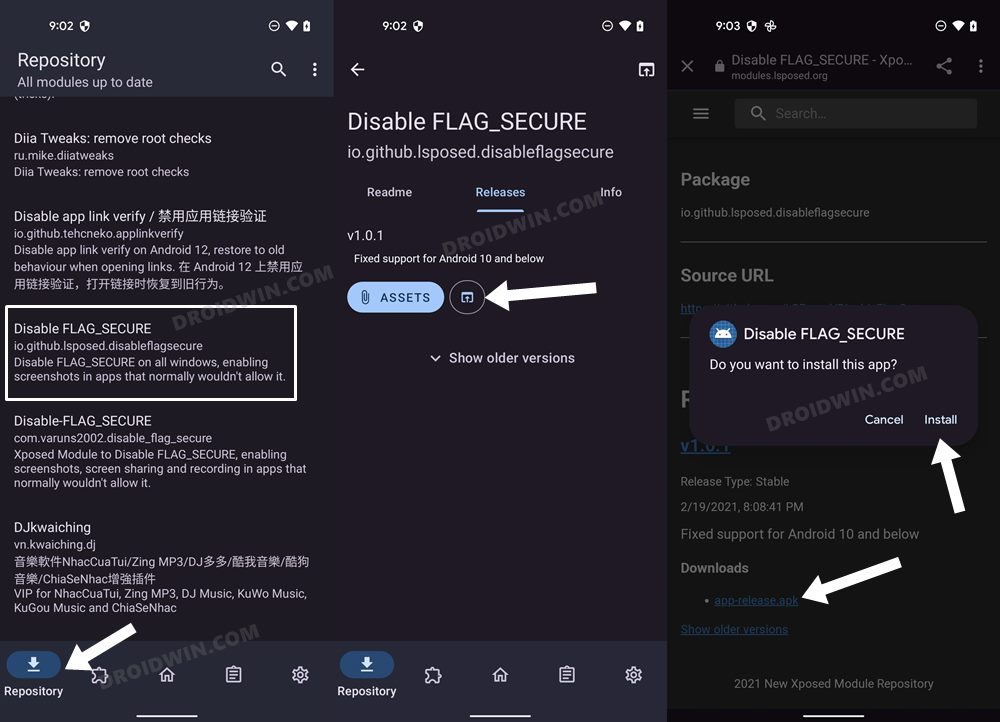
To begin with, it will wipe off all the data and could nullify the device’s warranty as well. Along the same lines, it will degrade the Widevine L1 certification to L3, thereby preventing you from streaming content in HD [ FIXED ]. The SafetyNet will be triggered [ FIXED ], thereby preventing you from using banking apps [ FIXED ]. So if that’s well and good then let’s get started with the steps.
How to Root OnePlus Ace 2v/ Nord 3 via Magisk
The below instructions are listed under separate sections for ease of understanding. Make sure to follow the same sequence as mentioned. Droidwin and its members wouldn’t be held responsible in case of a thermonuclear war, your alarm doesn’t wake you up, or if anything happens to your device and data by performing the below steps.
STEP 1: Install Android SDK

First and foremost, you will have to install the Android SDK Platform Tools on your PC. This is the official ADB and Fastboot binary provided by Google and is the only recommended one. So download it and then extract it to any convenient location on your PC. Doing so will give you the platform-tools folder, which will be used throughout this guide.
STEP 2: Enable USB Debugging and OEM Unlocking
Next up, you will also have to enable USB Debugging and OEM Unlocking on your device. The former will make your device recognizable by the PC in ADB mode. This will then allow you to boot your device to Fastboot Mode. On the other hand, OEM Unlocking is required to carry out the bootloader unlocking process.
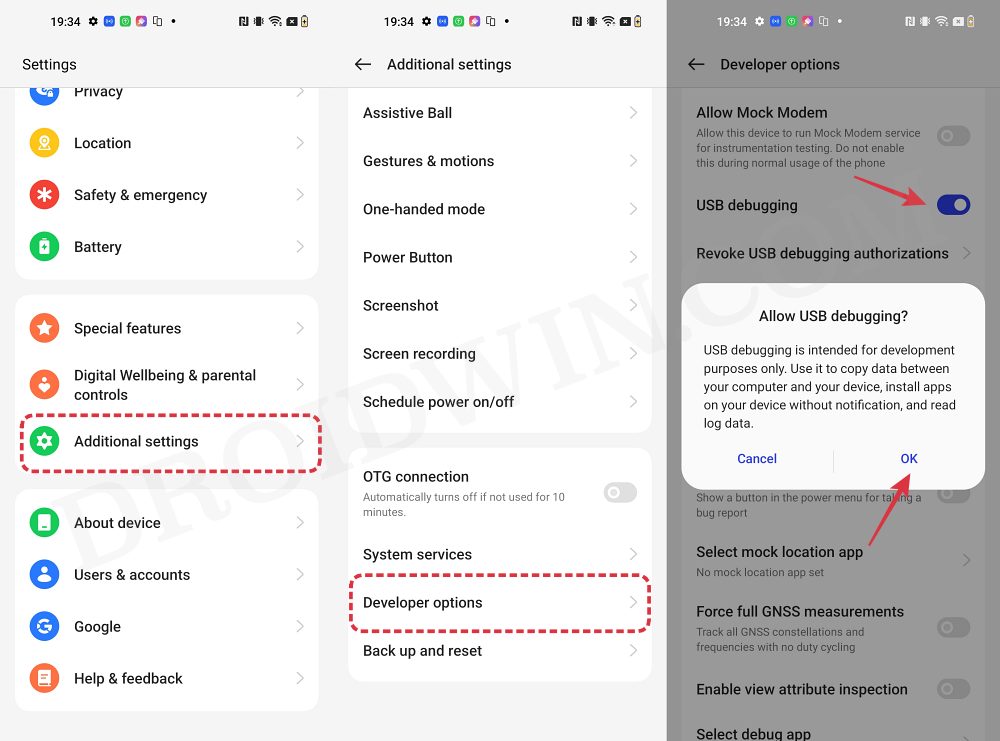
So head over to Settings > About Phone > Tap on Build Number 7 times > Go back to Settings > System > Advanced > Developer Options > Enable USB Debugging and OEM Unlocking.
STEP 3: Unlock Bootloader on OnePlus Ace 2v/Nord 3
Next up, you will also have to unlock the device’s bootloader. Do keep in mind that doing so will wipe off all the data from your device and could nullify its warranty as well. So if that’s all well and good, then please refer to our detailed guide on How to Unlock Bootloader on OnePlus.

STEP 4: Download OnePlus Firmware
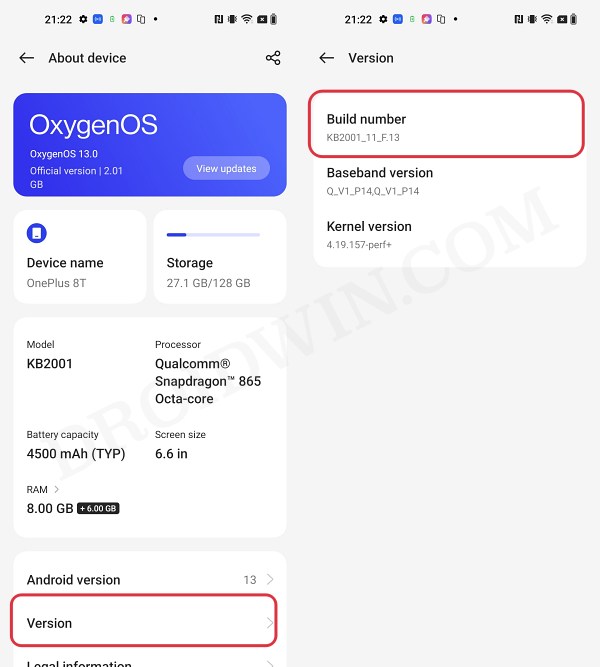
Next up, download the stock firmware for your device from the OnePlus official website or via the Oxygen Updater App. Make sure to download the same version which is currently installed on your device. You could verify the same from Settings > About Device > Version > Build Number.
STEP 5: Extract OnePlus Boot.img from Payload.bin
Once you have downloaded the firmware, extract it to any convenient location on your PC. Doing so shall give you a couple of files, including the payload.bin.
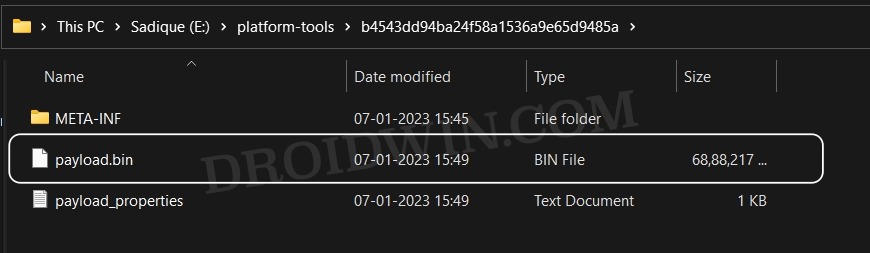
For the unaware, OnePlus packs all its partition IMG files inside this payload.bin file, so you will have to extract it first. For that, you may refer to our guide on How to Extract payload.bin and get the stock boot image file .
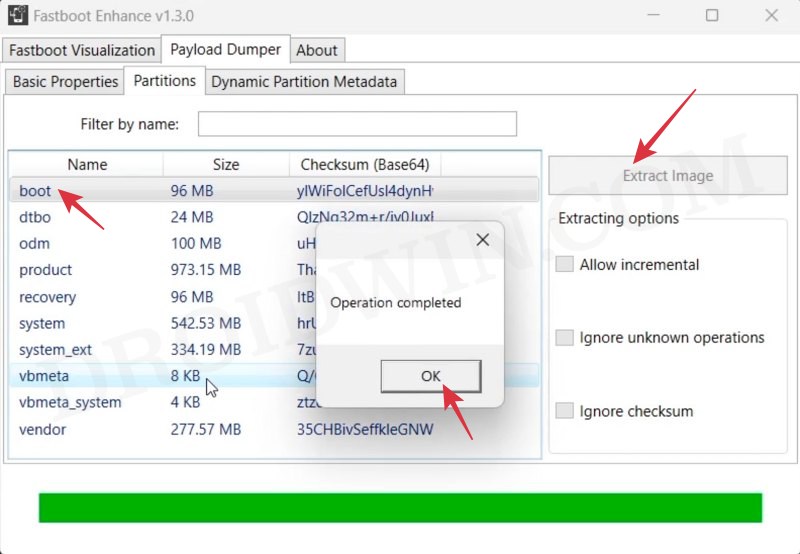
STEP 6: Patch OnePlus Ace 2v/Nord 3 Boot.img via Magisk
- Download and install the Magisk App on your device.
- Then launch it and tap on the Install button next to Magisk.
- After that, choose ‘Select and Patch a File’, and navigate to the stock boot.img file, and select it.
- Then tap on the Let’s Go button situated at the top right.
- The boot.img file will now be patched and placed under the Downloads folder on your device. You should transfer this file to the platform-tools folder on your PC. We will now be using this file to root your OnePlus Ace 2v/Nord 3.
STEP 6: Boot OnePlus Ace 2v/Nord 3 Fastboot Mode
- Now connect your device to the PC via USB cable. Make sure USB Debugging is enabled.
- Then head over to the platform-tools folder, type in CMD in the address bar, and hit Enter. This will launch the Command Prompt.
- Type in the following command in the CMD window to boot your device to Fastboot Mode adb reboot bootloader
- To verify the Fastboot connection, type in the below command and you should get back the device ID. fastboot devices
- If you are not getting any serial ID, then please install Fastbot Drivers on your PC.
STEP 7: Boot OnePlus Ace 2v/Nord 3 using Magisk patched Boot.img
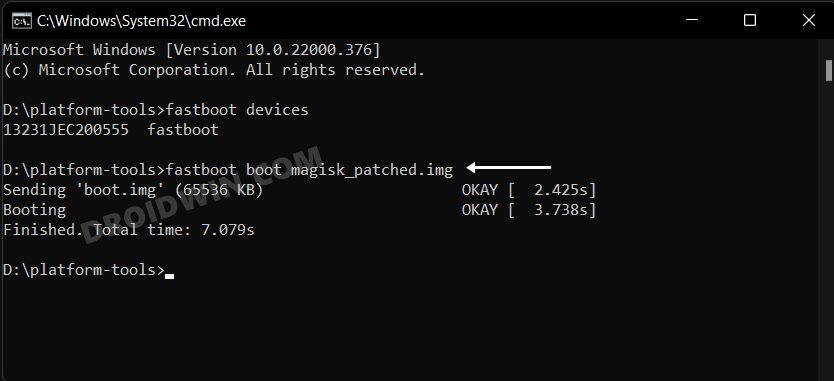
So on that note, let’s get started with the second approach. For that, execute the below command in the CMD window and your device will be booted to a temporarily rooted OS.
fastboot boot magisk_patched.img
STEP 8: Permanent Root OnePlus Ace 2v/Nord 3 via Direct Install
After executing the above command, your device will be booted to the OS with a temporary root. Here’s how to make it permanent:
- To begin with, launch the Magisk Manager App.
- Then tap on Install > Direct Install and tap Let’s Go situated at the top-right.
- Once done, hit the Reboot button situated at the bottom right.
- That’s it, your device will now boot to the rooted OS.
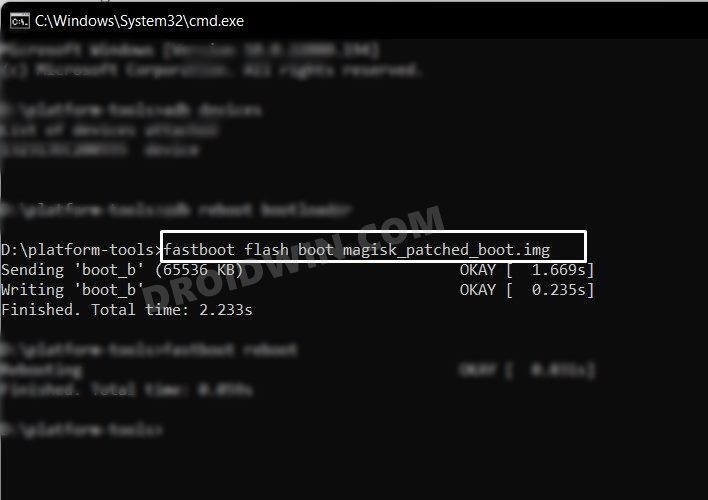
As mentioned in STEP 7. we used the approach of temporary booting to the rooted OS and then used Magisk’s Direct Install method to permanently root your device. However, if you wish to root your device by directly flashing the patched boot.img, then use the below command:
fastboot flash boot magisk_patched_boot.img

(Cancel Reply)
Δ
