How to run any app on Galaxy Z Flip 5 outer display
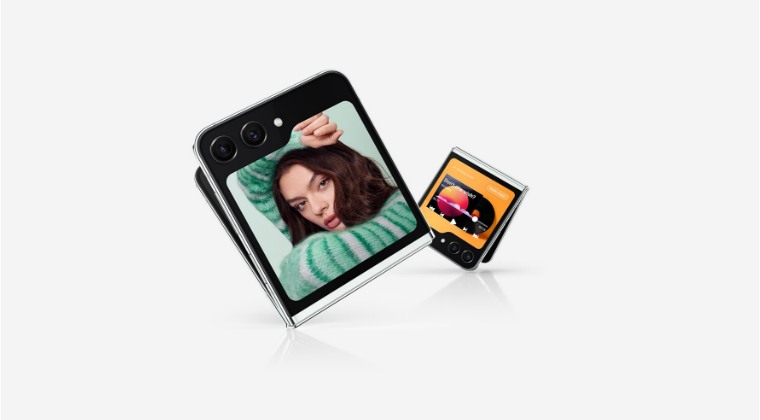
In this guide, we will show you the steps to run any apps on the outer display of the Galaxy Z Flip 5. The fifth iteration of the flip phone from the South Korean conglomerate has already attracted the attention of the masses thanks to one major change- its outer screen is now 200% larger than its predecessor yes, there’s no exaggeration of any sort]. However, by default, Samsung has limited the total number of apps that you could run on this screen.
As of now, this space is only reserved for the likes of Google Messages, Samsung Messages, WhatsApp, YouTube, Netflix, and Google Maps. While it’s great to see that Samsung is allowing third-party apps to make its presence felt on the cover screen but wouldn’t it be even great if this list could be expanded? Well, turns out, that is very much a possibility! Using a nifty workaround, you could easily get this job done. And in this guide, we will show you how to do just that.
How to run any app on Galaxy Z Flip 5 outer display
- Download and install Good Lock from Samsung Galaxy Store.
- Then launch Good Lock, search MultiStar, and open it.
- Now tap on I ♥ Galaxy Foldable and enable Launcher Widget.
- This will place a Good Lock widget in the device’s Flex Window.
- Now go to MultiStar and enable the app of your choice. That’s it.
- You could now easily launch that app from the cover screen.
- Black screen after unfolding/unlocking Galaxy Z Flip 3
- Cannot Sync Fitbit with Galaxy Z Fold/Flip after Android 13 [Fix]
- Remove Bloatware/Debloat Samsung Galaxy Z Fold 4
- How to Disable WhatsApp Split View in Galaxy Fold 4

(Cancel Reply)
Δ
