How to See all Installed Apps in Android 12 via Swipe Up Gesture
In this guide, we will show you the steps to see all your installed apps in Android 12 via the Swipe Up gesture. With the twelfth iteration of the OS, there are quite a few noteworthy features that have welcomed a permanent abode onto your devices. These include the new Material You design and a Wallpaper-based UX Theming (that picks up the major color from the wallpaper and themes it across various device components (such as the Notifications panel and Settings menu).
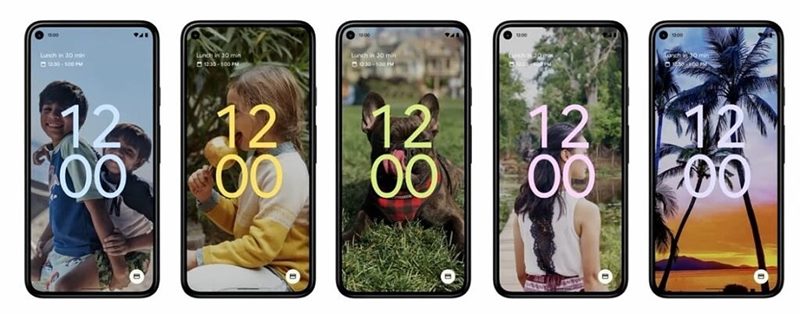
Then there has been an addition of Privacy Dashboard as well as the new accessibility feature in the form of Camera Switch allows you to take full control of your device via your facial gestures. However, there are still grey areas that need to be addressed. In this regard, quite a few users came with a rather unexpected query- they were unable to access the installed apps on their device running the latest Android 12.
As a result, they were only able to access the apps whose shortcuts were present on the home screen. Upon joining the dots, I released exactly what the issue was. Upon conveying them the associated fix, they were indeed able to rectify this issue. So I thought of covering it all up in this guide. Given here are the detailed instructions that shall help you see all your installed apps in Android 12 via the Swipe Up gesture.
How to See all Installed Apps in Android 12 via Swipe Up Gesture
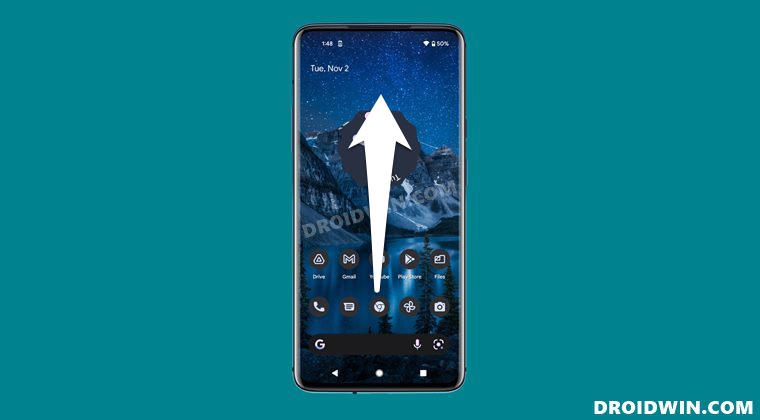
First off, this is not an issue/bug/error. More importantly, all your apps and their data are still present on your device. It’s just that you might be using the gesture in a slightly different manner. In order to see all the installed app on Android 12, you will have to perform the swipe-up gesture from the home screen, however, but not from the bottom of the screen.
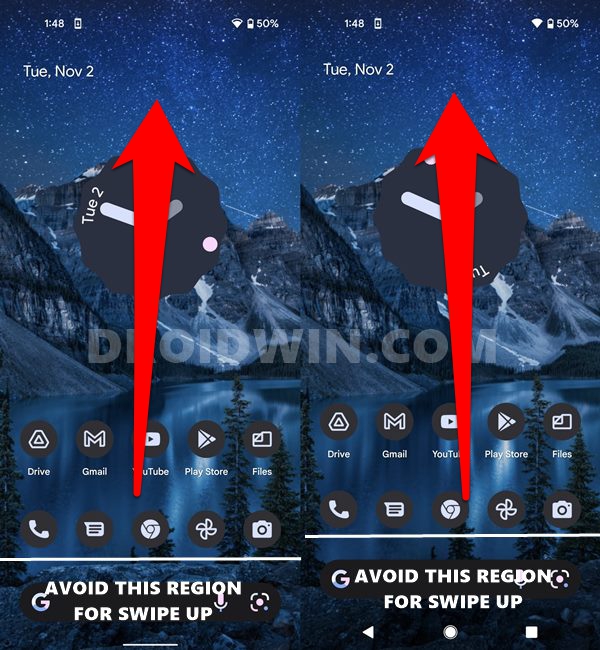
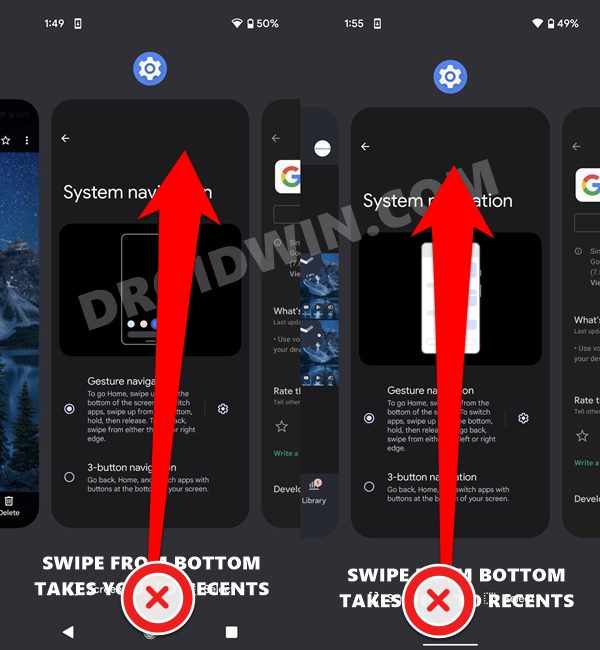
This is because the bottom part of the screen has been assigned the Navigation Buttons/Gestures. If you end up performing the swipe-up gestures from the bottom, it shall take you to the App Switcher or the Recents menu screen. So try this gesture anywhere on your screen, just apart from the bottom bar.
- Can we change the Lock Screen Clock Size in Android 12?
- Bring Back the WiFi toggle in Quick Settings on Android 12
- Guide to Downgrade Pixel From Android 12 to Android 11 using Android Flash Tool
- How to Enable and Use Android 12’s Camera Switch in Android 11

- ss 3 years ago Reply still not working with your suggestion on android 12
(Cancel Reply)
Δ
