- How to Sideload Android Apps on Windows 11 | Download Apps Without Amazon App Store STEP 1: Install Windows Subsystem for Android STEP 2: Find IP Address of Windows Subsystem for Android STEP 3: Download Android SDK Platform Tools STEP 4: Connect Windows Subsystem for Android via Wireless Debugging STEP 5: Install Android Apps on Windows 11 via Sideload
![How to Sideload Android Apps on Windows 11 [Without Amazon App Store] - 1](https://droidwin.com/wp-content/uploads/2021/10/How-to-Sideload-Android-Apps-on-Windows-11.jpg)
The below instructions are listed under separate sections for ease of understanding. Make sure to follow in the exact same sequence as mentioned.
STEP 1: Install Windows Subsystem for Android
To begin with, you will have to install Windows Subsystem for Android onto your Windows PC. If your PC supports it, then just you could directly install it from the Microsoft Store.
However, if it isn’t available in the Store, then your PC isn’t able to checkmark all the prerequisites. In that case, you would have to install the Subsystem using a workaround. So please refer to our guide on How to Install Windows Subsystem for Android on an Unsupported PC .
STEP 2: Find IP Address of Windows Subsystem for Android
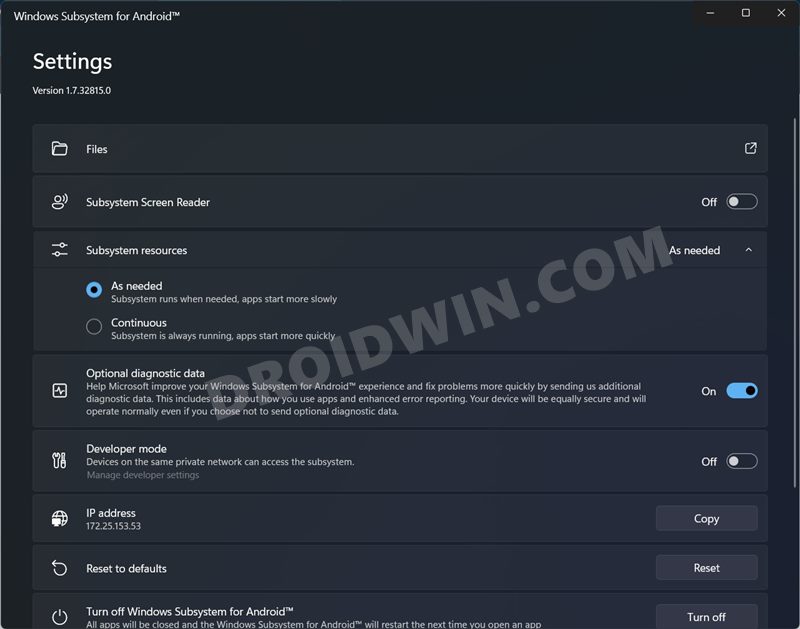
- Head over to the Start Menu, search Windows Subsystem for Android, and open it.
- Then scroll to the Developer options and enable the toggle next to it.
- You might now get a Windows Firewall prompt, make sure to allow the access.
- After that, go to the IP Address section and hit the Copy button next to it. Now paste in somewhere, such as in Notepad.
- If the IP Address isn’t displayed there, then click on “Manage developer settings” under the Developer Mode.
- Now scroll to the Wireless Debugging option and enable its toggle. Then click on Wireless Debugging to access its menu.
- Refer to the IP Address and Port section and only copy the IP Address value from it (the value before colon is your IP Address). For example, if you refer to my screenshot, the IP address is 172.25.144.18.
STEP 3: Download Android SDK Platform Tools
Next up, download and install the Android SDK Platform Tools on your PC. This is the official ADB and Fastboot binary provided by Google and is the only recommended one. So download it and then extract it to any convenient location on your PC. Doing so will give you the platform-tools folder, which will be used throughout this guide.

STEP 4: Connect Windows Subsystem for Android via Wireless Debugging
- To begin with, head over to the platform-tools folder, type in CMD in its address bar, and hit enter. This shall launch the Command Prompt window inside the ADB directory.
- Now execute the below command in this CMD window. Make sure to replace the IP-Address keyword with your IP Address that you had copied earlier: adb connect IP-Address
- So in my case, this command will transform to: adb connect 172.25.144.18
- That’s it, the connection has been established. To verify it, execute the below command in this CMD window adb devices
- If you get an IPAddress:Port value, then the connection has been successfully established.
- However, if there are any issues with the connection, then just retry executing the adb connect IP-Address command, the connection will be established in the second or third attempt.
STEP 5: Install Android Apps on Windows 11 via Sideload
- Now head over to the website of your choice and download the desired APK file. It’s better to download the x86_64 architecture APK, however, if you couldn’t find that architecture, then you could download the ARM64 as well.
- Once you have downloaded the APK file, right-click on it and select Copy as Path.
- Finally, execute the below command to install that APK File. Make sure to replace the APK-Path keyword with the path that you had copied just now (the path should remain within double inverted commas). adb install APK-Path
- In my case, the Path of the APK is “D:\in.startv.hotstar.dplus_12.2.3-1087_minAPI16(arm64-v8a)(nodpi)_apkmirror.com.apk”, so the command will transform to: adb install “D:\in.startv.hotstar.dplus_12.2.3-1087_minAPI16(arm64-v8a)(nodpi)_apkmirror.com.apk”
- Upon successful execution of the command, you shall get the Success message. This signifies that the app is now installed on your PC. You may now access it via the Start Menu.
- How to Install and Run Android Apps on Windows 11
- How to Execute Android ADB Fastboot Commands Wirelessly

(Cancel Reply)
Δ
