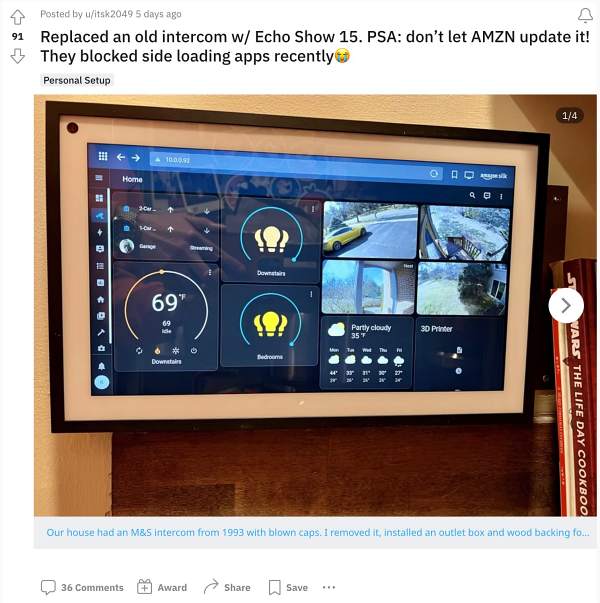
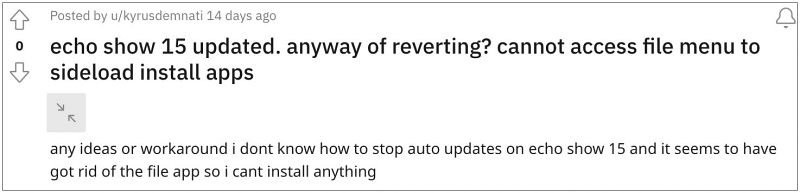
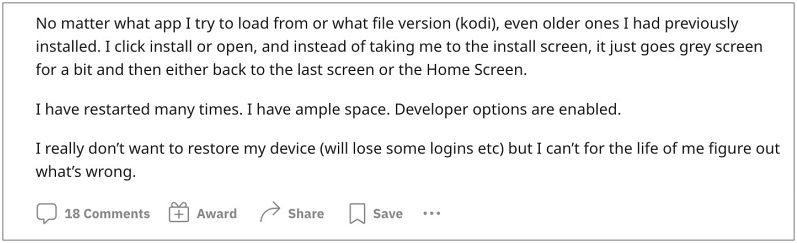
To be fair, such a move makes no sense whatsoever. While there are risks involved in sideloading apps, however, the users who would do so are already aware of the potential risks involved. Moroever, the first step of sideloading involves enabling Installation from Unknown Sources, which could only be enabled once users understand the risks.
- How to Sideload apps in Amazon Echo Show 15 via ADB commands STEP 1: Install Android SDK STEP 2: Enable USB Debugging in Amazon Echo Show 15 STEP 3: Connect Amazon Echo Show 15 to PC via ADB Command STEP 4: Install Apps via ADB Commands on Amazon Echo Show 15
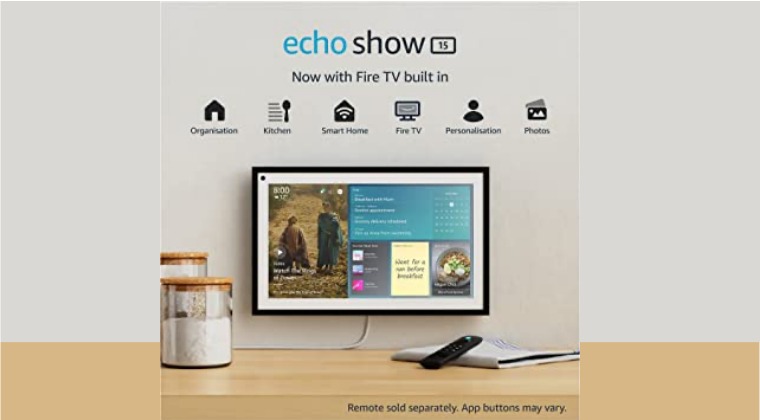
The below instructions are listed under separate sections for ease of understanding. Make sure to follow the same sequence as mentioned. Droidwin and its members wouldn’t be held responsible in case of a thermonuclear war, your alarm doesn’t wake you up, or if anything happens to your device and data by performing the below steps.
STEP 1: Install Android SDK
First and foremost, you will have to install the Android SDK Platform Tools on your PC. This is the official ADB and Fastboot binary provided by Google and is the only recommended one. So download it and then extract it to any convenient location on your PC. Doing so will give you the platform tools folder, which will be used throughout this guide.

Head over to Settings > My Fire TV > select Fire TV Stick.
Now press the OK button on your remote 7 times. This will enable Developer Options.
So go to Developer Options and enable ADB Debugging.a
Then go to Settings > About > Network > and note down the IP Address.
It should be something along the lines of 192.168.1.3:5555. The value before the colon [192.168.1.3] is the IP address whereas the value after that [5555] is the Port Number.
Head over to the platform-tools folder, type in CMD in its address bar, and hit Enter. This will launch Command Prompt.
Now type in the below command in this CMD window [make sure to replace IP accordingly]. adb connect IP
You will now get an Allow USB Debugging prompt on your screen, tap on Allow/OK.
Then once again execute the above command and this time, you should get the “already connected to IP” [if you get any error message, then simply execute the above command once again].
Now type in the below command to verify the ADB Connection between your Echo and PC adb devices
You will now get your IP Address and port number, followed by the ‘device’ keyword. This signifies that the connection has been successfully established.
To begin with, download the desired app [APK File] and transfer it to the platform-tools folder on your PC.
Then open CMD inside this platform-tools folder and execute the below command [make sure to replace IP and appname accordingly]. adb install appname.apk
For example, if we are installing an app named YouTubeold on Echo with IP 192.168.1.3:5555, then the above command will transform to- adb install Youtubeold.apk
The app will now be installed on your Echo and you could access it from the app drawer.
However, if the above command didn’t work out, then try out the following command [replace IP:Port with the entire IP address, including the port number]: adb -s IP:Port install appname.apk
- Install Wolf Launcher or any other Custom Launcher in Amazon Fire TV
- Twitch App Crashing on Fire TV, Xbox, PlayStation, Smart TVs: How to Fix
- Fire TV Stick Stuck on Downloading the latest software [Fixed]
- Fix An error has occurred DP-4040: Fire TV Live Stream

- Pissed 2 years ago Reply I wonder what assh0!3 posted a fictitious solution to this problem?
- Tom 3 years ago Reply Waste of time and why ask for comments if you wont address them?
- James 3 years ago Reply Any alternatives here – Debugging is not there and I get: cannot connect to 192.168.nn.nn:5555: No connection could be made because the target machine actively refused it. (10061)
- Drealine 3 years ago Reply Hi, It really work on EchoShow 15 ? Seems strange…
- Lars 3 years ago Reply STEP 2 is not possible on Echo Show 15. “Settings > My Fire TV > select Fire TV Stick” This is not existing. In the settings of Echo Show 15 is only a option “Settings for FireTV” and there you can’t find anything about “Fire TV Stick”. In the Device options of the Echo Show 15 you can enable the Developer options by clicking 7 times the serial number, but There is no “Adb debugging” in the Developer options.
- john 3 years ago Reply This doesn’t work. ADB Debugging isn’t an option on the echo show 15.
- Fake 3 years ago Reply This guide is fake. This method is not possible.
- Mauro 3 years ago Reply Head over to Settings > My Fire TV > select Fire TV Stick. This step, is first step isn’t available …. there aren’ t this section …. adb debugging is not actionable. Help me pls
- Stefan 3 years ago Reply Enabling developer options does not show adb sideload anymore 🙁
- Pndrt 3 years ago Reply Thanks, very helpful however I don’t have the option you describe in step 2 (settings > My Fire TV > Fire TV Stick). That appears on my Fire Sticks but not in the Echo Show 15. Is there any hidden way to get to settings in Echo Show? Thanks Marcus Vinicius 3 years ago Reply Hi Hassan! Did you find some workaround that works after the last Echo a Show 15 firmware update? Thanks in advance!
- IM 3 years ago Reply This does not work on Echo Show 15
(Cancel Reply)
Δ
