How to Stop a CMD Batch File from automatically closing
In this guide, we will show you various methods to stop the CMD batch file from automatically closing itself. You might have executed numerous scripts file which come in a .bat format. Likewise, if you are into Android custom development, then you might have noticed that a lot of tools and firmware come with this script file. Most of these scripts also tend to save our time by automating the entire flashing process, which would have otherwise called for manual efforts.
However, there is a major issue with most of these scripts- they tend to close themselves as soon as their job is done. As a result, we are even unable to get a hold of some crucial information. So to prevent this from happening, you could stop the CMD batch file from automatically closing itself. And in this guide, we will show you how to do just that. Follow along.
- How to Stop a CMD Batch File from automatically closing FIX 1: Using the Pause keyword FIX 2: Using the cmd /k keyword FIX 3: Using Registry Editor
How to Stop a CMD Batch File from automatically closing
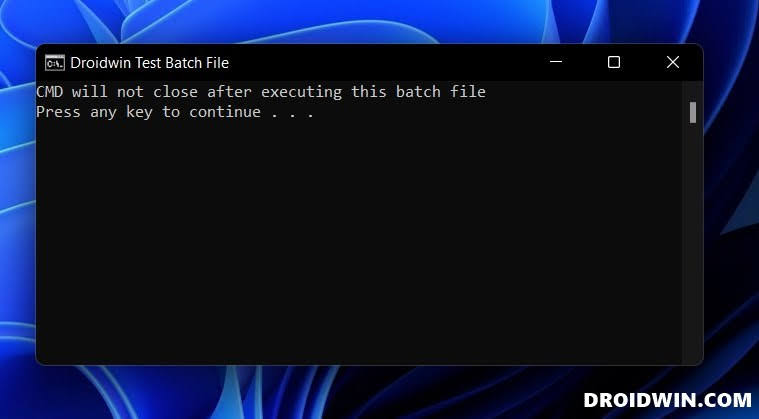
We have listed here three different methods that will get this job done. Go through each of them once and then try out the one which is in sync with your requirement.
FIX 1: Using the Pause keyword
- To begin with, right-click on your batch file and select Edit
- Then add the pause keyword at the end of the file and save it.
- Now launch the batch file. CMD will not close automatically now.
FIX 2: Using the cmd /k keyword
- To begin with, right-click on your batch file and select Edit.
- Then add the cmd /k keyword at the end of the file and save it.
- Now launch the batch file. CMD will not close automatically now.
FIX 3: Using Registry Editor
While the above two methods do their job quite effectively, however, you could have to carry out that tweak for every individual batch file. This might end up taking quite a lot of time if you are dealing with numerous batch files. So a much better approach will be to implement this rule system-wide- aka across all the batch files at once. And for that, we will be taking the help of the Registry Editor. Follow along.
- Launch Registry Editor and head over to the below location: HKEY_CLASSES_ROOT\batfile\shell\open\command
- Then open the Default file from the right-hand side.
- Type in the following value in its Value Data field and hit OK: cmd.exe /k “%1” %*
- After that, head over to the below location HKEY_CLASSES_ROOT\cmdfile\shell\open\command
- Now open the Default file from the right-hand side.
- Type in the following value in its Value Data field and hit OK: cmd.exe /k “%1” %*
- Finally, it is recommended that you restart your PC once.
- Fix adb is not recognized as an internal or external command
- Stop Windows 11 from Adding the Shortcut Text in Shortcut File Name
- How to Enable Local Security Policy secpol.msc in Windows 11 Home
- Stop Windows 11 from Automatically Installing Bloatware Apps

(Cancel Reply)
Δ
