How to Stop DND Mode from syncing across Apple Devices
In this guide, we will show you the steps to stop the DND Mode from syncing across numerous Apple devices. The Do Not Disturb mode allows you to silence calls, alerts, and notifications. Apart from manually setting it up, you also have the option to automate it at a certain time, location, or while using a certain app. Likewise, you could whitelist certain apps and contacts so that you continue to receive notifications from those sources even when DND is active.
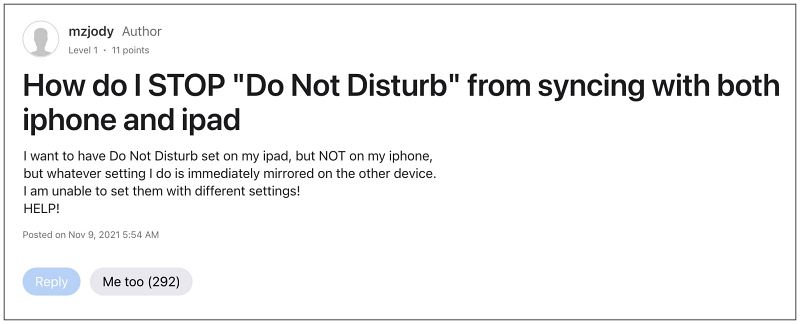
However many users have voiced their concern that if they enable DND Mode and/or tweak its settings on one of their devices, it tends to get synced across all the linked devices that are signed in using the same Apple ID. While this is certainly not the best user experience that one could have asked for and signs of infuriation are completely justified, fortunately, you could easily rectify this “issue”. And in this guide, we will show you how to do just that. Follow along.
How to Stop DND Mode from syncing across Apple Devices
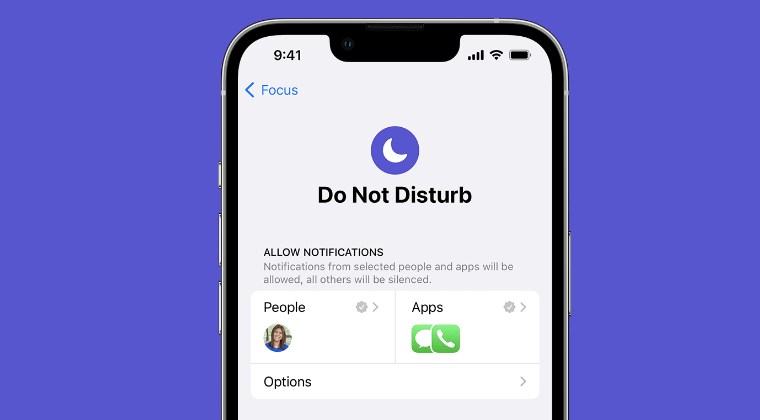
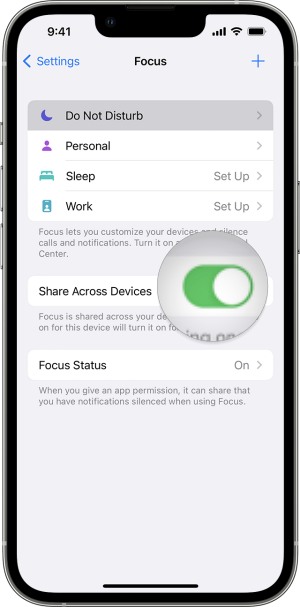
First off, let’s address the elephant in the room- this is not a bug but rather the normal functioning of DND. Whatever changes are made to its settings across one Apple device, the same will be applied across all the other devices that are signed in via the same account. While this feature is enabled by default, the Cupertino giant has given us granular controls over the same through which you could easily disable it as well.
- Sync Do Not Disturb between Pixel Watch and Android Device
- How to Sync Pixel Watch Alarm with any Android Phone
- Missing While iPhone is locked DND feature in iOS 15 Beta
- Option to Receive Notification in DND Mode in iOS 15 has been Removed?

(Cancel Reply)
Δ
