How to Stop Edge from Importing Data and Tabs from Chrome
In this guide, we will show you two methods to stop Edge from importing data and tabs from Chrome. Recently I came across a few issues from users wherein they had voiced their concern that after installing a Windows update and then. restarting their PC, Microsoft Edge was quick to hijack all the tabs from Chrome and open it inside its own window, without any manual consent from the users themselves.
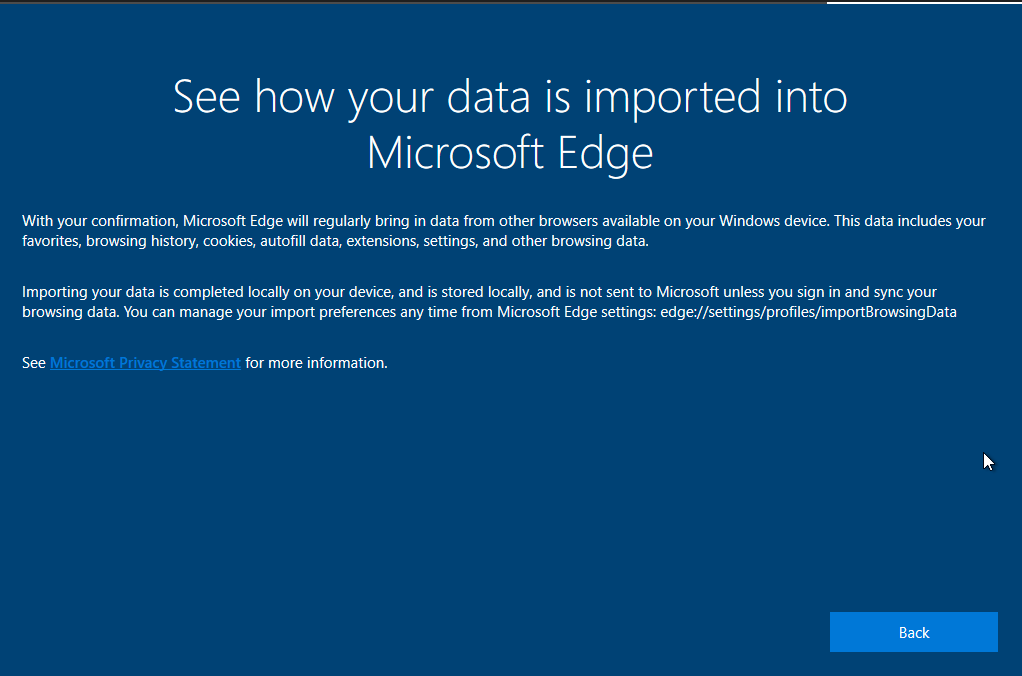
What was even more surprising was the fact according to the users that they had never imported their data into Microsoft Edge, nor did they get any prompt from the browser asking if they wanted to import their tabs. In this regard. Zach Edwards, a privacy and data supply chain researcher, found a prompt in the browser that reads as follows:
With your confirmation, Microsoft Edge will regularly bring in data from other browsers available on your Windows device. This data includes your favorites, browsing history, cookies, autofill data, extensions, settings, and other browsing data.
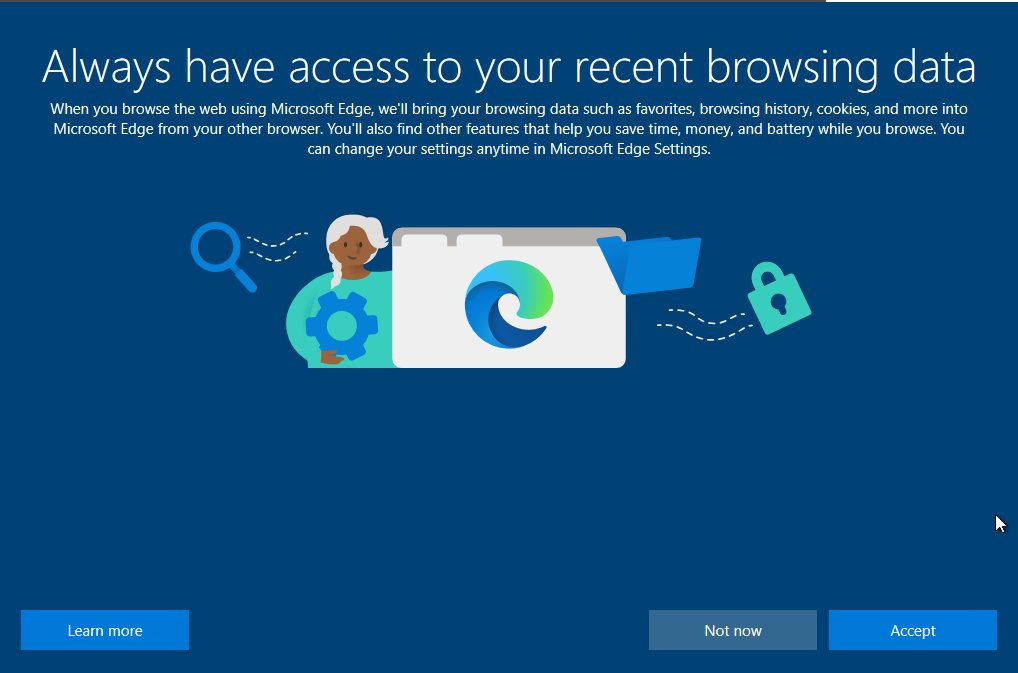
Furthermore, according to Microsoft this data is stored locally on your device and isn’t sent to them unless you sign in and sync your browsing data. Moroever, this isn’t a one-off incident either. We have seen similar reports across numerous forums, including the likes of Reddit and Microsoft’s own support forums . So if you are also bugged by this problem, then this guide will help you out. Follow along for the “fix”.
- How to Stop Edge from Importing Data and Tabs from Chrome FIX 1: Tweak Import Browsing Data Settings FIX 2: Via Registry Tweak
How to Stop Edge from Importing Data and Tabs from Chrome

It is recommended that you try out each of the below-mentioned workarounds and then see which one spells out success. So with that in mind, let’s get started.
FIX 1: Tweak Import Browsing Data Settings
This is the straightforward and easier of the two methods and hence the go-to choice for the masses. However, there have been a few instances wherein it doesn’t respect the user’s choice and still continues to let Edge import data and tabs from Chrome. If that happens with you as well, then you could try out the next fix. But for now, let’s keep our focus on this method.
- Launch Edge and head over to the below location: edge://settings/profiles/importBrowsingData
- Then click on Edit Preferences next to Import browsing data at each browser launch.
- Now click on Turn Off next to Import browsing data from Google Chrome on each launch.
FIX 2: Via Registry Tweak
This is the more technical of the two methods but comes with a higher success rate when compared with its counterpart. With that in mind, here’s how you could put it to the test:
- To begin with, launch Command Prompt as an admin.
- Then execute the below command in the CMD window: reg add “HKEY_LOCAL_MACHINE\Software\Policies\Microsoft\Edge” /v AutoImportAtFirstRun /t REG_DWORD /d 4 /f
- Now restart your PC and check out the results.
- If it’s not working, then enable Group Policy Editor and then retry the above command.
- Why is Google Docs Offline extension automatically installed in Edge
- YouTube Videos not playing in Microsoft Edge: How to Fix
- Microsoft Edge Large Tab Bar Size: How to Make it Smaller
- Microsoft Edge Tab Contents Blur: How to Fix

(Cancel Reply)
Δ
