How to Stop Search Engine Selector and Save Battery
In this guide, we will show you the steps to stop the Search Engine Selector on your Android device. Recently, I wanted to delete Google as the default search engine and switch over to DuckDuckGo across both the home screen and app drawer search bar. To get this job done, you have to manually launch the Search Engine Selector system activity.

However, it turned out that the said activity was already running in the backend, churning out all the precious device battery. Upon doing further investigation, I found out that the app was running for over 12+ hours continuously in the backend, which was just not acceptable. So, is there a way to put an end to this battery-exhausting system app? Yes, there is one, and in this guide, we will make you aware of just that. Follow along.
How to Stop Search Engine Selector and Save Battery
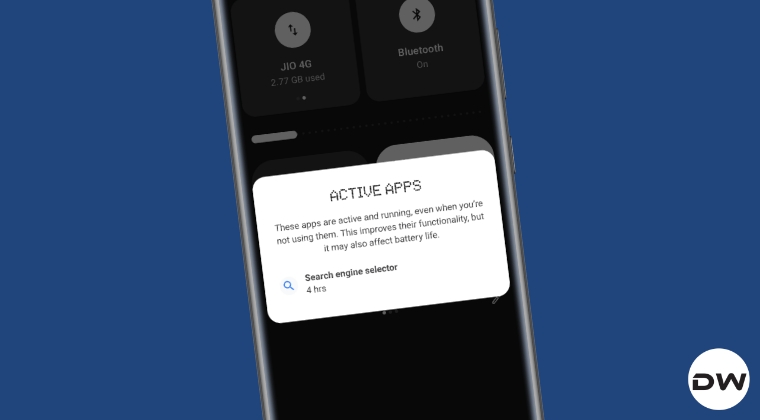
To get this job done, you need to Force Stop this app [disabling it is not an option]. In some cases, after a reboot, the app might again get active, so you might have to stop it once again. Here’s how it can be done:
- To begin with, go to the Settings > Apps > All Apps.
- Now tap on the overflow icon > select Show System.
- Then select Search Engine Selector app from the list.
- Tap on Force Stop > OK in the prompt that appears.
- How to Reset the Battery Cycle Counter to 0 on Android Devices
- How to Check Battery Charging Information on OnePlus
- Guide to Fake Battery Percentage on Android! [Video]
- Battery Information missing from Android 14/15: Is there a fix?

(Cancel Reply)
Δ
