How to Stop Windows 11 22H2 Update from Installing
In this guide, we will show you four different methods to stop the latest Windows 11 22H2 update from installing on your PC. The latest iteration of the OS would be bringing in quite a few UI tweaks and incorporating numerous new features to the fore. Be it the Taskbar, File Explorer, Task Manager, or Stat Menu, each of them will be blessed with something intriguing. In short, here’s the changelog:
App folders in the Start menu

Resizable pinned area in Start menu

Drag and Drop on the Taskbar

Focus Assist integration with Notification Center

New "Spotlight" wallpaper feature

New Voice Access accessibility feature

New Live Captions accessibility feature

New gestures and animations for touch users

New snap layouts bar when moving app windows

New Task Manager app

New "Suggested Actions" feature when copying dates/numbers

Tabs in File Explorer (Coming in October)

Better OneDrive integration with File Explorer

Numerous UI improvements and consistency updates
While all this definitely looks good on paper, however, not everyone will be willing to bring in all these features at once, as they would like to keep things plain and simple. Then there are a set of users who are quite satisfied with their current OS offering and don’t see any motive to jump on this bandwagon. Then some users usually like to wait for a few weeks, check out the overall feedback, and only if it is positive, do they welcome the new update.
Likewise, developers also don’t usually adapt to the new ecosystem as establishing a new testing environment from scratch takes a lot of additional time and effort. Well, all these reasonings are completely justified and if you echo any of these thoughts, then your best bet is to stop the latest Windows 11 22H2 update from installing on your PC. And in this guide, we will show you how to do just that. Follow along.
- How to Stop Windows 11 22H2 Update from Installing Stop Windows 11 22H2 Update from Installing using the Settings menu Stop Windows 11 22H2 Update from Installing via Group Policy Editor Stay on Current OS via Group Policy Editor Stay on Current OS via Registry Editor
- How to Re-Install Windows 11 22H2 Update Via Settings menu Via Group Policy Editor Using Group Policy Editor Via Registry Editor
How to Stop Windows 11 22H2 Update from Installing
We have listed four different methods that will help you get this job done. Go through each one of them and then try out the one that is in sync with your requirement.
Stop Windows 11 22H2 Update from Installing using the Settings menu
This is the easiest way of disabling the update. However, you will only be able to disable it for five weeks at one go. Then when the fifth week comes, you could again disable it for five more weeks, and so on. So this shouldn’t be a cause of any major concern.
- To begin with, bring up the Settings menu via Windows+I shortcut keys.
- Then select Windows Update from the left-hand side and click on More options.
- Now click on Pause updates and select Pause for 5 weeks from the drop-down menu.
- That’s it. This will stop the latest Windows 11 22H2 update from installing on your PC.
Stop Windows 11 22H2 Update from Installing via Group Policy Editor
Using the Group Policy Editor, you could pause the update for a maximum period of one year in on go. Then when the first year is about to end, you could again expand this duration to one more year, and so on.
- First off, enable the Local Group Policy Editor on your Windows 11 PC.
- Then open Run via Windows+R, type in the below command, and hit Enter: gpedit.msc
- This will launch Group Policy Editor. Now go to the following location from the left-hand side: Computer Configuration » Administrative Templates » Windows Components » Windows Update » Manage updates offered from Windows Update
- Then open the “Select when Preview Builds and Feature Updates are received” policy from the right-hand side.
- Now select Enabled and type in the number of days for which you want to pause this update. The maximum value is 365.
- Finally, hit Apply > OK to save it. Then launch CMD as admin and execute the below command to activate this policy right away: Gpupdate /Force
- That’s it. This will stop the latest Windows 11 22H2 update from installing on your PC.
Stay on Current OS via Group Policy Editor
Instead of preventing the 22H2 update from arriving on your PC, we would force your PC to stay on the current OS build. We will be using one of the Group Policy Editor policies to get this job done. Follo along.
- First off, enable the Local Group Policy Editor on your Windows 11 PC.
- Then open Run via Windows+R, type in the below command, and hit Enter: gpedit.msc
- This will launch Group Policy Editor. Now go to the following location from the left-hand side: Computer Configuration » Administrative Templates » Windows Components » Windows Update » Manage updates offered from Windows Update
- Now open the “Select the target Feature Update version” policy from the right-hand side.
- Change its state to Enabled, type in your current OS [Windows 11], and the current OS version [type in winver in Run to check it].
- Finally, hit Apply > OK to save it. Then launch CMD as admin and execute the below command to activate this policy right away: Gpupdate /Force
- That’s it. This will stop the latest Windows 11 22H2 update from installing on your PC by forcing it to stay on the current OS build.
Stay on Current OS via Registry Editor
You could instruct your PC to stay on the same OS build and not welcome any new update [22H2] using Registry Editor. Before starting, make sure to take a registry backup beforehand.
- Launch Registry Editor from the Start Menu and head over to the below location: Computer\HKEY_LOCAL_MACHINE\SOFTWARE\Policies\Microsoft\Windows
- Now right-click on Windows and select New > Key. Name it WindowsUpdate.
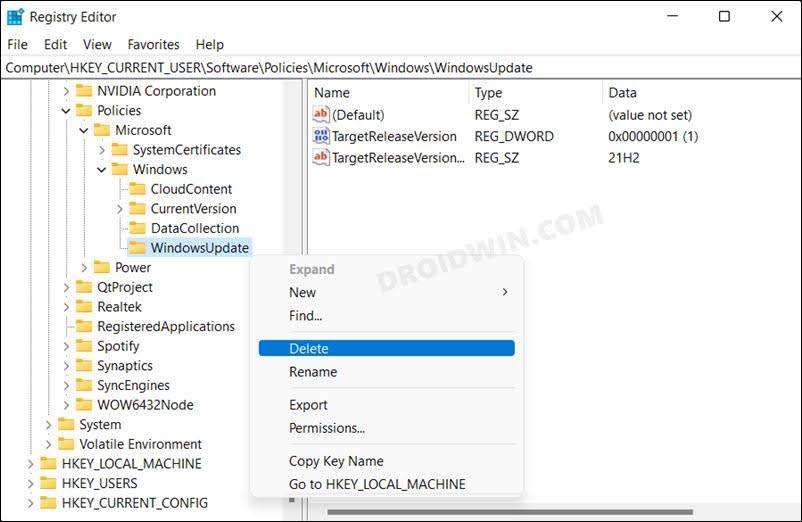
- Then right-click on WindowsUpdate and select New > DWORD (32-bit) Value. Name it TargetReleaseVersion.
- Now open this TargetReleaseVersion file, type in 1 in the Value Data field, and hit OK to save it.
- Again, right-click on WindowsUpdate and select New > String Value. Name it TargetReleaseVersionInfo.
- Now open this TargetReleaseVersionInfo and type in your current OS version in the Value Data field [type in winver in Run to check it].
- Finally, hit OK to save it and restart your PC for the changes to take place.
How to Re-Install Windows 11 22H2 Update
If your objective of not installing the 22H2 update is now complete and you a ready to welcome this update onto your PC, then refer to the below method to get this job done right away. It goes without saying that you should refer to the method that you initially used to implement this restriction.
Via Settings menu
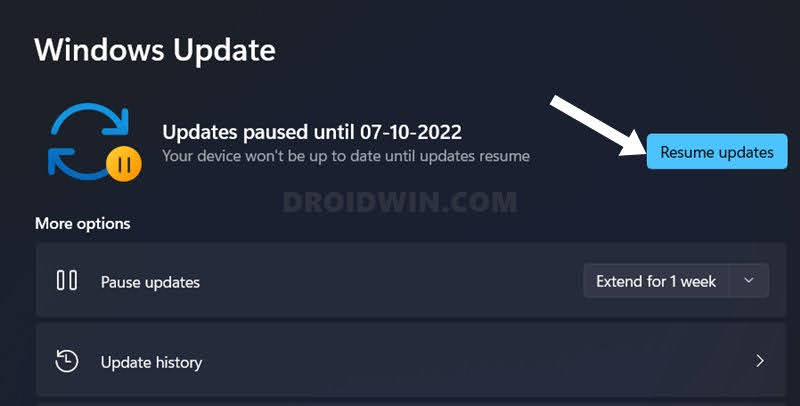
Head over to Settings > Windows Updates and click on Resume Update. It will bypass the restrictions and install the update right away.
Via Group Policy Editor
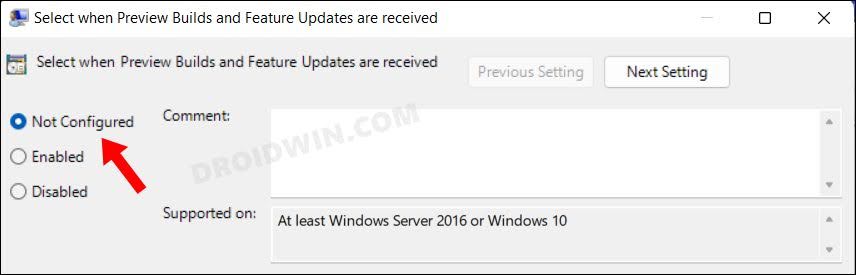
Just change the state of the “Select when Preview Builds and Feature Updates are received” policy to Not Configured.
Using Group Policy Editor
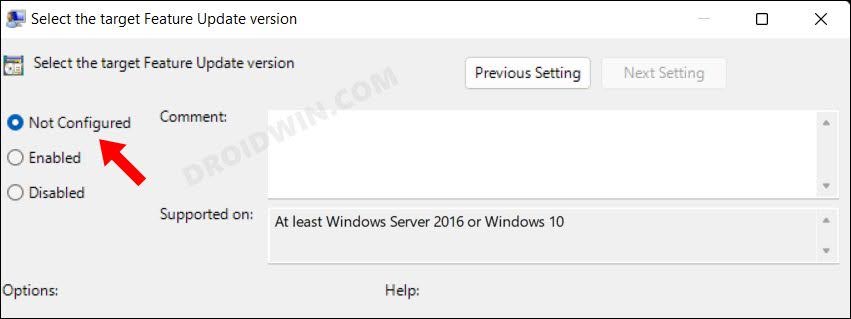
Change the state of the “Select the target Feature Update version” policy to Not Configured.
Via Registry Editor
Delete the “WindowsUpdate” key from the following location: Computer\HKEY_LOCAL_MACHINE\SOFTWARE\Policies\Microsoft\Windows.
- Windows 11 Update Stuck: How to Fix
- How to Manually Download a Particular/Specific Windows 11 Update
- How to Uninstall Windows 11 Updates via Settings/CMD/Recovery
- Windows 11 Updates Failed Error: How to Fix

- Daniel P Saroki 2 years ago Reply I tried the Method using Registry Editor and it worked marvelously. My only concern is will I get other important updates that I need? Or will this stop all updates? Please let me know. Thank you for your help…
- Scooby71 3 years ago Reply None of these “solutions” work, every time I start my laptop windows says that 22H2 is ready to download and install. Yet more useless advice and tips that do nothing.
(Cancel Reply)
Δ
