How to Take Screenshots on Android TV using Android Phone!
In this guide, we will show you the steps to take a screenshot on your Android TV using your Android device. If you come across a specific scene that has been etched into your memory and you want to take a screengrab of the same, then this journey might be slightly technical on TV. This is because as opposed to the smartphone, there doesn’t exist any native way of getting this job done.
So even though Android TV does have the option to take screenshots, there’s no user interface to invoke this functionality. Fortunately, we stumbled upon a nifty workaround through which you could easily take a screenshot on your Android TV directly from your Android device. Sound’s interesting, doesn’t it? So without further delay, let’s show you how this could be carried out.
- How to Take Screenshots on Android TV using Android Phone! STEP 1: Install Button Mapper on Android TV STEP 2: Enable Accessibility Services STEP 3: Assign Android TV Screenshot Shortcut STEP 4: Link the Screenshot Shortcut to Android TV
- How to Access Screenshots on Android TV
How to Take Screenshots on Android TV using Android Phone!
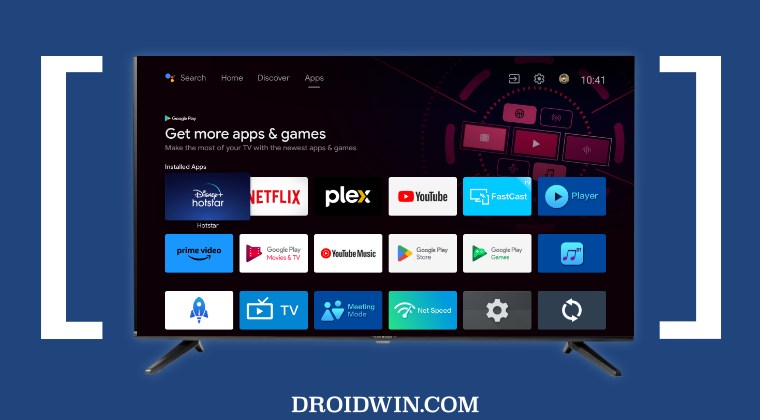
The below instructions are listed under separate sections for ease of understanding. Make sure to follow the same sequence as mentioned.
STEP 1: Install Button Mapper on Android TV
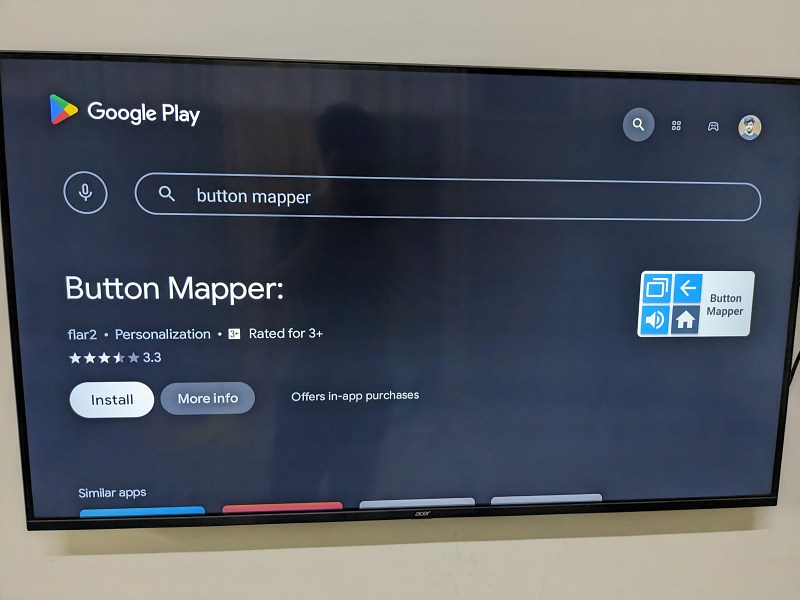
Launch Play Store on your Android TV, search Button Mapper , and install it.
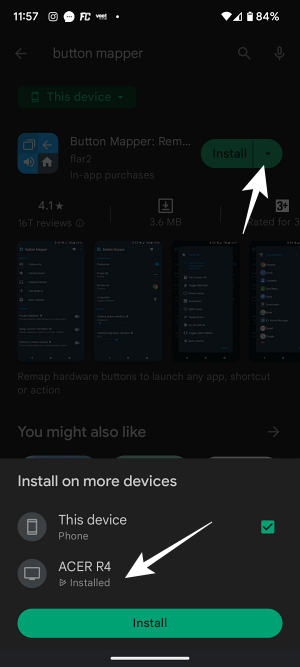
You could also install this app on your TV directly from your phone. For that, launch Play Store on your phone, search Button Mapper, tap on the drop-down next to Install, and select your TV. Do note that both your TV and phone should be signed into the same Google account for this to work.
STEP 2: Enable Accessibility Services
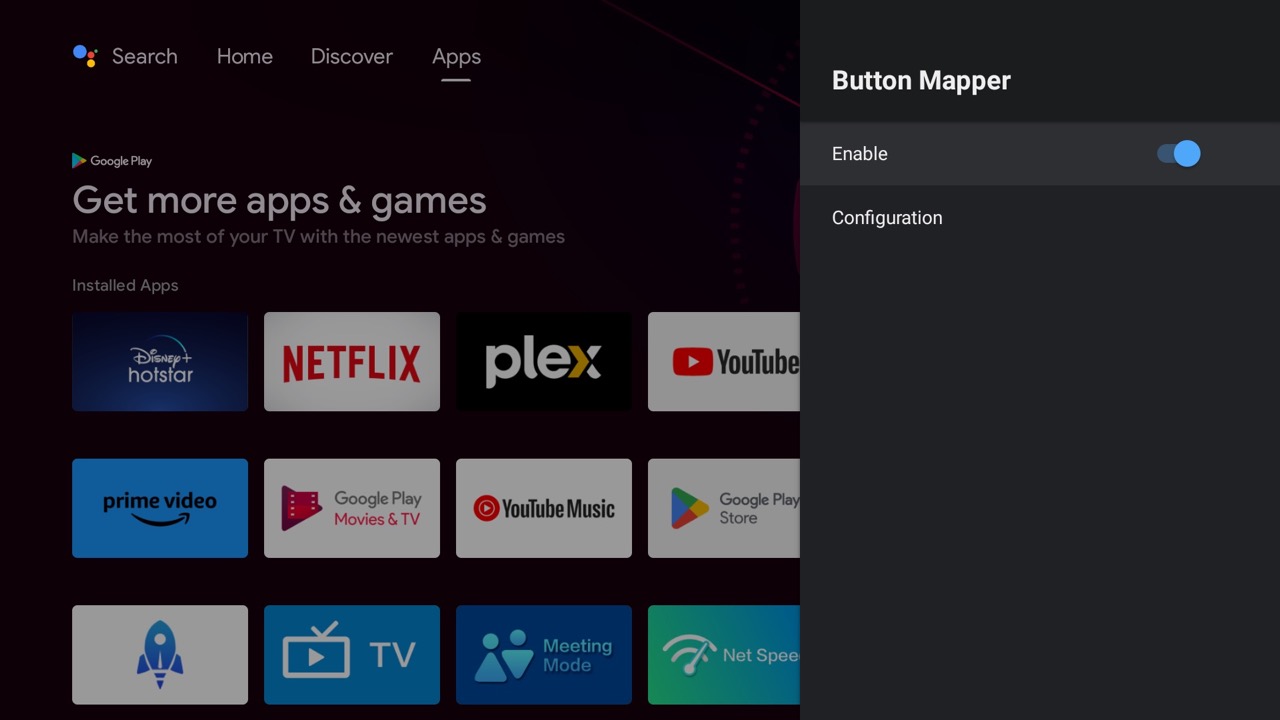
Now launch Button Mapper and it will ask you to enable Accessibility Services. So go to Settings > Device Preferences > Accessibility > Button Mapper and enable the toggle next to it.
STEP 3: Assign Android TV Screenshot Shortcut
- Launch Button Mapper and select either Volume Up/Down/Back/Home button [we are choosing the Home button].
- Then enable the toggle next to Customize and choose the desired gesture [we are choosing Double Tap].
- Now select Screenshot under the Actions list and that’s it.
- You could now take a screenshot on your Android TV by performing a double press on the Home button on your remote.
- But as promised, let’s now take it a step further and assign the same functionality to our Android phone.
STEP 4: Link the Screenshot Shortcut to Android TV
- Download and install the Google TV App on your phone [on some devices it is already installed beforehand].
- Then launch it, tap on the TV Remote icon, and select your TV from the list. [If your TV is not visible, then make sure that your TV and mobile are on the same WiFi network].
- Now just double-tap on the home button and it will take a screenshot on your Android TV. [This is the reason why we advised you to select from either the Volume Up/Down/Back/Home button in STEP 3 as they are the only common buttons between your TV Remote and the Google TV App!
How to Access Screenshots on Android TV
Now that you have taken the screenshots, you could access them using any file explorer app of your choice. if your TV doesn’t have any, then here’s what you need to do:
- Install the File Commander App on your TV from Play Store.
- Then launch it and give it storage permission.
- You could now access all the screenshots from the Screenshots folder.
- If you want to transfer them to your device or PC, then you could use the FTP or Local Network.
- Likewise, you could also access its Cloud Service, upload the files over there, and access it from the desired device.
- How to Connect MacBook/iMac to Android TV Wirelessly
- SmartTubeNext ModernClientData Error on Android TVs [Fixed]
- How to Remove Ads on Nvidia Shield and other Android TVs
- Chromecast with Google TV HDR not working after Android 12 [Fix]

(Cancel Reply)
Δ
SmartTubeNext ModernClientData Error on Android TVs [Fixed]

However, as of now, it seems to be going through a rough patch. Various users have voiced their concern that they are constantly getting bugged with the ModernClientData Error in the SmartTubeNext app. The entire message spells out that “Error occurred. Please send this file to the support team file-location/ModernClientData”. While it isn’t conflicting with the app’s normal functionality, still it tends to distort the viewing experience by blocking the bottom half of the screen.
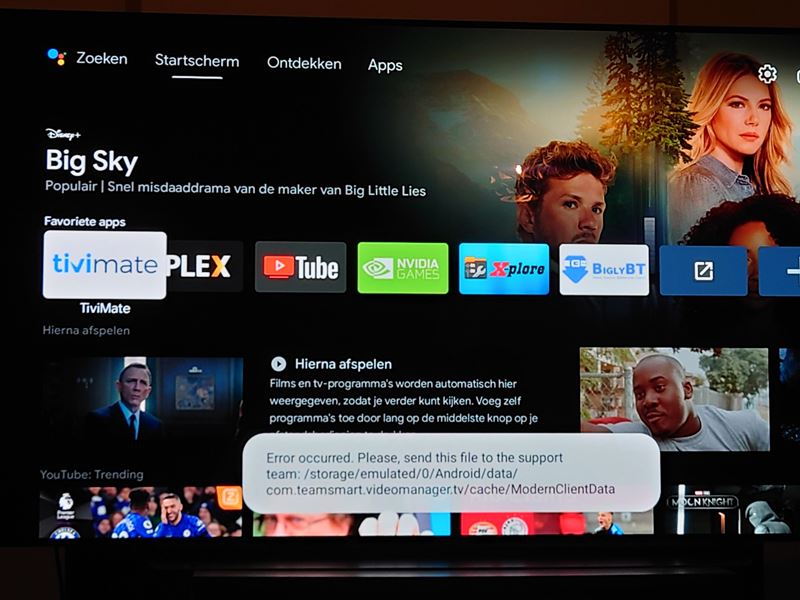
How to Fix SmartTubeNext ModernClientData Error on Android TVs
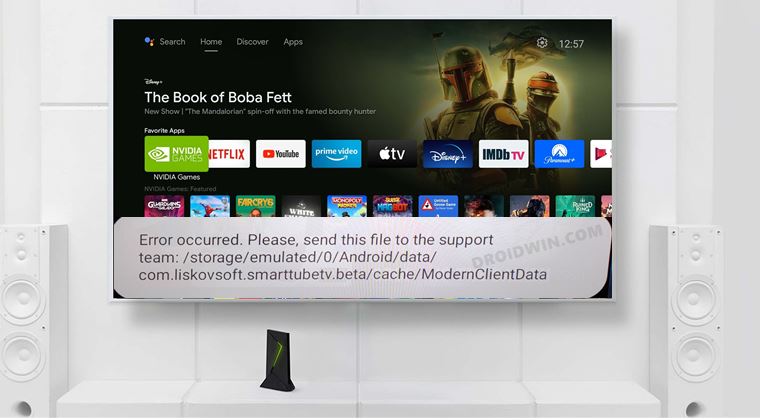
One of the biggest perks of using an open-source app is that we could easily voice our concerns and more importantly, developers are quick to respond to the community’s needs. And the same has happened this time around as well. After listening to all the concerns over at Reddit and GitHub, the developers have rolled out a new update that has finally resolved this issue.
So all that you need to do is update SmartTubeNext to the latest version 14.16. As far as the process goes, you could directly update it from within the app itself. Or you could also sideload and install the APK from GitHub, whose direct link we have shared as well: latest beta download | latest stable download .
- How to Remove Ads on Nvidia Shield and other Android TVs
- Unlock Bootloader on Nvidia Shield TV
- How to Downgrade Nvidia Shield TV to Android 9
- Install Nvidia Shield TV ADB Fastboot Drivers in Windows 10/11
(Cancel Reply)
Δ
