How to transfer files between Android and Mac using Nearby Share
[See Update Below] In this guide, we will show you the steps to transfer files from your Mac to your Android device using Nearby Share. When it comes to the Apple ecosystem, then AirDrop has taken the responsibility of providing a streamlined platform to transfer files across Apple devices. Likewise, you could use Nearby Share to transfer files across two Android devices and/or an Android device and a Windows PC.
However, to date, there didn’t exist any platform through which you could transfer files between the Google and Apple ecosystem. Up until now. Using a nifty open-source tool, you could easily transfer files from your Mac to your Android device via [unofficial] Nearby Share. So without further ado, let’s show you how to make full use of this functionality.
- How to Transfer Files between Android and Mac using Nearby Share
- Update: Nearby Share Renamed to Quick Share
- Video Guide
How to Transfer Files between Android and Mac using Nearby Share

Since this is an unofficial tool, you might have a few concerns, especially when it involves transferring all your important stuff. However, since the tool is open source, you could verify the integrity of the app and its code directly from GitHub . Moroever, since Wi-Fi Direct isn’t supported on macOS and Bluetooth needs reverse engineering, hence the Nearby Share would require your Mac and Android to be on the same WiFi network.
Not to mention the fact that y our Mac will also be set to “Visible to everyone” to all those users who are on the same WiFi network. Limited Visibility (such as only to specific contacts), which is present in the official Nearby Share, is not possible here as it requires talking to Google servers, which might be a tough nut to crack. So for protective measures, it is recommended that you don’t use this app on public and open WiFi networks.
- First off, download NearDrop from GitHub and extract it on your PC.
- Then transfer it to the Applications folder, right-click on NearDrop.app, and select Open.
- You’ll get a prompt, click on Open.
- Now go to System Settings > Notifications > NearDrop and enable the toggle next to Allow Notifications.
- Notification is required so that when you transfer a file on your Android device, your Mac could notify you the same and you could then accept or reject the file transfer.
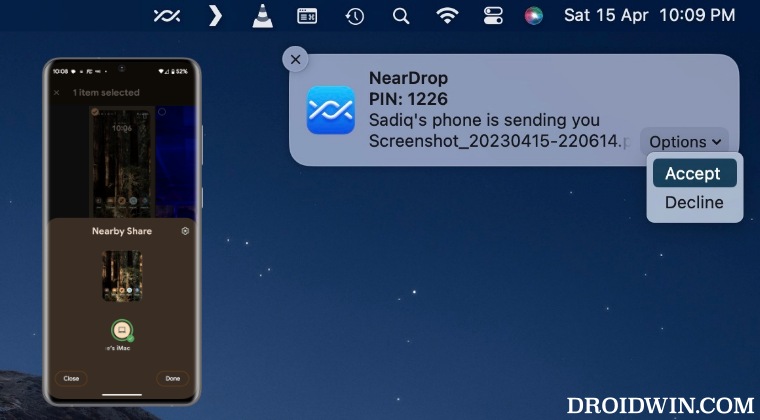
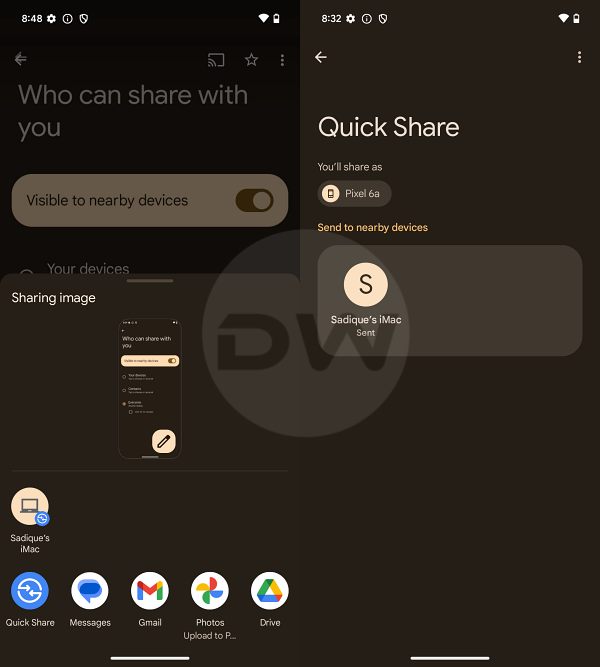
- Moving on, now go to your device, select the file, go to Share, and select Nearby Share. Now your Mac will be visible on your Android device, tap on it.
- You will now get a notification on your Mac, bring the cursor to the bottom right of that alert and select Accept.
- The file will now be transferred and once done, you’ll be notified of the same.
- Moroever, the file will be saved in the Downloads folder.
Update: Nearby Share Renamed to Quick Share
Nearby Share has now been renamed to Quick Share. So instead of selecting the former, you’ll now have to select the latter [Quick Share] from the share sheet, the rest of the steps are the same as before.
Video Guide
- Android File Transfer not working on Mac: How to Fix
- Cannot Connect Android/Pixel to Mac: How to Fix
- How to Connect MacBook/iMac to Android TV Wirelessly
- Download Latest Android SDK Platform Tools [Windows/Mac/Linux]

(Cancel Reply)
Δ
