How to Transfer WhatsApp Chat without using Google Drive
In this guide, we will show you the steps to transfer WhatsApp chats without using Google Drive. The instant messaging service from Meta is on a feature-releasing spree over the past few months. Recently, it made it possible to use your WhatsApp account across four different devices. And now, another similar and equally useful functionality has just been rolled out.
With the latest update, you could now easily transfer all your WhatsApp chats without using Google Drive. Up until now, you had to first take a backup which was then uploaded to Drive. Since this backup also had images [and optional videos] and there was no option to segregate texts [chats] from them, you had no choice but to back up and upload the entire data.
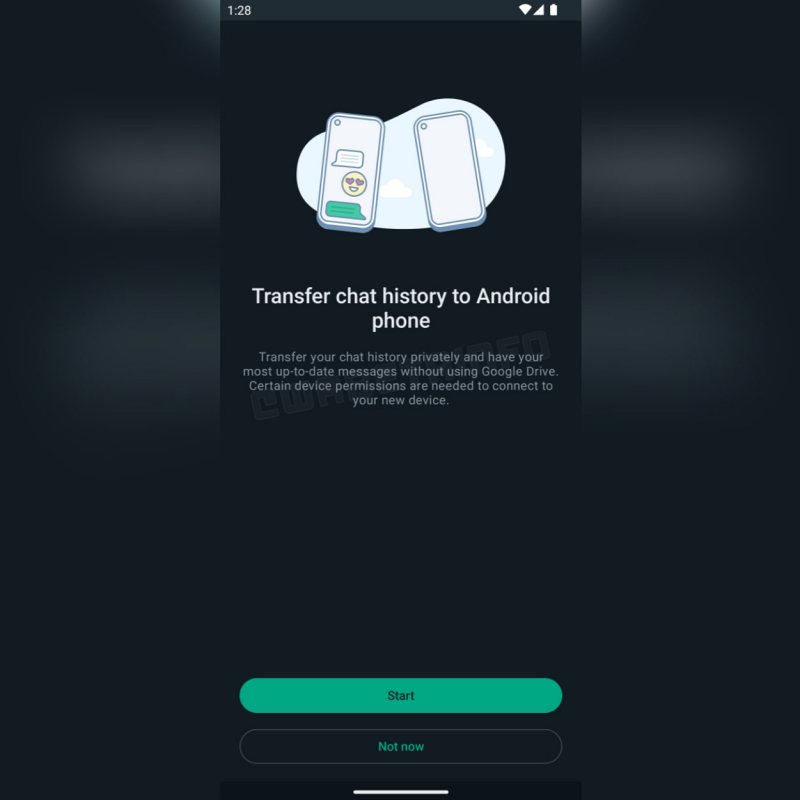
Credits:WABetaInfo
This not only consumed unnecessary bandwidth but would also take quite a lot of time to complete. Fortunately, you could now skip this waiting queue and directly cut to the chase. So on that note, here’s how to this feature right away.
How to Transfer WhatsApp Chat without using Google Drive
- First off, update WhatsApp to its latest beta version 2.23.9.19.
- Then launch the app and tap on the overflow icon at the top.
- Now go to Chats and select Chat Transfer. Then tap on Start. Credits: WABetaInfo
- It will now bring up a QR Code, scan it via your second device.
- All your chats will now be exported to your other device in seconds.
- WhatsApp Crashing on iPhone 13 Pro Max: How to Fix
- List of all WhatsApp Proxy Servers and how to use them
- WhatsApp Textbox and Send button cut off in Galaxy Z Fold 3 [Fix]
- WhatsApp call not ringing when screen is off [Fixed]

(Cancel Reply)
Δ
