How to turn off Chrome Custom Share menu on Android
In this guide, we will show you the steps to turn off Chrome’s custom share menu on your Android device. The Android OS comes inbuilt with a share sheet that beholds a slew of useful features. For example, if you hit a share button next to a URL, then the first row is reserved for copying that URL or directly sending it via Nearby Share. Next up, you get the recently contacted WhatsApp chats whereas the final row is reserved for other third-party apps.
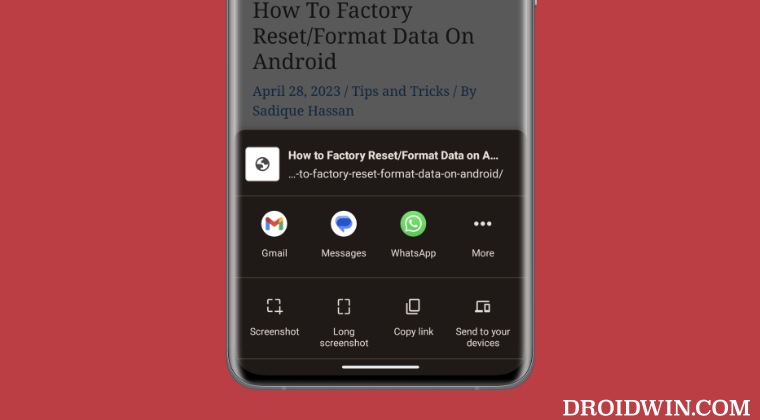
While most apps respect this hare sheet, Chrome seems to have taken a separate direction. it has its own custom share sheet wherein the first row is reserved for third-party apps whereas, in the second row, you could options like Screenshot, Copy Link, and Send to your device. And if you want to access your recently contacted WhatsApp chats, then you’ll have to carry out an additional effort of selecting More and then choosing the desired contact.
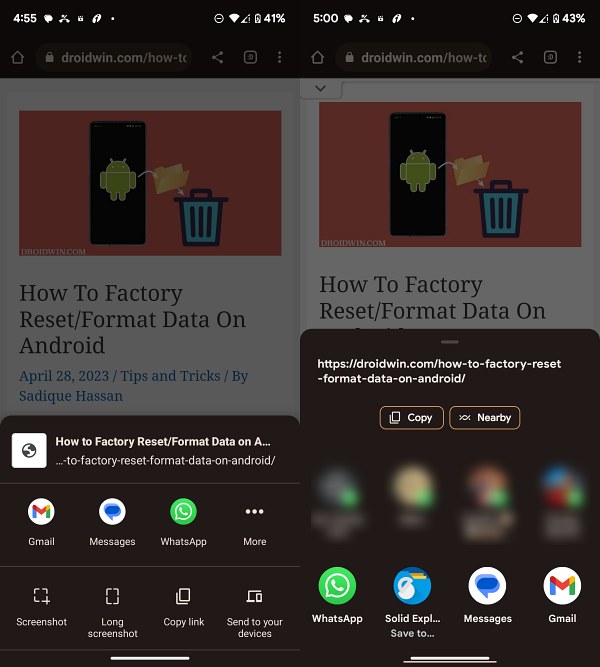
Left: Chrome Share Menu | Right: Android Share Menu
For me, this proved to be a major deal breaker because more often than not I am busy sharing URLs with the rest of my team, but having to tap on More every time to get to their contact calls for unnecessary time and effort. This is when I decided to turn off Chrome’s custom share menu on my Android device. If you also echo the same thought process, then let’s get started with the steps to get this job done.
How to turn off Chrome Custom Share menu on Android
- Launch Chrome and head over to the below location. chrome://flags/#share-sheet-migration-android
- Now tap on Default next to Share Sheet Refactor Android.
- Then select Enabled from the list and hit Relaunch.
- Chrome will now restart and its own share sheet will be disabled.
- In place of that, you’ll now get the default Android share menu.
But on doing so, wouldn’t we end up losing some reclusive Chrome share sheet features like QR Code and Send to your device? Well, now you won’t, This is because Google has just added a couple of nifty features to its share sheet, including the QR Code and Send to your device. This change is live on Chrome version 114 but at the time of writing is only visible in the Android 14 beta build. We will update this guide when it makes its way over to the stable version.
- Google Chrome Print feature not working: How to Fix
- Google Chrome Limits Bookmark Sync on Mobile and Desktop
- How to Disable Side Search Panel in Google Chrome
- How to Disable Chrome Hover Cards Preview [v111]

(Cancel Reply)
Δ
Google Chrome Print feature not working: How to Fix
In this guide, we will show you a potential method that should help you fix the issue of Google Chrome Print feature not working. When it comes to the browser domain, then there’s no denying the fact that the offering from the Silicon Valley giant is one of the best in this domain. However, in spite of all the goodies that it has to offer, it occasionally faces a few roadblocks as well.
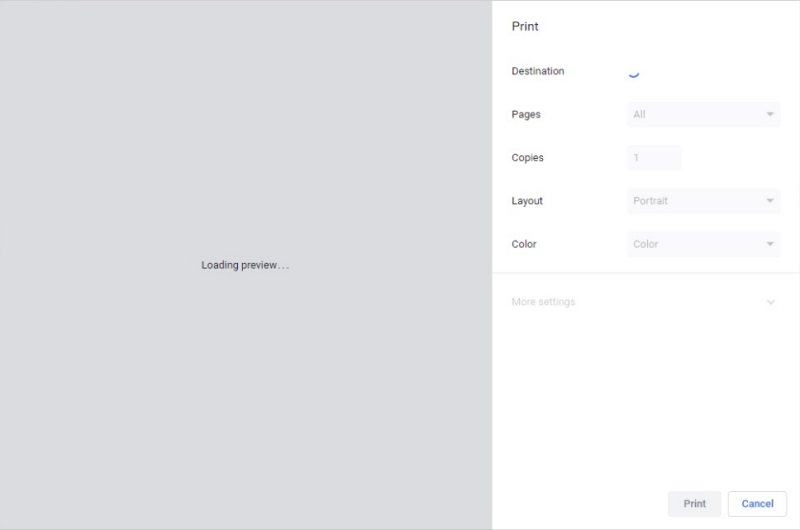
In this regard, numerous users have voiced their concern that the Print function is not working along the expected lines in the Chrome browser. Whenever they try to print a webpage or any file, the browser either suddenly crashes or gets stuck loading the print preview. If you are facing this issue, then this guide will make you aware of a nifty workaround to rectify this bug. Follow along.
Fix Google Chrome Print feature not working
The culprit behind this issue is the latest update released by Google for the Chrome browser. So to rectify it, you’ll have to downgrade the app to an older version. But since it is a system app, you wouldn’t be able to do so the normal way, instead, you’ll have to take the help of ADB Commands. For that, do check out our guide on How to Downgrade Google Chrome on Windows 11
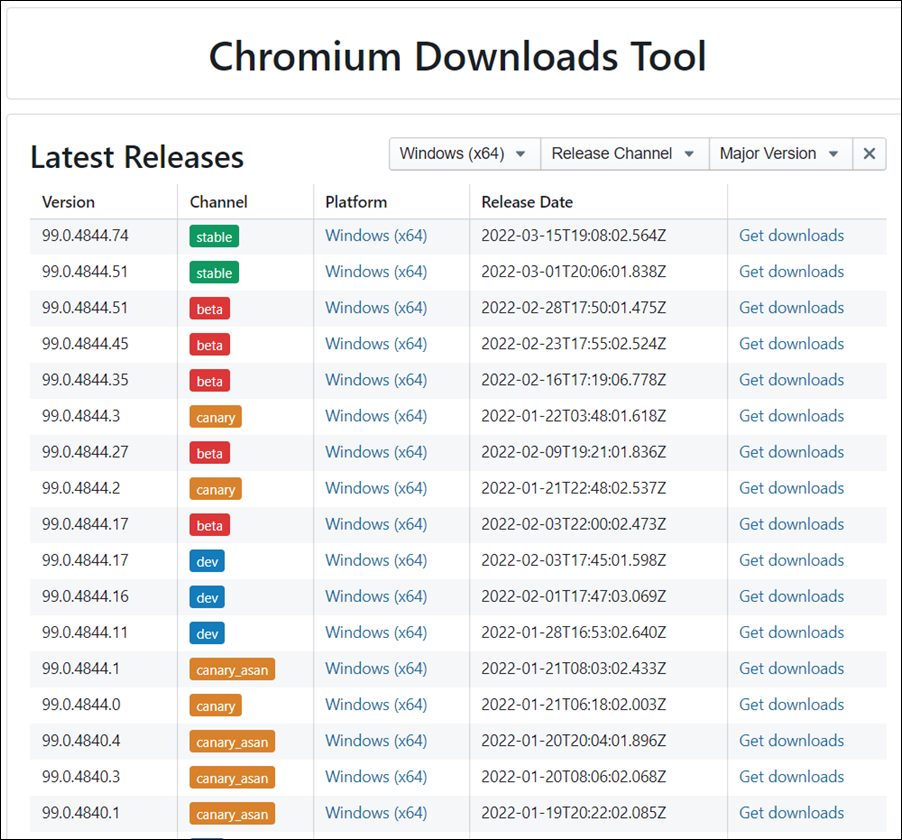
That’s it. These were the steps to fix the issue of Google Chrome Print feature not working. As far as the official stance on this matter is concerned, the developers are aware of this issue, but they haven’t given out any ETA for the rollout of a fix. As and when that happens, we will update this guide accordingly. In the meantime, the aforementioned workarounds are your best bet.
- Google Chrome Limits Bookmark Sync on Mobile and Desktop
- How to Disable Side Search Panel in Google Chrome
- Fix Chrome displays search result instead of website on home page
- How to Disable Chrome Hover Cards Preview [v111]
(Cancel Reply)
Δ
