How to Turn off Parked Car Updated notification on iPhone
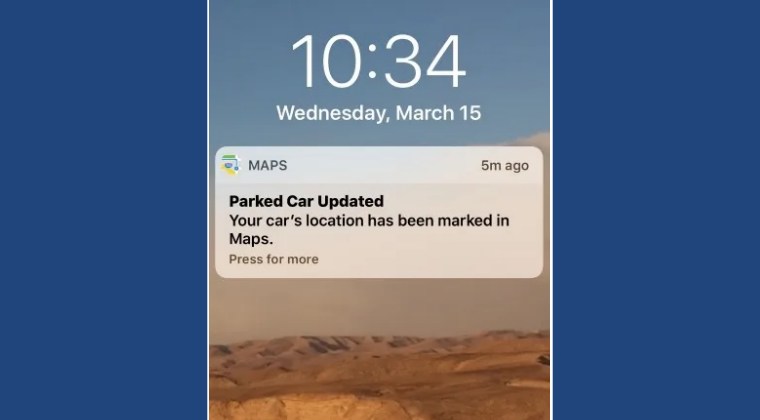
In this guide, we will show you the steps to turn off the “Parked Car Updated” notification on your iPhone. When you disconnect your iPhone from your car’s CarPlay or Bluetooth and exit your vehicle, a parked car sign is marked in the Maps app so you can easily find the way back to your car.
However, for many, this is quite an unnecessary feature and could easily count as one of the most infuriating alerts that Apple Maps tends to send. If you also echo the same thought process, then your best bet is to turn off this “Parked Car Updated” notification on your iPhone. And in this guide, we will show you how to do just that. So without further ado, let’s get started.
How to Turn off Parked Car Updated notification on iPhone
- To begin with, head over to Settings > Privacy & Security.
- Then go to Location Services and enable Location Services.
- Now go to System Services and enable Significant Locations.
- Then go to Settings > Maps > disable “Show Parked Location”.
- How to Fix CarPlay not working on iOS 17
- Pixelated Screen in Apple CarPlay: How to Fix
- Hyundai Ioniq 5 CarPlay & Android Auto not working: How to Fix
- No Sound in Call in CarPlay or Android Head Unit via T-Link [Fixed]

(Cancel Reply)
Δ
