How to Unbrick Cubot X30 via Fastboot Commands
In this guide, we will show you the detailed steps to unbrick your Cubot X30 device via Fastboot Commands. The devices from this Chinese OEM are scaling the heights in custom development at quite a decent rate. Be it for flashing custom ROMs or installing a custom recovery like TWRP , there’s a lot to try out. Along the same lines, you could also root your device via Magisk – by either directly flashing the Magisk ZIP via TWRP or by flashing the patched boot.img file.
Once you have obtained administrative privileges via Magisk, you will then be in a position to flash Modules , Xposed Framework , Viper4Android , Substratum Themes . However, carrying out these tweaks could prove to be risky as well. If you end up flashing an incorrect binary or flash it to an incorrect partition, then it could result in a brick or bootloop device. Well, even if that happens, you could easily unbrick your Cubot X30 device via Fastboot Commands. And in this guide, we will show you how to do just that. Follow along.
- How to Unbrick Cubot X30 via Fastboot Commands STEP 1: Download Android SDK STEP 2: Download Cubot X30 Stock Firmware STEP 3: Boot Bootloop/Soft Bricked Cubot X30 to Fastboot Mode STEP 5: Unbrick Cubot X30 via Fastboot Commands
How to Unbrick Cubot X30 via Fastboot Commands
The below instructions are listed under separate sections for ease of understanding. Make sure to follow in the exact same sequence as mentioned. Droidwin and its members wouldn’t be held responsible in case of a thermonuclear war, your alarm doesn’t wake you up, or if anything happens to your device and data by performing the below steps.
STEP 1: Download Android SDK

To begin with, download and install the Android SDK Platform Tools . This is the official ADB binary file provided by Google and is used to execute ADB and Fastboot Commands. So download and then extract it to any convenient location on your PC. Doing so shall give you the platform-tools folder, which we will be using throughout this guide to unbrick Cubot X30 via Fastboot Commands.
STEP 2: Download Cubot X30 Stock Firmware
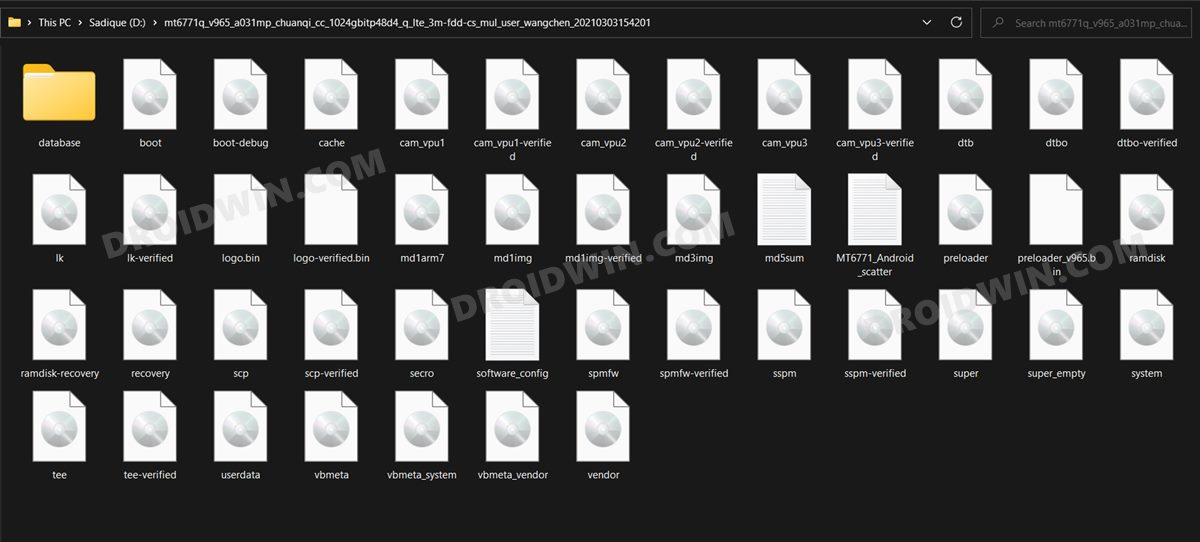
Next up, download the stock firmware for your Cubot X30 device. Once downloaded, extract it inside the platform-tools folder.
STEP 3: Boot Bootloop/Soft Bricked Cubot X30 to Fastboot Mode
- To begin with, you will have to boot your device to the Fastboot Mode. The first step for that requires you to power it off.
- If you cannot do so (due to your device being stuck in a bootloop) then the only option left is to let the entire battery drain out
- Once your device has turned off, press and hold the Volume Down and Power buttons for a few seconds.
- This shall boot your device to Fastboot Mode.
STEP 5: Unbrick Cubot X30 via Fastboot Commands
- To begin with, head over to the platform-tools folder, type in CMD in the address bar and hit Enter. This will launch the Command Prompt.
- After that, you may now execute the below commands to flash the stock firmware files to their respective partitions. Make sure to copy-paste one command at a time.
- Moreover, if you get any error after executing any of these commands, then don’t leave the process mid-way. Rather continue executing the rest of the commands and then check the results. fastboot flash preloader preloader_v965.bin fastboot flash recovery recovery.img fastboot flash vbmeta vbmeta.img fastboot flash vbmeta_system vbmeta_system.img fastboot flash vbmeta_vendor vbmeta_vendor.img fastboot flash md1img md1img.img fastboot flash spmfw spmfw.img fastboot flash scp1 scp.img fastboot flash scp2 scp.img fastboot flash sspm_1 sspm.img fastboot flash sspm_2 sspm.img fastboot flash cam_vpu1 cam_vpu1.img fastboot flash cam_vpu2 cam_vpu2.img fastboot flash cam_vpu3 cam_vpu3.img fastboot flash lk lk.img fastboot flash lk2 lk.img fastboot flash boot boot.img fastboot flash logo logo.bin fastboot flash dtbo dtbo.img fastboot flash tee1 tee.img fastboot flash tee2 tee.img fastboot flash super super.img fastboot flash cache cache.img fastboot flash userdata userdata.img fastboot reboot

- innergoat 4 years ago Reply Hello, Thanks for your blog, you’re making many things very accessible. I do not use this specific phone but I wondered if you could help with a similar situation: I tried to restore a full system backup using TWRP on my fairphone and I got stuck in a boot loop. I can still access the bootloader and recovery. The Fairphone community provides the stock images for the phone and even a tool to flash them all automatically, which I’ve done but the issue persists. Here is a list of all the “partitions” restored by the tool, as specified by a file in the OS install folder: modem_a modem_b fsc ssd sbl1_a sbl1_b rpm_a rpm_b tz_a tz_b devcfg_a devcfg_b dsp_a dsp_b modemst1 modemst2 DDR fsg sec splash aboot_a aboot_b dtbo_a dtbo_b vbmeta_a vbmeta_b boot_a boot_b devinfo system_a system_b vendor_a vendor_b persist misc keystore prodinfo config oem limits mota dip mdtp_a mdtp_b syscfg mcfg lksecapp_a lksecapp_b cmnlib_a cmnlib_b cmnlib64_a cmnlib64_b keymaster_a keymaster_b apdp msadp dpo logdump frp product_a product_b userdata My question is: In an android phone, what could remain unchanged by flashing all those? Thanks for your time!
(Cancel Reply)
Δ
