How to Unbrick Moto G9 Play via Fastboot Commands
In this guide, we will show you the steps to unbrick your Moto G9 Play device via Fastboot Commands. The ninth iteration of the Moto G series has carried forward the legacy of its predecessor in the right direction. Then near about stock OS experience, coupled with a more than decent specs sheet and a solid built quality manages to checkmark most of the boxes for the general users. Then if we shift our focus towards the tech enthusiasts, it has something in store for them as well.
But this is just one side of the coin. Carrying out the aforementioned tweaks could have some unforeseen circumstances on your device as well. If you end up flashing an incorrect binary or flash the correct file to an incorrect slot, then things could go south. The chances of the device getting stuck in a bootloop or soft brick are always there. Fortunately, there’s a handy way out as well. And this guide shall make you aware of just that. Given here are the detailed instructions to unbrick your Moto G9 Play device via Fastboot Commands.
- How to Unbrick Moto G9 Play via Fastboot Commands Enable USB Debugging and OEM Unlock Unlock Bootloader on Motorola G9 Play Install Android SDK Download Moto G9 Play Stock Firmware Boot Moto G9 Play to Fastboot Mode Install Moto G9 Play Stock Firmware via Fastboot Commands and Unbrick it
- Unbrick Moto G9 Play via BlankFlash and EDL
How to Unbrick Moto G9 Play via Fastboot Commands
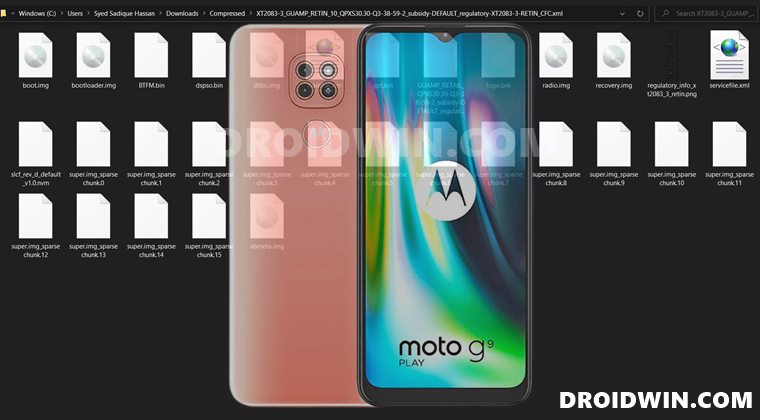
Do keep in mind that the below Fastboot Commands could also be used if you are looking to revert to stock from a custom ROM. However, in those cases, there are a few prerequisites that you need to qualify as well. These include enabling OEM Unlocking and Unlocking the device’s bootloader. However, if your device is currently bricked or in a bootloop, then you don’t need to carry out these two steps. This is because the device’s bootloader will already be unlocked!
So for bricked device users, they should directly skip over to the third step of Installing Android SDK. Keeping all these points in mind, let’s start off with the guide to unbrick your Moto G9 Play device via Fastboot Commands. Droidwin and its members wouldn’t be held responsible in case of a thermonuclear war, your alarm doesn’t wake you up, or if anything happens to your device and data by performing the below steps.
Enable USB Debugging and OEM Unlock
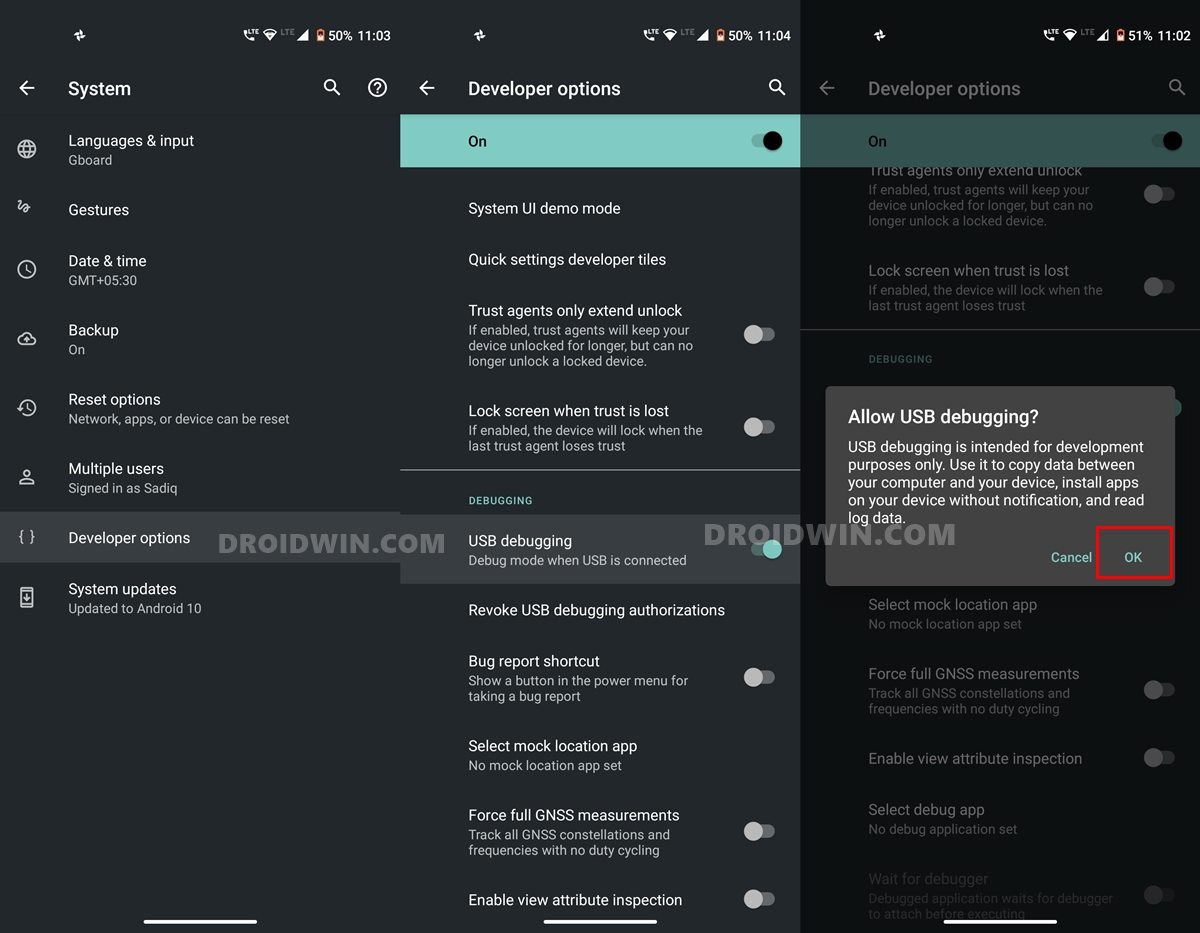
USB Debugging will make your device recognizable by the PC in ADB mode. This will then allow you to boot your device to Fastboot Mode. On the other hand, OEM Unlocking is required to carry out the bootloader unlocking process. So head over to Settings > About Phone > Tap on Build Number 7 times > Go back to Settings > System > Advanced > Developer Options > Enable USB Debugging and OEM Unlocking.
Unlock Bootloader on Motorola G9 Play
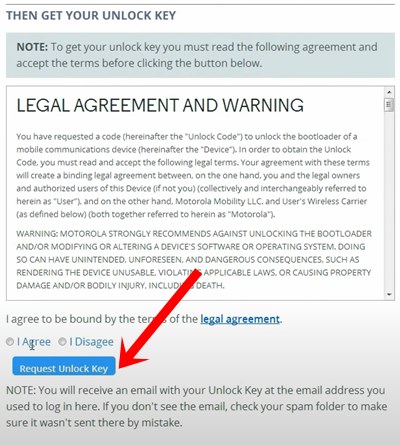
Next up, you will have to unlock the device’s bootloader. Do keep in mind that doing so will wipe off all the data from your device. Likewise, it could also make the warranty null and void. So if that’s all well and good, then please refer to our guide to Unlock Bootloader on Motorola G9 Play .
Install Android SDK

You will also have to install the Android SDK Platform Tools on your PC. These are the official ADB and Fastboot binaries provided by Google. So download it and then extract it to any convenient location on your PC. Doing so will give you the platform-tools folder, which we will be using throughout this guide to unbrick Moto G9 Play via Fastboot Commands.
Download Moto G9 Play Stock Firmware
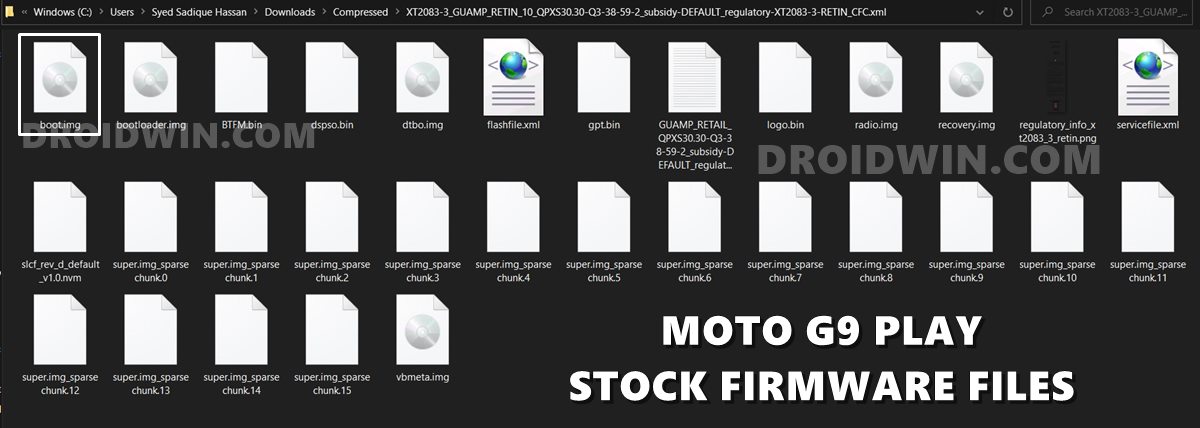
Now, download the Moto G9 Play Stock firmware file corresponding to your region from the Lolinet Mirrors . Make sure to download the one that corresponds to your region only. Once downloaded, extract it to the platform-tools folder on your PC. As for this guide, I am using the Moto G9 Play (guamp) XT2083-3 RETIN Build: GUAMP_RETIN_10_QPXS30.30-Q3-38-59-2.
Boot Moto G9 Play to Fastboot Mode
If your device is currently stuck in bootloop, then try powering it off. Then press and hold the Power+Volume Down button for a few seconds and your device shall be booted to Fastboot. On the other hand, if you are able to use your device, then you may also try the below method to boot to Fastboot Mode:
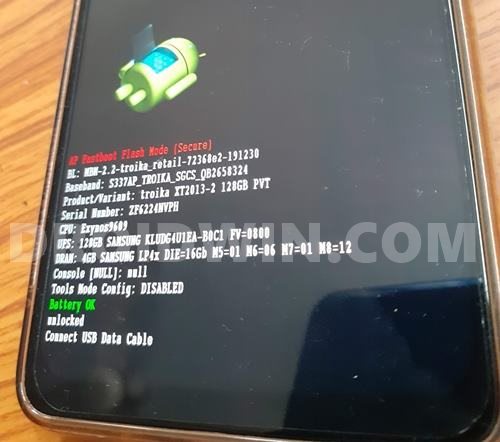
- Connect your device to the PC via USB cable. Make sure USB Debugging is enabled.
- Then head over to the platform-tools folder, type in CMD in the address bar, and hit Enter. This will launch the Command Prompt.
- Type in the following command in the CMD window to boot your device to Fastboot Mode adb reboot bootloader
- The Moto G9 Play will now be booted to Fastboot Mode and you may flash the stock firmware via Fastboot Commands to unbrick it.
Install Moto G9 Play Stock Firmware via Fastboot Commands and Unbrick it
Just copy-paste the below fastboot command on the CMD window that you have opened in the platform-tools folder. Make sure to execute one command at a time, rather than copy-pasting and executing all the commands at one go. Also copy paste these commands in the exact same order as mentioned.
fastboot flash partition gpt.bin

fastboot flash bootloader bootloader.img

fastboot flash vbmeta vbmeta.img

fastboot flash radio radio.img

fastboot flash bluetooth BTFM.bin

fastboot flash dsp dspso.bin

fastboot flash logo logo.bin

fastboot flash boot boot.img

fastboot flash dtbo dtbo.img

fastboot flash recovery recovery.img


fastboot flash super super.img_sparsechunk.0

fastboot flash super super.img_sparsechunk.1

fastboot flash super super.img_sparsechunk.2

fastboot flash super super.img_sparsechunk.3

fastboot flash super super.img_sparsechunk.4

fastboot flash super super.img_sparsechunk.5

fastboot flash super super.img_sparsechunk.6

fastboot flash super super.img_sparsechunk.7

fastboot flash super super.img_sparsechunk.8

fastboot flash super super.img_sparsechunk.9

fastboot flash super super.img_sparsechunk.10

fastboot flash super super.img_sparsechunk.11

fastboot flash super super.img_sparsechunk.12

fastboot flash super super.img_sparsechunk.13

fastboot flash super super.img_sparsechunk.14

fastboot flash super super.img_sparsechunk.15


fastboot erase carrier

fastboot erase userdata

fastboot erase metadata

fastboot erase ddr


fastboot oem fb_mode_clear


fastboot reboot
Unbrick Moto G9 Play via BlankFlash and EDL
If your device is hard bricked, then you wouldn’t be even able to access the Fastboot Mode. Fortunately, since this device comes with the Qualcomm chipset, you could boot it to the Emergency Download Mode and flash the BlankFlash file. This will bring your device back to life in no time whatsoever. So grab hold of the BlankFlash file for your device from here and then refer to the flashing instructions here.

- CuriousRussian 2 years ago Reply Is it possible that manufacturers ship devices to third party countries like Russia or India without a bootloader ? Mine come with a fastboot mode.. wierd mode with a black screen, no information at all, and no unlock function.
- Yahia Eissa 4 years ago Reply my phone is locked and cant unlock the bootloader because i dont have any opearting system pls help CuriousRussian 2 years ago Reply if you don’t have recovery aka “modern phone”.. I can advise only one solution.. go to bootloader and try to format “userdata” to different format, for example: fastboot format userdata:ext4 If data isn’t corrupt after reboot factory reset starts automatically.
(Cancel Reply)
Δ
