How to Unbrick OnePlus Pad via Fastboot [Video]
In this guide, we will show you the steps to unbrick your OnePlus Pad via Fastboot. Among the latest players to set their feet in the tablet domain is the offering from OnePlus, which, in earlier times, used to be among the most active players in custom development but has since gone into oblivion. So what went wrong? Well, you could thanks Oppo for that as not only has the merge ruined the OxygenOS, but it also took away our beloved MSM Download Tool.
Since there is no longer a trusted tool to bring your device back to life from EDL Mode, many developers are hesitant in developing ROMs for this device, and that is completely understandable. However, even then, you could still gain administrative privileges and welcome abode a plethora of mods onto your device. But it goes without saying that carrying out these tweaks is quite risky in itself.
Moreover, the absence of MSM only makes the matter more concerning. But if your device is stuck in a bootloop,softbrick, or in a Fastboot state, then there still might be an escape route. Using the Fastboot Enhance Tool, you might be able to unbrick your OnePlus Pad. So without further ado, let’s show you how this could be carried out.
- How to Unbrick OnePlus Pad via Fastboot STEP 1: Download Fastboot Enhance Tool STEP 2: Download OnePlus Stock ROM STEP 3: Install Android SDK STEP 4: Install Fastboot Drivers STEP 5: Boot to Fastboot Mode STEP 6: Flash Stock Firmware on OnePlus via Fastboot
How to Unbrick OnePlus Pad via Fastboot
The below process will wipe off all the data from your device [not that you could take a backup anyways!]. So keeping that in mind, let’s get started. Droidwin and its members wouldn’t be held responsible in case of a thermonuclear war, your alarm doesn’t wake you up, or if anything happens to your device and data by performing the below steps.
STEP 1: Download Fastboot Enhance Tool
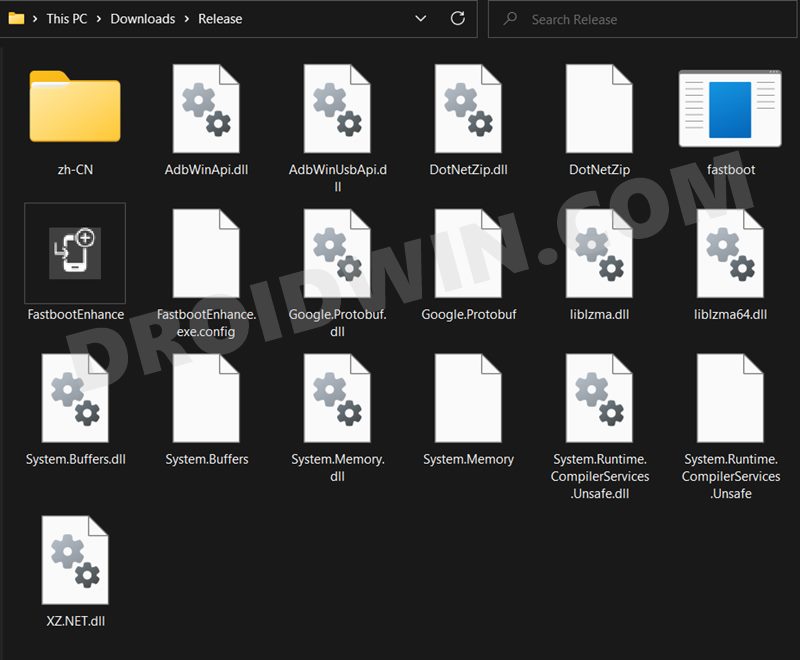
Download the Fastboot Enhance Tool from GitHub [ direct link ]. Once downloaded, extract it to any convenient location on your PC. The biggest advantage of this tool is that you could directory flash the payload.bin file, there is no need to extract it and get the resultant IMG files!
STEP 2: Download OnePlus Stock ROM
- Next up, get hold of the firmware for your device from below: OnePlus Stock Firmware | Oxygen Updater App
- Once downloaded, extract it and transfer the resultant payload.bin file to the Fastboot Enhance Tool folder.
STEP 3: Install Android SDK
Next up, install the Android SDK Platform Tools on your PC. This is the official ADB and Fastboot binary provided by Google and is the only recommended one. So download it and then extract it to any convenient location on your PC. Doing so will give you the platform tools folder, which will be used throughout this guide.

STEP 4: Install Fastboot Drivers
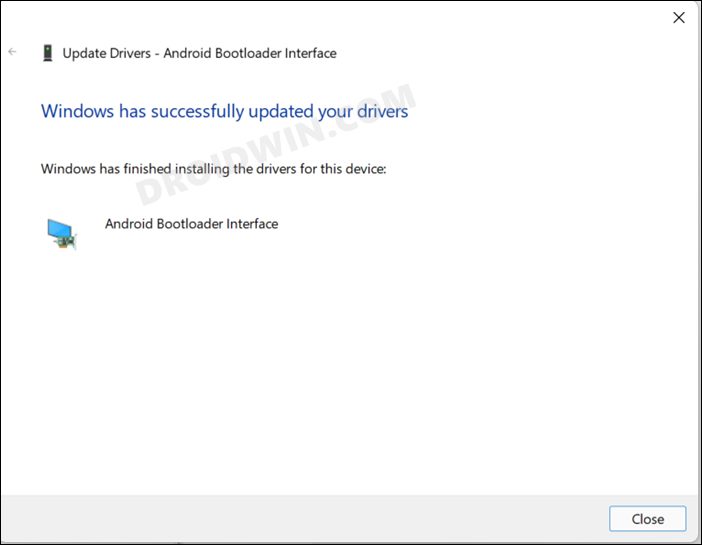
The tool doesn’t come with the Fastboot Drivers, so you will manually have to install it on your PC. For that, please refer to our guide on How to Install Fastboot Drivers in Windows 11 . Likewise, make sure to install the OnePlus USB Drivers as well [they are usually automatically installed as soon as you connect your device to the Windows PC for the first time].
STEP 5: Boot to Fastboot Mode
- Connect your device to the PC via a USB cable. Make sure USB Debugging is enabled.
- Then head over to the platform-tools folder, type in CMD in the address bar, and hit Enter. This will launch the Command Prompt.
- After that, type in the following command in the CMD window to boot your device to Fastboot Mode adb reboot bootloader
- To verify the Fastboot connection, type in the below command and you should get back the device ID. fastboot devices
STEP 6: Flash Stock Firmware on OnePlus via Fastboot
- To begin with, launch the Fastboot Enhance Tool via its EXE file.
- Your device should be listed under the Fastboot Virtualization tab, select it.
- After that, click on the Reboot to FastbootD button.
- Your device will boot to FastbootD Mode.
- Now go to the Payload Dumper tab and click on Browse.
- Navigate to the payload.bin file, select it, and click Open.
- The file will now be loaded in the tool, displaying the resultant information.
- Now go to the Fastboot Virtualization tab and click on Flash payload.bin. If the flashing starts, well and good.
- However, if you get the ‘Virtual A/B temporary partitions exist’ popup, then click on No.
- After that, go to the Partitions tab and type in cow in the Filter by name box.
- Select all the partitions from the results that have cow in their name and hit the Delete button.
- Once done, click on Flash payload.bin. This time the flashing will start without any issues.
- Once complete, you will be notified of the same. You may now boot to the OS by clicking on Reboot to System.
- How to Unlock Bootloader on OnePlus Pad
- How to Root OnePlus Pad via Magisk [Video]
- Bummer! OnePlus Pad does not have a fingerprint sensor
- How to Enable Engineer Mode on any OnePlus device

(Cancel Reply)
Δ
Bummer! OnePlus Pad does not have a fingerprint sensor
When it felt that OnePlus might have finally managed to steer the ship in the right direction, it seems to have once again hit the iceberg! On paper, you get quite an impressive sheet, with the likes of a 144Hz screen, Dimensity 9000 chipset, and 12GB RAM, but there is a glaring omission on the hardware side- the OnePlus Pad doesn’t have a fingerprint sensor or any form of secure biometric authentication for that matter!
The fact that a tablet is being launched in 2023 without these basic features is really hard to digest. While it does have the usual password/pin/pattern, but for many users, having a fingerprint sensor is an easier way of unlocking their device. And what about face unlock? Well, it does have a selfie camera and that could be used as a facial recognition tool, but that is something that we used to have a decade back as well.
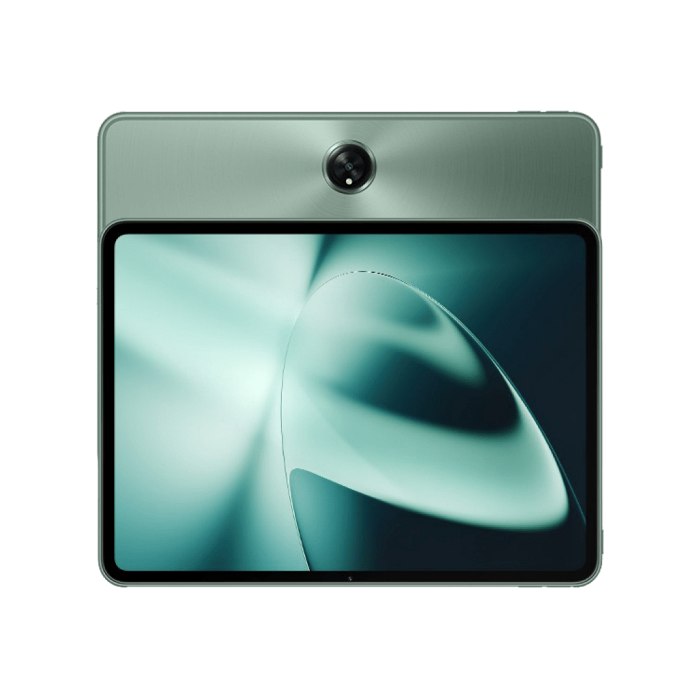
It doesn’t have any dedicated sensor for the same, so you might be at risk if you are planning to use this face unlock on sensitive apps such as the banking and payments app. Anyways, coming back to the point, why does OnePlus Pad not have a fingerprint sensor? Well, the company has given an explanation to 9to5Google and it might really surprise you.
Why Does OnePlus Pad not have a fingerprint sensor?
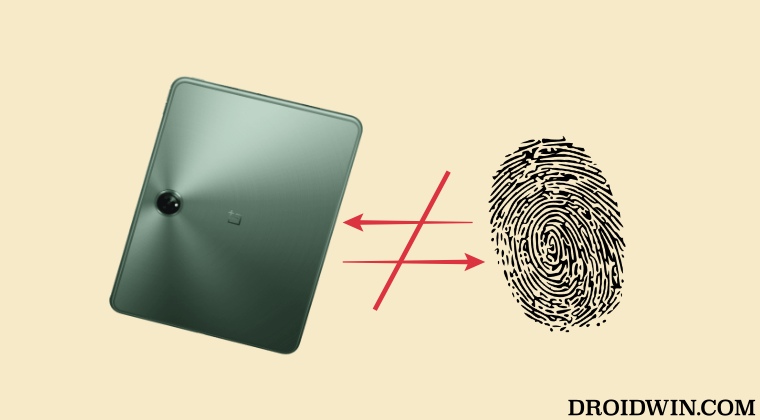
According to them, an in-display fingerprint sensor “is not as natural as how that’s used in a smartphone, ” and a side-mounted fingerprint sensor “is also not that efficient”. Well, well, we seem the company isn’t quite aware of the tablet markets yet, so let’s take them in that direction- Samsung is using the under-display fingerprint sensors on its Galaxy Tab S series for the past few years and Apple is using a side-mounted fingerprint sensor in the iPad for ages.
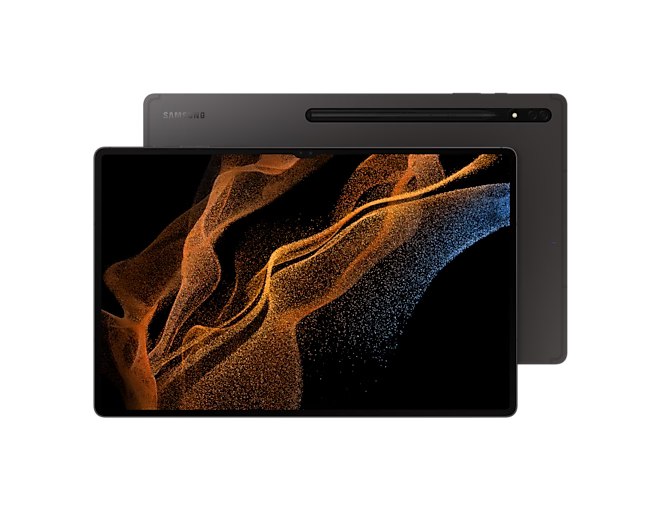
Galaxy Tab S8 Ultra
So if any member of your team didn’t have a chance to use any of these two products ever, then let me break it down for you- the fingerprint sensor on the Galaxy S series is completely “natural”- exactly how it is on any other premium smartphones and the one from Apple- well it’s among the most efficient ones out there. So you might have to come up with a better excuse next tie, OnePlus [something that could make even an iota of sense].
- MSM Download Tool for OnePlus 10 Pro: The Final Nail in the Coffin
- Fix OnePlus Fingerprint issues without Persist backup
- How to Unbrick OnePlus 11R via Fastboot Commands
- OnePlus 9 Pro Green Line after installing update [Fix]
- Steve 3 years ago Reply Red line. Idiotic.
(Cancel Reply)
Δ
