How to Unbrick Realme GT 5G via Fastboot Commands
In this guide, we will show you the steps to unbrick your Realme GT 5G device via Fastboot Commands. The device from this Chinese OEM seems to have check-marked most of the prerequisites that one could have asked for from a device belonging to this domain. The likes of Snapdragon 888 chipset, 120hz refresh rate, up to 12GB RAM, and 65W fast charging are just some of its noteworthy features.
Along the same lines, these devices are quite an active player in custom development as well. Be it for flashing the custom ROM, installing a custom recovery like TWRP, or gaining administrative privileges by rooting your device via Magisk, there’s a lot to look forward to. However, this is just one side of the coin.
Trying out these tweaks could also spell out trouble for you if you end up flashing an incorrect binary or flash it to the incorrect partition. In such cases, a softbrick or boot-looped device is usually on the cards. Fortunately, you could easily unbrick your Realme GT 5G device by flashing the stock firmware via Fastboot Commands. And in this guide, we will show you how to do just that. Follow along.
- How to Unbrick Realme GT 5G via Fastboot Commands STEP 1: Install Android SDK STEP 2: Download Realme GT 5G Stock Firmware Realme UI 2.0 Realme UI 3.0 STEP 3: Extract Realme GT 5G OZIP Firmware STEP 4: Boot Bricked Realme GT 5G to Fastboot Mode STEP 5: Format Device via Fastboot STEP 6: Flash Realme GT 5G Firmware via Fastboot | Unbrick It
How to Unbrick Realme GT 5G via Fastboot Commands
The below instructions are listed under separate sections for ease of understanding. Make sure to follow in the same sequence as mentioned. Droidwin and its members wouldn’t be held responsible in case of a thermonuclear war, your alarm doesn’t wake you up, or if anything happens to your device and data by performing the below steps.
STEP 1: Install Android SDK

First and foremost, you will have to install the Android SDK Platform Tools on your PC. This is the official ADB and Fastboot binary provided by Google and is the only recommended one. So download it and then extract it to any convenient location on your PC. Doing so will give you the platform-tools folder, which will be used throughout this guide to root your OnePlus 9RT via Magisk.
STEP 2: Download Realme GT 5G Stock Firmware
Next up, download the stock firmware for your device corresponding to the region from the below links. You may refer to the below information to know more about the firmware region codes:
- RMX2202 GDPR : UK, FR, IT, DE,ES, PL, CZ
- RMX2202 export: TW, TH, IN, RRU
- RMX2202 domestic: CN
Realme UI 2.0
RMX2202_11.A.14 export

RMX2202_11.A.16 export

RMX2202_11.A.17 export


RMX2202_11.A.17 GDPR


RMX2202_11.A.20 domestic

RMX2202_11.A.21 domestic

RMX2202_11.A.23 domestic

RMX2202_11.A.24 domestic

RMX2202_11.A.25 domestic

RMX2202_11.A.26 domestic

RMX2202_11.A.27 domestic
Realme UI 3.0
RMX2202_11.C.04 export

RMX2202_11.C.05 export

RMX2202_11.C.12 export


RMX2202_11.C.05 GDPR

RMX2202_11.C.12 GDPR


RMX2202_11.C.10 domestic

RMX2202_11.C.11 domestic

RMX2202_11.C.13 domestic

RMX2202_11.C.14 domestic

RMX2202_11.C.15 domestic
STEP 3: Extract Realme GT 5G OZIP Firmware
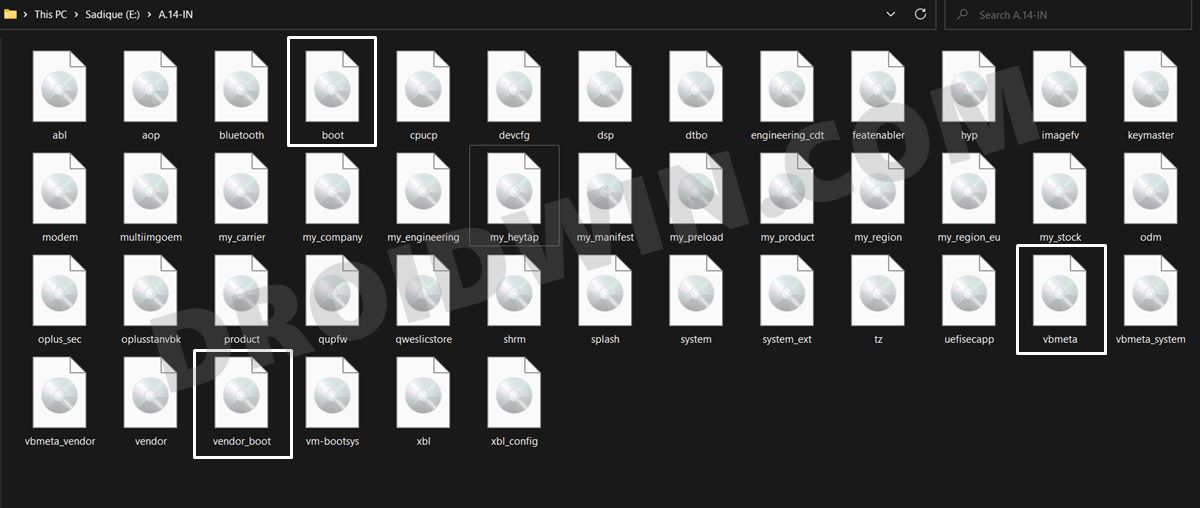
The downloaded firmware will be in OZIP format. So you will have to extract it in order to get the partition IMG files. For that, please refer to our guide on How to Extract OZIP Realme Stock ROM (Firmware) . Once the extraction is complete, transfer all the IMG files to the platform-tools folder on your PC.
STEP 4: Boot Bricked Realme GT 5G to Fastboot Mode
In most cases, a soft-bricked or boot looped device might already be in the Fastboot Mode. However, if you are stuck in a bootloop, then long-press the Power key to turn it off. Then press and hold the Power and Volume Down keys (or Power and Volume Up in some devices) together to boot your device to Fastboot Mode.
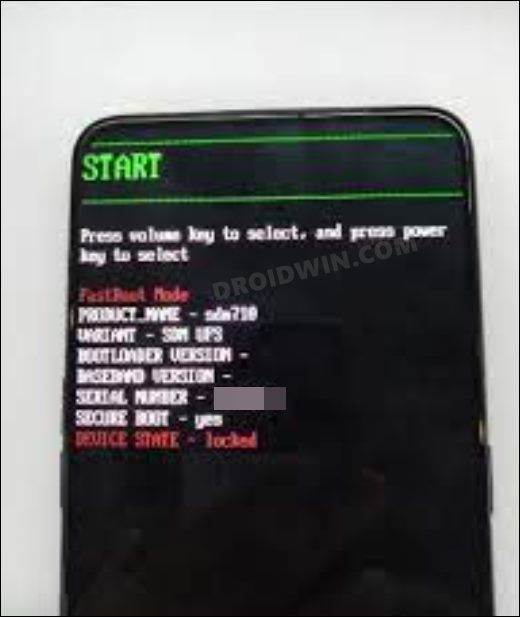
However, if you are unable to power off the device, then let its battery drain out. Once that happens, connect it to the charger. Then as soon as it is about to boot up, use the Power and Volume Up/Down keys and it will straightaway boot to Fastboot Mode.
STEP 5: Format Device via Fastboot
- Head over to the platform-tools folder where the extracted ROM is present.
- Then go to its address bar, type in CMD in its address and hit Enter. This will launch the CMD window.
- Now execute the below command to perform a factory reset (optional but recommended) fastboot -w
STEP 6: Flash Realme GT 5G Firmware via Fastboot | Unbrick It
Now just execute each of the below commands, one at a time, inside the CMD window that you have opened in the platform-tools folder. No need to check for or specify the active slot, the commands will automatically flash the partitions files to their active slots.
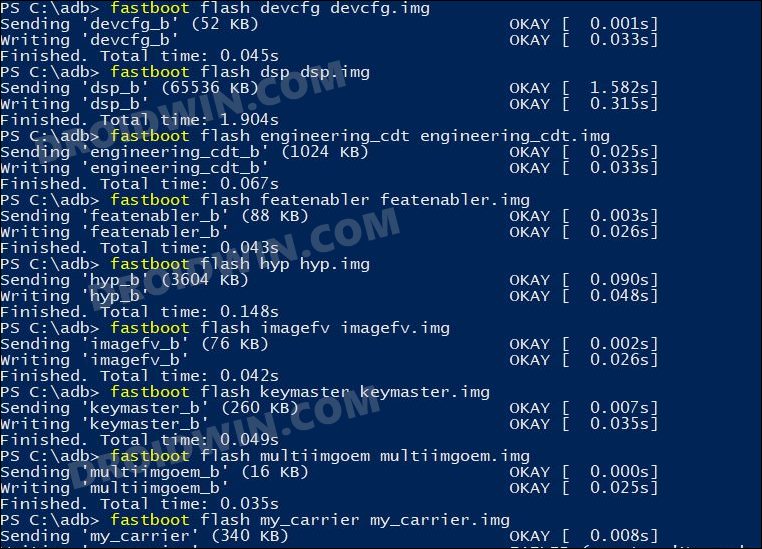
Moreover, the second last command (fastboot -w) will factory reset the device, so make sure that you have taken a backup beforehand. Then the last command (fastboot reboot) will automatically boot the device to the OS.
fastboot flash boot boot.img

fastboot flash dtbo dtbo.img

fastboot flash modem modem.img

fastboot --disable-verity flash vbmeta vbmeta.img

fastboot --disable-verity flash vbmeta_system vbmeta_system.img

fastboot --disable-verity flash vbmeta_vendor vbmeta_vendor.img

fastboot reboot fastboot

fastboot flash abl abl.img

fastboot flash aop aop.img

fastboot flash bluetooth bluetooth.img

fastboot flash cpucp cpucp.img

fastboot flash devcfg devcfg.img

fastboot flash dsp dsp.img

fastboot flash engineering_cdt engineering_cdt.img

fastboot flash featenabler featenabler.img

fastboot flash hyp hyp.img

fastboot flash imagefv imagefv.img

fastboot flash keymaster keymaster.img

fastboot flash multiimgoem multiimgoem.img

fastboot flash my_carrier my_carrier.img

fastboot flash my_company my_company.img

fastboot flash my_engineering my_engineering.img

fastboot flash my_heytap my_heytap.img

fastboot flash my_manifest my_manifest.img

fastboot flash my_preload my_preload.img

fastboot flash my_product my_product.img

fastboot flash my_region my_region.img

fastboot flash my_stock my_stock.img

fastboot flash odm odm.img

fastboot flash oplus_sec oplus_sec.img

fastboot flash oplusstanvbk oplusstanvbk.img

fastboot flash product product.img

fastboot flash qupfw qupfw.img

fastboot flash qweslicstore qweslicstore.img

fastboot flash shrm shrm.img

fastboot flash splash splash.img

fastboot flash system system.img

fastboot flash system_ext system_ext.img

fastboot flash tz tz.img

fastboot flash uefisecapp uefisecapp.img

fastboot flash vendor vendor.img

fastboot flash vendor_boot vendor_boot.img

fastboot flash vm-bootsys vm-bootsys.img

fastboot flash xbl xbl.img

fastboot flash xbl_config xbl_config.img

fastboot -w

fastboot reboot
- How to Unlock Bootloader on Realme GT 5G
- Convert Realme GT China ROM to EU ROM or Indian ROM [2 Methods]
- How to Root Realme GT 5G via Magisk Patched Boot

- Burt 4 years ago Reply My realme gt 5g just vibrate show realme andriod logo then all over again. Cant turn it of long press power+ vol down or up for 20 sec or more. It did that till its low battery. How do I do these all?
(Cancel Reply)
Δ
