How to Unbrick Red Magic 8 Pro via EDL Mode Firmware
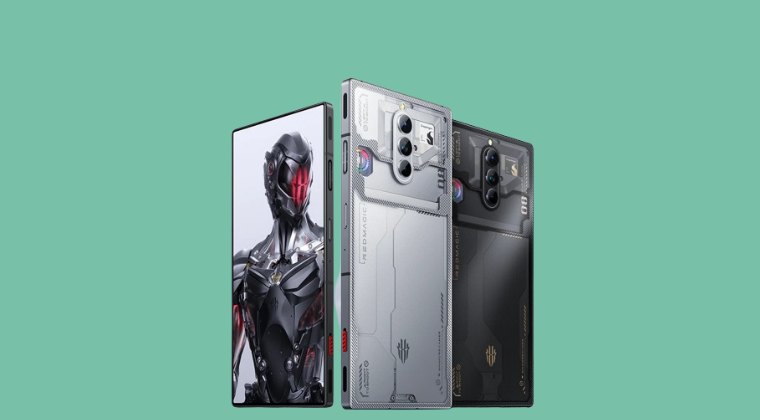
In this guide, we will show you the steps to unbrick your Red Magic 8 Pro device via EDL Mode firmware. This offering from the ZTE Nubia beholds quite an impressive spec sheet and a slew of intriguing goodies up its sleeves. If we turn our attention towards custom development, then it has already been blessed with a custom recovery. Apart from that, you could also flash GSI ROMs or gain administrative privileges by rooting the device via Magisk. However, carrying out these tweaks might bring in a few uninvited risks as well.
In most cases, your device would usually end up in a softbrick or bootloop, which could easily be rectified by flashing the firmware in Fastboot Mode. But in rare instances, the device might end up in a hard-bricked state and you wouldn’t even be able to access the Fastboot Mode. Fret not! Since your device comes with an underlying Qualcomm chipset, you could use the Emergency Download [EDL] Mode and flash the resulting firmware to bring your device back to life. And in this guide, we will show you how to do just that. Follow along.
How to Unbrick Red Magic 8 Pro via EDL Mode Firmware
The unbrick process will wipe off all the data from your device. Droidwin and its members wouldn’t be held responsible in case of a thermonuclear war, your alarm doesn’t wake you up, or if anything happens to your device and data by performing the below steps.
- First off, download and extract the QFIL Tool on your PC.
- Next up, download and extract the EDL Unbrick firmware .
- Likewise, download and install the QPST Tool on your PC.
- Download and install QFL_Qualcomm USB Driver as well.
- Now copy all the files from the Qualcomm_Flash_Image_Loader_v2.0.3.5 folder.
- Then transfer them into the C:\Program Files (x86)\Qualcomm\QPST\bin folder.
- Click on Replace All, if asked. Now transfer the EDL ROM into that folder as well.
- Now press and hold the Volume Up and Down keys, and while holding both these keys, connect your device to your PC via a USB cable.
- It should boot into EDL Mode within a few seconds. Now refer to this guide to install the EDL Drivers on your PC, if needed.
- Now launch the QFIL Tool and click on Flat Build.
- Then browse to the extracted firmware [which should be inside the QPST\bin folder] and select the firehose.elf file.
- Now click on Load XML and select the 6 files. Then another window will pop up, so again select the 6 files.
- Then, click Download and the flashing will start. It could take a while for it to complete.
- Once done, reboot your device to Recovery and do a Data Wipe/Format Data. Finally, you may now reboot to the OS.
- How to Convert Nubia Red Magic 8 Pro from China to Global
- Root Nubia Red Magic 8 Pro via Magisk Patched init_boot
- How to Unlock Bootloader on Nubia Red Magic 8 Pro
- Fix Red Magic 8 Pro Fingerprint not working on Unlock Bootloader

- Crawley 2 years ago Reply Sorry, didn’t work. My redmagic 8pro. I have been trying to unbrick for no good results.
(Cancel Reply)
Δ
Fix Red Magic 8 Pro Fingerprint not working on Unlock Bootloader
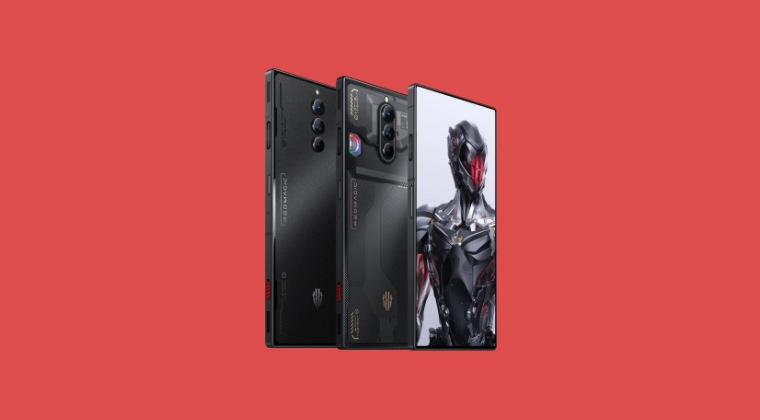
In this guide, we will show you the steps to fix the issue of fingerprint not working in Nubia Red Magic 8 Pro after unlocking the bootloader. Removing the barrier to gain entry to custom development has its fair share of issues, most of which have already been documented beforehand. Among them, is the tripping of Knox on Samsung and voiding the warranty across a few OEMs that most of you might already be aware of.
But when it comes to Nubia, there is another major caveat attached. Fingerprint unlock might no longer work on your Nubia Red Magic 8 Pro after unlocking its bootloader. In some cases, you might not be able to use any security measures, including the likes of PIN and password. With that said, there does exist a nifty workaround that could help you mitigate this issue. So without further ado, let’s check it out.
- Fix Red Magic 8 Pro Fingerprint not working after Bootloader Unlocking FIX 1: Re-Calibrate Fingerprint FIX 2: ReFlash in FastbootD Mode
- UPDATE
Fix Red Magic 8 Pro Fingerprint not working after Bootloader Unlocking
It is recommended that you go through each of the below-mentioned workarounds and then try the one which is in sync with your requirement. So with that in mind, let’s get started. Droidwin and its members wouldn’t be held responsible in case of a thermonuclear war, your alarm doesn’t wake you up, or if anything happens to your device and data by performing the below steps.
FIX 1: Re-Calibrate Fingerprint
Make sure to carry out the below steps in a dark room or under minimal light. Moroever, it is highly recommended that you carry out this fingerprint recalibration task wearing a lattice glove as it tends to give the maximum success rate.
- Delete the data of the In-Display FingerPrint system app.
- Then bring up the dialer and type in the below code: *#9959#
- Now checkmark Calibration and uncheck Performance. Then Tap on Start and wait till you get Pass.
- Then tap Next in the circle and wait for Pass [put anything black non-reflective and then retry if you are failing].
- Now press NEXT. Then place your thumb in a vertical position and press on the circle. Make sure that your thumb is covering the darker part of the circle
- Carry out this task until you see Pass in green [this could take even up to 50 tries!].
- Once done, check if it fixes the issue of Red Magic 8 Pro Fingerprint not working after Bootloader Unlocking.
FIX 2: ReFlash in FastbootD Mode
- To begin with, download the stock firmware for your device from below: V2.21 China: Download V2.18 China: Download V3.18 (V318) Asia: Download V4.18 (418) Europe: Download
- Make sure to download the same version that is currently installed on your device.
- Once downloaded, extract it to any convenient location on your PC. You will now get the payload.bin file.
- Load it to the Fastboot Enhance Tool , select the init_boot, system.img, and vendor.img and hit Extract Image.
- Once extracted, transfer system.img, and vendor.img to the platform-tools folder whereas transfer init_boot.img to your device.
- Now download and install the Magisk App on your device.
- Then launch it and tap on the Install button next to Magisk.
- After that, choose ‘Select and Patch a File’, and navigate to the stock init_boot.img file, and select it.
- Then tap on the Let’s Go button situated at the top right.
- The init_boot.img file will now be patched and placed under the Downloads folder on your device. Transfer it to the platform tools folder on your PC.
- Once done, reset your device from the Settings menu and then restart it.
- During the initial setup, it will ask to enter fingerprint/password, skip all of them.
- Now enable USB Debugging and connect your phone to your PC via a USB cable.
- Then download and extract Android SDK Platform Tools on your PC.
- Now type in CMD inside the platform-tools folder address bar and hit Enter:
- Then execute the below command to boot your device to the Fastboot Mode: adb reboot bootloader
- Now type in the below command to unlock the critical partitions on your device fastboot flashing unlock_critical
- Once done, type in the below command to boot your device to the OS: fastboot reboot
- Skip the initial setup, enable USB Debugging, and type in the below command to boot your device to FastbootD Mode adb reboot fastboot
- We will now have to flash patched init_boot, vendor, and system. So execute the below three commands in the CMD window: fastboot flash init_boot magisk_patched_init_boot.img fastboot system system.img fastboot vendor vendor.img
- Once done, use the below command to boot your device to the OS: fastboot reboot
- During the initial setup, skip the fingerprint/PIN/password.
- Now go to Settings > Password and Security and set the desired PIN/Password.
- The lock screen should now work without any issues.
UPDATE
If the aforementioned method didn’t work, then you could also buy an optical fingerprint calibration tool to get this job done.
- How to Root Nubia Red Magic 6/6 Pro/6R via Magisk
- Unbrick Nubia Red Magic 6/6 Pro/6R via Fastboot Commands
- How to Unlock Bootloader on any Nubia Device
- How to Root Nubia Red Magic 5G via Magisk
(Cancel Reply)
Δ
