How to Uninstall Google App on Android via ADB Command
In this guide, we will show you the steps to uninstall the Google App from your Android device via ADB Command. No OEM is left behind when it comes to bloating their user interface with pre-installed apps. While most of these bloatwares are straightaway useless, there are some that users wouldn’t mind having on their devices. These are mostly the apps from the Search Engine giants and include the likes of Gmail, Chrome, YouTube among others. And you could also add Google App to this list as well.
Its popularity is only growing with each passing day and is also becoming of the most sued apps for many users. One of its most noteworthy features is the Discover feed that gives you curated news and web stories based on your interest and choices. But in spite of all the goodies attached, it isn’t free from its fair share of issues. More often than not, you could easily rectify these issues via clearing cache and data, force stopping it, or disabling and re-enabling it. But in some instances, these tweaks might not be sufficient
As a result, you might have to take the nuclear approach of uninstalling the Google App from your Android device and then reinstalling it. However, you wouldn’t find this tweak mentioned anywhere because of the general notion that system and pre-installed apps cannot be uninstalled. Just to bust this myth- it is completely false as you could easily uninstall any and every app on your device, be it system/ user-installed/ pre-installed or bloatware. And on that note, this guide will show you the steps to uninstall the Google App from your Android device via ADB Command. Follow along.
- The Prerequisites to Uninstall Google App on Android via ADB Command STEP 1: Download Android SDK STEP 2: Enable USB Debugging STEP 3: Verify ADB Connection STEP 4: Find Google App ID
- Uninstall Google App on Android via ADB Command
- Reinstall Google App on Android via ADB Command
- Disable Google App on Android via ADB Command
- Re-Enable Google App on Android via ADB Command
- Concluding Remarks
The Prerequisites to Uninstall Google App on Android via ADB Command
This guide will show you how to uninstall, re-install, disable and re-enable Google App on Android- all via ADB Commands. So checkmark all the prerequisites from below and then get started with the tutorial.
STEP 1: Download Android SDK
First and foremost, you will have to install the Android SDK Platform Tools on your PC. This is the official ADB and Fastboot binary provided by Google and is the only recommended one. So download it and then extract it to any convenient location on your PC. Doing so will give you the platform-tools folder, which will be used throughout this guide.

STEP 2: Enable USB Debugging
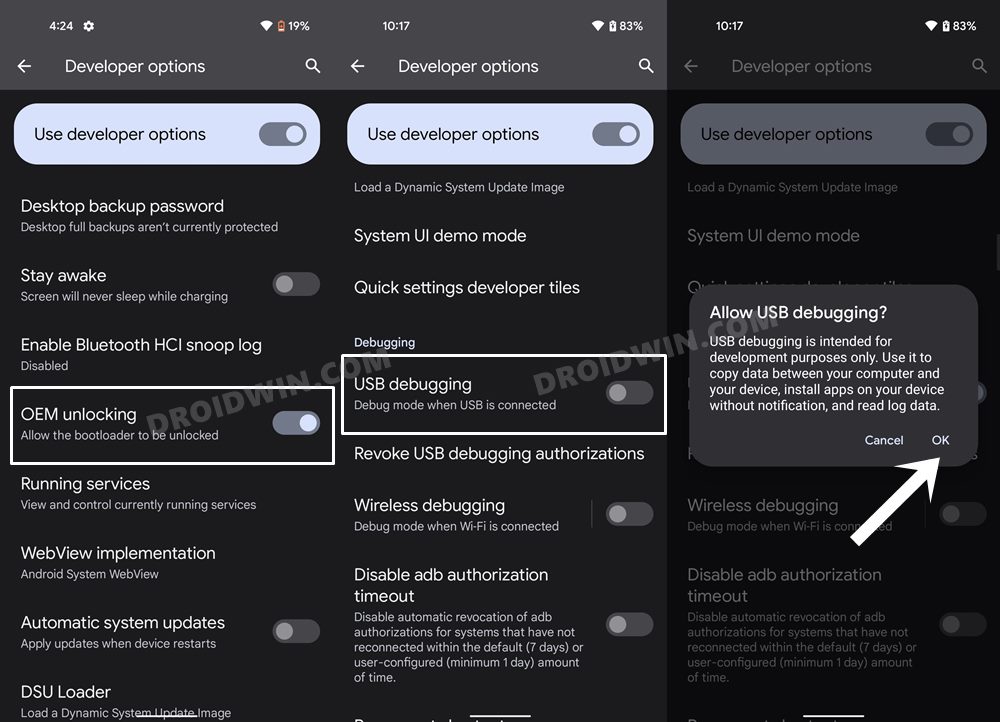
Next up, you will have to enable USB Debugging on your device so that it is recognizable by the PC in ADB mode. So head over to Settings > About Phone > Tap on Build Number 7 times > Go back to Settings > System > Advanced > Developer Options > Enable USB Debugging.
STEP 3: Verify ADB Connection
- To begin with, connect your device to the PC via USB cable. Make sure USB Debugging is enabled.
- Then head over to the platform-tools folder, type in CMD in the address bar, and hit Enter. This will launch the Command Prompt.
- Now in the following command in the CMD window to verify the ADB connection: adb devices
- If you get the device ID, then the connection stands successful. Now type in the below command to open the Shell environment: adb shell
- It will now list out your device codename (such as sunfish for Pixel 4A), which means that the shell connection has been successfully established as well, and you are good to go ahead.
STEP 4: Find Google App ID
Your next course of action is to get hold of the Google App ID. Now there are three different methods through which this could be carried out. For detailed information about all these three methods, you should check out our guide on How to Get App Package Name on Android [3 Methods] . Out of the three methods, the Play Store is the easiest and quickest one, so we have listed the steps for that below as well.
- Open the Play Store on your browser and search for the Google App [ direct link ].
- Then go to the URL and copy the value after id=, which would be com.google.android.googlequicksearchbox
Uninstall Google App on Android via ADB Command
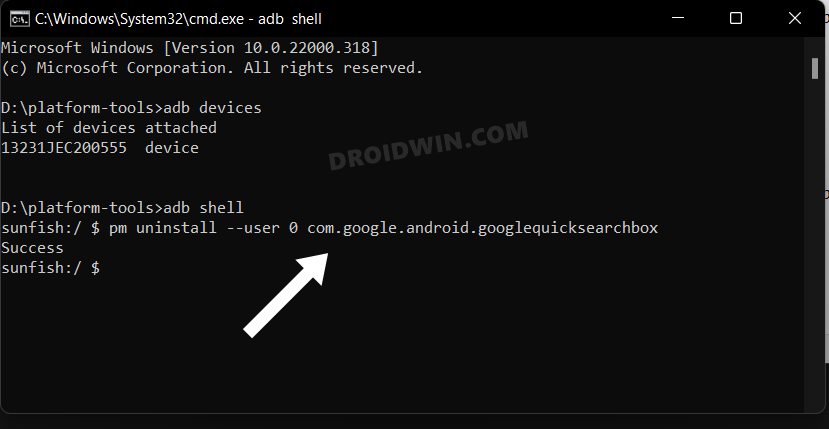
Execute the below ADB command in the CMD window to uninstall the Google App from your Android device:
pm uninstall --user 0 com.google.android.googlequicksearchbox
Reinstall Google App on Android via ADB Command
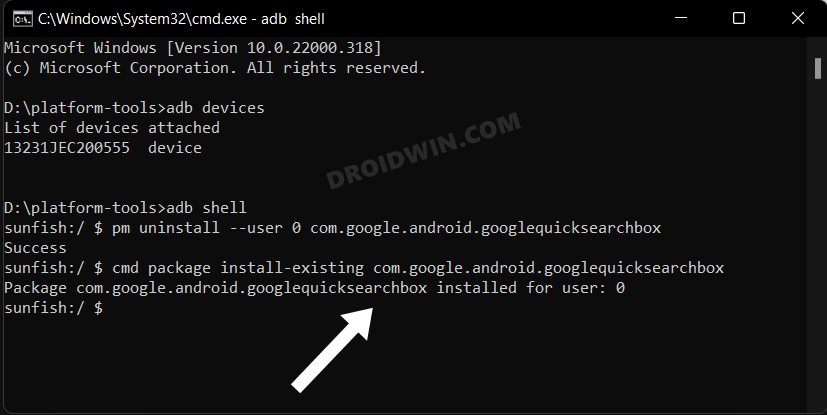
Copy-paste the below ADB command in the CMD window to reinstall the Google App on your Android device [or you could also reinstall the app from Play Store as well]:
cmd package install-existing com.google.android.googlequicksearchbox
Disable Google App on Android via ADB Command
Type in the following ADB command in the CMD window to disable the Google App on your Android device:
pm disable-user --user 0 com.google.android.googlequicksearchbox
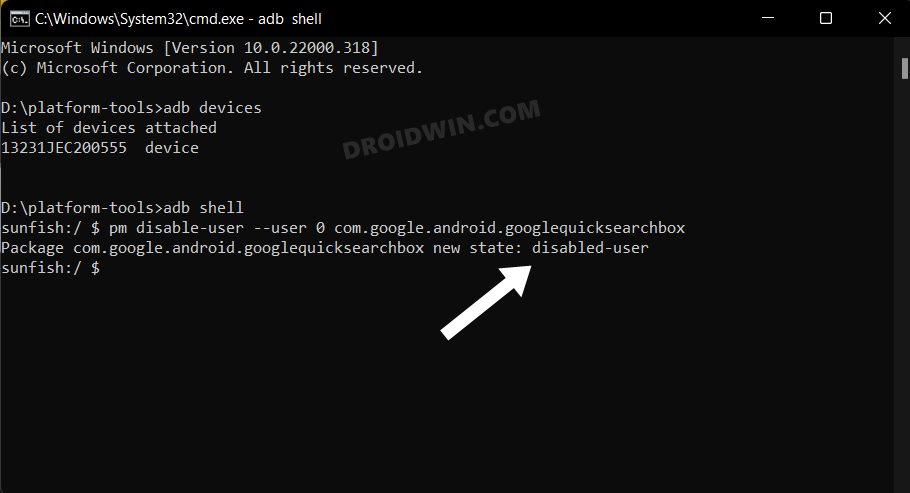
You could also disable the Google app by going to Settings > Apps > See All Apps > Select Google > Tap on Disable > Disable App.
Re-Enable Google App on Android via ADB Command
Use the below ADB command to re-enable the Google App on your Android device:
pm enable com.google.android.googlequicksearchbox
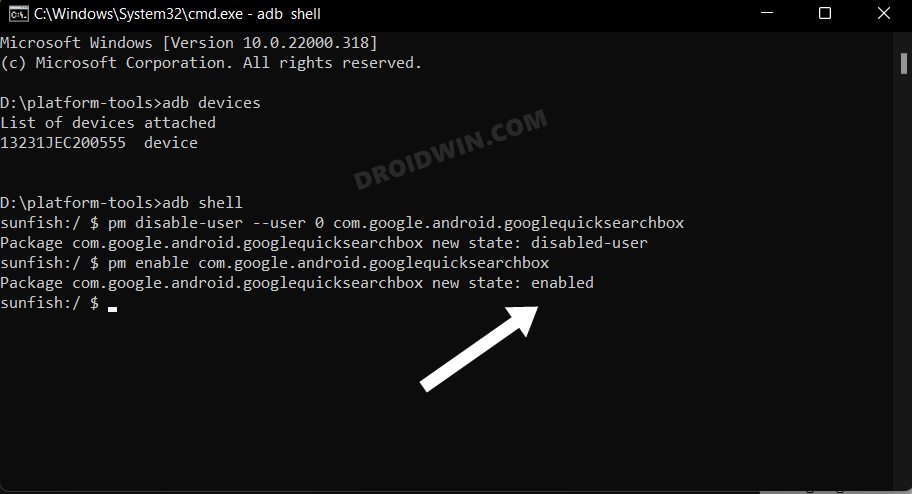
You could also enable the Google app by going to Settings > Apps > See All Apps > Select Google > Enable.
Concluding Remarks
So these were the steps to uninstall the Google App from your Android device via ADB Commands. Likewise, we have also listed the apps to reinstall, disable and enable the Google App via ADB Commands. As you might have guessed, you could use these instructions to remove any system/pre-installed app from your device.
- How to Uninstall Google Chrome from Android [Without Root]
- Uninstall YouTube App from Android via ADB Command
- How to Uninstall T-Mobile App from any Android device
- Stop Windows 11 from Automatically Installing Bloatware Apps

- John 3 years ago Reply I tried this adb commands and worked as expected with one phone of mine, coolpad. But when I tried to uninstall google play services and carrier services with pm uninstall command, I got this message on the terminal “Failure [DELETE_FAILED_DEVICE_POLICY_MANAGER]” on my Lg phone. Though I uninstall successfully all the other google apps, I see them in the list of apps but with a “Not installed” label. How can I circumvent that?
(Cancel Reply)
Δ
