How to Uninstall Google Play System Update [2 Methods]
In this guide, we will show you two different methods through which you can uninstall the Google Play System updates. Apart from the monthly OTA updates that your device receives, it also gets blessed with some updates directly from the Play Store. No, we aren’t talking about app updates; it’s the OS updates that happen via the Play Store!
Known as Project Mainline, it was first introduced way back in Android 10. In this, Google breaks down the OS into smaller sub-segments, and each of them is updated via Play Store updates. This way, Google can fix critical bugs and enhance the device’s security and performance without the need to be dependent on the OEM to roll out their updates.
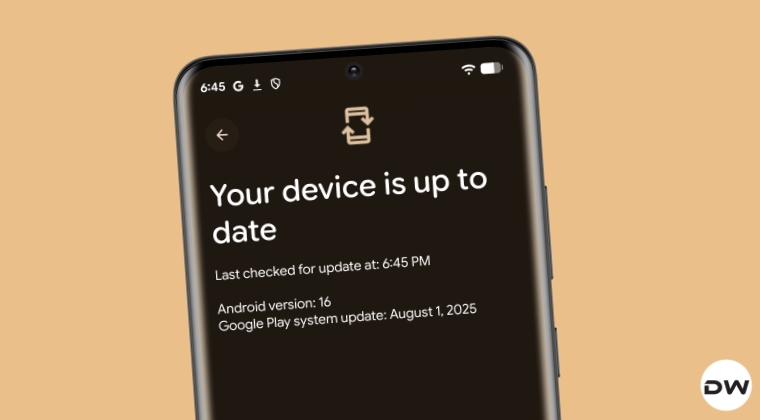
As useful as they are, in rare cases, they might bring in a few bugs and issues with them as well. In such cases, your best bet is to roll back or downgrade your device to the earlier version of Google Play System Update. And in this guide, we will show you two different methods to get this job done. Follow along.
- How to Uninstall Google Play System Update [2 Methods] Via Android Flash Tool Via Settings Menu
How to Uninstall Google Play System Update [2 Methods]

We will show you two different methods through which you can carry out this task. Go through both these methods once, as well as their perks and drawbacks, and then try out the one that is in sync with your requirements. Moreover, before starting, please take a complete device backup. Droidwin and its members wouldn’t be held responsible in case of a thermonuclear war, your alarm doesn’t wake you up, or if anything happens to your device and data by performing the below steps.
Via Android Flash Tool
Benefit: As of now, this might be the only method that might work for you. This is because the second method is slowly rolling out and might not be available to all. Moreover, in some cases, your device might get into a softbrick or bootlooop state after installing a corrupt System Update. In that case, the second method will not work as it only functions when your device is in the OS.

Drawback: It requires a PC.
- Download and extract Android SDK Platform Tools on your PC.
- Then enable USB Debugging and connect your device to the PC.
- Now head to Google Play System Update Rollback Tool website .
- After that, click on Allow ADB Access in the pop-up dialog box.
- Then, click Select Device and choose your device from the list.
- Finally, click on Rollback Recent Updates and wait for it to complete.
Via Settings Menu
Benefit: Does not require a PC. It is also the shorter and easier of the two methods.

Drawback: As already discussed before, this method might not be available for all users as it has just started rolling out. Moreover, bootlooped or bricked devices would not be able to use this method.
- Head over to Settings > tap on your name > go to All Services.
- After that, select System Services and choose Mainline Services.
- Finally, click on Remove Updates, and your task is complete.
- How to Manually Download & Install Google Play System Update
- Fix Cannot Access Internal Storage January Play System update
- How to Disable System Update Notification on Android
- Google Play System Update bug on Xiaomi EU ROM [Fixed]

(Cancel Reply)
Δ
