How to Uninstall T-Mobile App from any Android device
In this guide, we will show you the steps to uninstall the T-Mobile app from your Android device. Every OEM bakes in quite a few apps into its offering. However, a majority of such apps are useless and the users hardly interact with them. In this regard, one straightforward approach will then be to remove it from your device. However, it is easier said than done, as most of these apps are treated as system app.
As a result of this, you wouldn’t be able to uninstall them from your device. At the most, you could disable it, but the app would still be occupying a permanent abode on your device, thereby further bloating it. And in this regard, T-Mobile is no different either. Each device powered by it would have a T-Mobile app.
Similar to other bloatware, it also enjoys administrative-level privileges, hence you cannot simply uninstall it the normal way. But thanks to the open-source ecosystem of the OS, there does exist a handy workaround through which you could uninstall the T-Mobile app from your Android device. And in this guide, we will show you how to do just that. Follow along.
- How to Uninstall T-Mobile App from any Android device STEP 1: Download Android SDK STEP 2: Enable USB Debugging STEP 3: Verify ADB Connection STEP 4: Uninstall T-Mobile App from Android
- How to Reinstall T-Mobile App
- UPDATE: Fix T-Mobile Installing Random Games
How to Uninstall T-Mobile App from any Android device
The below instructions are listed under separate sections for ease of understanding. Make sure to follow in the exact same sequence as mentioned.
STEP 1: Download Android SDK
First and foremost, you will have to install the Android SDK Platform Tools on your PC. This is the official ADB and Fastboot binary provided by Google and is the only recommended one. So download it and then extract it to any convenient location on your PC. Doing so will give you the platform-tools folder, which will be used throughout this guide.

STEP 2: Enable USB Debugging
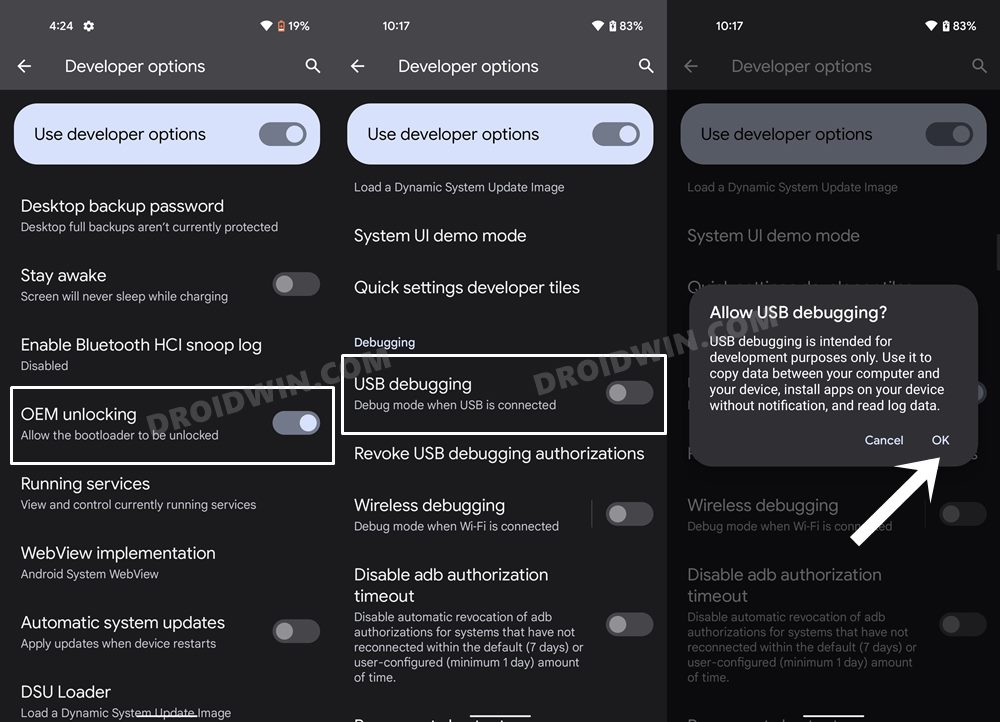
Next up, you will have to enable USB Debugging on your device so that it is recognizable by the PC in ADB mode. So head over to Settings > About Phone > Tap on Build Number 7 times > Go back to Settings > System > Advanced > Developer Options > Enable USB Debugging.
STEP 3: Verify ADB Connection
- To begin with, connect your device to the PC via USB cable. Make sure USB Debugging is enabled.
- Then head over to the platform-tools folder, type in CMD in the address bar, and hit Enter. This will launch the Command Prompt.
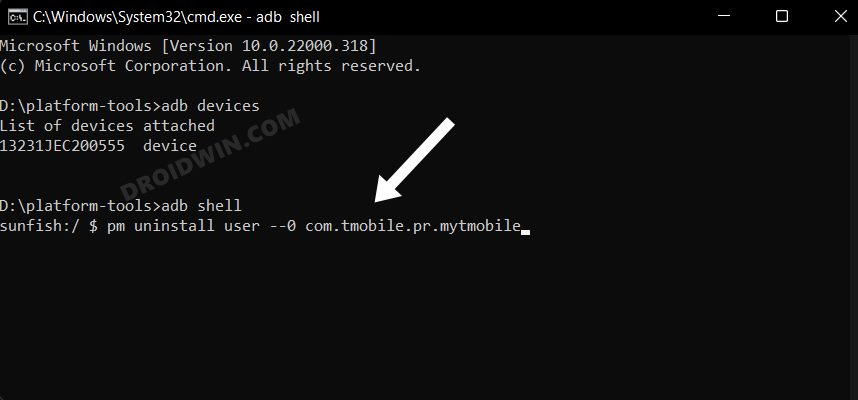
- Now in the following command in the CMD window to verify the ADB connection: adb devices
- If you get the device ID, then the connection stands successful. Now type in the below command to open the Shell environment: adb shell
- It will now list out your device codename (such as sunfish for Pixel 4A). So let’s now proceed with the steps to uninstall the Google Chrome browser from your Android device.
STEP 4: Uninstall T-Mobile App from Android
Now just copy-paste the below command in the CMD window and the T-Mobile app will be removed from your device:
pm uninstall user --0 com.tmobile.pr.mytmobile
How to Reinstall T-Mobile App
If you wish to rekindle the lost love for the T-Mobile app and want to welcome it back onto your device, then it’s quite easy to do so. All you need to do is open the CMD window inside the platform-tools folder (as before) and then execute the below command:
pm install-existing com.tmobile.pr.mytmobile
UPDATE: Fix T-Mobile Installing Random Games
Numerous users have voiced their concern that T-Mobile is installing random games on their devices alongside each OS update. This issue is affecting those users who had allowed T-Mobile App Selector to install recommended games during the initial setup. As a result of this, a new game gets installed, and users are then notified of the same via the ‘Here’s a new game, hope you enjoy’ prompt.
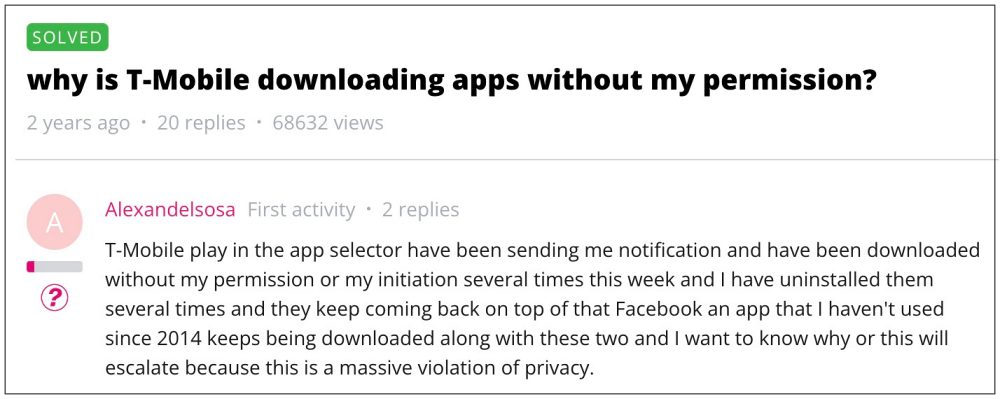
To make the matter worse, even if users uninstall these games, they tend to get reinstalled after a while. With that said, there exist two methods through which you could rectify this issue.
Uninstall AppSelector and disable App Manager and T-Mobile Play apps OR
Uninstall the TMobile via ADB Command as discussed in the above section.
Remove/Uninstall Bloatware Apps from Android via ADB
How to SIM Unlock T-Mobile Google Pixel 6 Pro
How to Convert T-Mobile OnePlus 9 to Global Firmware
Convert T-Mobile OnePlus 7T to International | Bypass Sim Unlock & Token File

- Dan Paulovich 2 years ago Reply Uninstall T Mobile procedure: I get a failure when I run the cmd: Failure [INSTALL_FAILED_INVALID_APK: Missing existing base package] Rick 2 years ago Reply Try using this command, I just got it to work on my S22 Ultra. pm uninstall -k -–user 0 com.tmobile.pr.mytmobile
- Drew Faber 2 years ago Reply Step 4: Entered: pm uninstall user –0 com.tmobile.pr.mytmobile System Response: Failure [INSTALL_FAILED_INVALID_APK: Missing existing base package] Drew Faber 2 years ago Reply I found these instructions helpful: https://jimcofer.com/2019/02/18/uninstalling-android-apps-via-adb/
- joe 3 years ago Reply pm uninstall user –0 com.tmobile.pr.mytmobile did not work for me, but this did : pm uninstall -k –user 0 com.tmobile.pr.mytmobile Success pm uninstall -k –user 0 com.tmobile.rsuapp Success pm uninstall -k –user 0 com.tmobile.rsusrv Success pm uninstall -k –user 0 com.tmobile.pr.adapt Success pm uninstall -k –user 0 com.tmobile.rsuadapter.qualcomm Success Rick 2 years ago Reply If this method fails, try using this one. It’s essentially the same thing as joe, but for my S22 Ultra I had to add an additional “-” before user. b0q:/ $ pm uninstall -k –user 0 com.tmobile.pr.mytmobile Success b0q:/ $
- nootnoot 3 years ago Reply Anyone having the invalid_apk error. Try typing “pm uninstall -k –user 0 com.tmobile.pr.mytmobile” instead thesingingdoula 3 years ago Reply I’m still getting the same result. Eyal 3 years ago Reply 1|j7eltetmo:/ $ pm uninstall -k 45user 0 com.tmobile.pr.mytmobile android.os.DeadObjectException at android.os.BinderProxy.transactNative(Native Method) at android.os.BinderProxy.transact(Binder.java:628) at android.os.BinderProxy.shellCommand(Binder.java:675) at com.android.commands.pm.Pm.runShellCommand(Pm.java:299) at com.android.commands.pm.Pm.runUninstall(Pm.java:674) at com.android.commands.pm.Pm.run(Pm.java:170) at com.android.commands.pm.Pm.main(Pm.java:103) at com.android.internal.os.RuntimeInit.nativeFinishInit(Native Method) at com.android.internal.os.RuntimeInit.main(RuntimeInit.java:315) 255|j7eltetmo:/ $
- Jan 4 years ago Reply Trying to remove Tmobile from my note 9 I got stuck on step 3.2: Opening platform tools gives a list of apps and dlls. Here clicking on adb.exe opens a dialog for allowing the app to make changes and clicking ‘yes’ causes the command window (black) just blinking for a split of a second and there is no way to enter the ‘adb devices’ command. The same with any of the .exe programs listed. What I am doing wrong? please help.
- Theresa mulloy 4 years ago Reply When uninstalling tmobile app on adb I received error message Failure [INSTALL_FAILED_INVALID_APK: Missing existing base package] What went wrong and what’s the correction Ramon 3 years ago Reply Did you find out the issue because I am having the same issue Willis Reed 4 years ago Reply I have the same issue. Pavan 3 years ago Reply I am also getting the same error mentioned above invalid APK
(Cancel Reply)
Δ
