How to Unlock Bootloader on any Nubia Device
In this comprehensive tutorial, we will show you the steps to unlock the bootloader on any Nubia device. The devices from this Chinese OEM encompassed a broad domain, starting from its budget-friendly Z and N series and going all the way up to flagship levels with its Red Magic lineups. In this regard, the sixth iteration in its Red Magic series boasts of some impressive specs. And, its underlying Red Magic UI is also worthy of praise. Moreover, all its devices have managed to maintain an equilibrium between the price and feature set.
Along the same lines, the devices from Nubia have are quite an active player in custom development as well. There is a plentitude of customizations that you could carry out on your device. But before that, you need to checkmark an important prerequisite off your list-and that is an unlocked bootloader. And in this guide, we will help you with just that. Given here are detailed instructions that shall help you to unlock the bootloader on any Nubia device. Follow along.
- Benefits and Risks of Unlocked Bootloader on Nubia Devices
- How to Unlock Bootloader on any Nubia Device METHOD 1 METHOD 2 METHOD 3 STEP 1: Install Android SDK STEP 2: Enable USB Debugging and OEM Unlocking on Nubia STEP 3: Boot Nubia Device to Fastboot Mode STEP 4: Unlock Bootloader on Nubia Device
- FAQ: Cannot Unlock Bootloader on my Nubia Device
Benefits and Risks of Unlocked Bootloader on Nubia Devices
Unlocking the bootloader is the gateway to extract maximum benefits of Android’s open-source ecosystem. For example, you will be able to install a custom ROM or flash a custom recovery like TWRP. Likewise, you will also be able to get access to the system partition as well as administrative privileges by rooting your device via Magisk. This will then allow you to flash Magisk Modules , Xposed Framework , Substratum Themes , Viper4Android , Custom Kernels , among others.
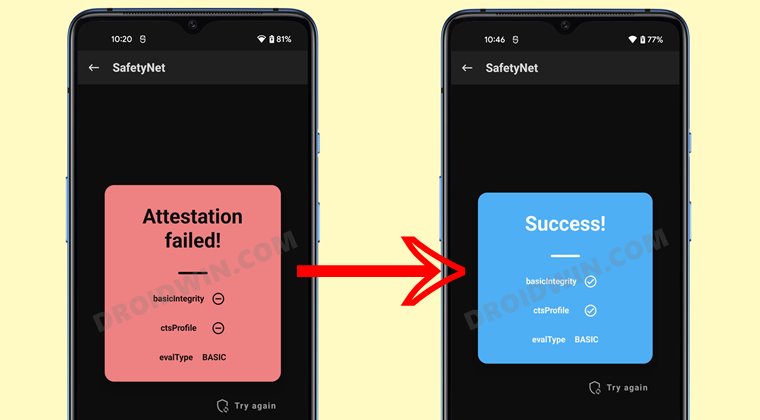
However, carrying out these tweaks brings in a few uninvited risks as well. To begin with, it will wipe off all the data and could nullify the device’s warranty as well. Along the same lines, it will degrade the Widevine L1 certification to L3, thereby preventing you from streaming content in HD [ FIXED ]. The SafetyNet will be triggered as well, thereby preventing you from using banking apps [ FIXED ]. So if that’s well and good then let’s get started with the steps to unlock the bootloader on your Nubia device.
How to Unlock Bootloader on any Nubia Device
The below instructions are listed under separate sections for ease of understanding. Make sure to follow in the exact same sequence as mentioned. Droidwin and its members wouldn’t be held responsible in case of a thermonuclear war, your alarm doesn’t wake you up, or if anything happens to your device and data by performing the below steps.
METHOD 1
| sm8650_v1 Device (public codename) (codename) | Tested |
|---|---|
| ZTE nubia Z60 Ultra ( nx721j pq83a01 ) ( cerro ) | works |
| ZTE nubia Z60 Ultra Leading Edition ( nx721j pq83a01 ) ( cerro ) | works |
| ZTE nubia Red Magic 9 Pro ( nx769j ) ( tiro ) | works |
| ZTE nubia Red Magic 9S Pro ( nx769j ) ( tiro ) | works |
| sm8650_v2 Device (public codename) (codename) | Tested |
|---|---|
| ZTE nubia Pad Pro ( nt01 pq83p02 ) ( ? ) | works |
| ZTE nubia RedMagic Nova ( np03j ) ( ? ) | works |
- Download & extract Android SDK Platform Tools on the PC.
- Enable USB Debugging and OEM Unlocking on your device.
- Next up, download the Engineer ABL Package from GitHub.
- Once downloaded, extract it inside the platform-tools folder.
- Likewise, also install Python and then ‘Add it to Path’ as well.
Now refer to the flashing instructions depending on whether your device falls under sm8650_v1 or sm8650_v2 [see above table].
sm8650_v1
- First off, clone and install https://github.com/bkerler/edl
- Then reboot your device to the EDL Mode via the below command: adb reboot edl
- Now back up the stock abl file via the below command python3 edl r abl_a stock/abl_a.img –loader prog_ufs_firehose_sm8650_v1_ddr.elf python3 edl r abl_b stock/abl_b.img –loader prog_ufs_firehose_sm8650_v1_ddr.elf
- Then flash the engineer ABL file via the below commands python3 edl w abl_a eng_v1/abl.img –loader prog_ufs_firehose_sm8650_v1_ddr.elf python3 edl w abl_b eng_v1/abl.img –loader prog_ufs_firehose_sm8650_v1_ddr.elf
- Now reboot your device to Fastboot Mode using the below command or hardware keys python3 edl reset –loader prog_ufs_firehose_sm8650_v1_ddr.elf adb reboot bootloader fastboot flashing unlock
- If you get a prompt, use the Volume keys to highlight Unlock the Bootloader and press the Power key to confirm.
- Your device will undergo a reset, and the bootloader will be unlocked. It will then automatically boot to the OS.
sm8650_v2
- First off, clone and install https://github.com/bkerler/edl
- Then reboot your device to the EDL Mode via the below command: adb reboot edl
- Now back up the stock abl file via the below command python3 edl r abl_a stock/abl_a.img –loader prog_ufs_firehose_sm8650_v2_ddr.elf python3 edl r abl_b stock/abl_b.img –loader prog_ufs_firehose_sm8650_v2_ddr.elf
- Then flash the engineer ABL file via the below commands python3 edl w abl_a eng_v2/abl.img –loader prog_ufs_firehose_sm8650_v2_ddr.elf python3 edl w abl_b eng_v2/abl.img –loader prog_ufs_firehose_sm8650_v2_ddr.elf
- Now reboot your device to Fastboot Mode using the below command or hardware keys python3 edl reset –loader prog_ufs_firehose_sm8650_v2_ddr.elf adb reboot bootloader fastboot flashing unlock
- If you get a prompt, use the Volume keys to highlight Unlock the Bootloader and press the Power key to confirm.
- Your device will undergo a reset, and the bootloader will be unlocked. It will then automatically boot to the OS.
METHOD 2
- First off, download and install Zadig drivers on your PC. After that, download and extract the toolbox on your PC [PASSWORD: xda].
- Then enable USB Debugging & OEM Unlocking on the device as well.
- Now turn off your phone, press and hold the Volume Up and Volume Down keys, and while holding both the keys, connect your phone to the PC via USB cable. Your device will now boot to EDL Mode [you can also try using the adb reboot edl command to boot to EDL Mode].
- Next, open Zadig, select Options, click “List all devices”, select the one that has QUSB_BULK, click Install Drivers, and wait for the drivers to install.
- Then open the toolbox, click “Flash ENG Bootloader” for unlocking the bootloader and “Get init_boot” to get the init_boot file for patching via Magisk.
- As soon as you click “Flash ENG Bootloader”, it will flash the leaked abl.img file on your device.
- Then press and hold the Power button for 10-15 seconds to turn on the phone. Then enable Developer Options from the Settings menu [if it has been turned off].
- Now, download and extract Android SDK Platform Tools. Then open Command Prompt inside it.
- Then type in the below command to boot your device to Fastboot Mode [make sure to enable USB Debugging beforehand]: adb reboot bootloader
- Now use the below command to unlock the bootloader [if you get a prompt, select Unlock the Bootloader via Volume keys and press the Power key to confirm]. fastboot flashing unlock
- Once done, you may now boot to the OS via the below command [if it doesn’t happen automatically]: fastboot reboot
- Now, verify that the init_boot.img that you have got from the toolbox is from the same firmware that is currently installed on your device.
- If that is not the case [or you are not able to verify], then download the currently installed firmware and extract the init_boot.img file.
- Now install Magisk and patch this init_boot.img file. Then transfer this file to the platform-tools folder and rename it to pib.img.
- Then boot your device to the Fastboot Mode via the below command: adb reboot bootloader
- Now type in the below command to flash this patched file: fastboot flash init_boot pib.img
- Then use the below command to reboot to the OS: fastboot reboot
- It’s recommended to install the Magisk APK as well. Then launch the app and carry out the additional setup [Direct Install], if asked.
METHOD 3
STEP 1: Install Android SDK

First and foremost, you will have to install the Android SDK Platform Tools on your PC. This is the official ADB and Fastboot binary provided by Google and is the only recommended one. So download it and then extract it to any convenient location on your PC. Doing so will give you the platform-tools folder, which will be used throughout this guide.
STEP 2: Enable USB Debugging and OEM Unlocking on Nubia
Next up, you will also have to enable USB Debugging and OEM Unlocking on your device. The former will make your device recognizable by the PC in ADB mode. This will then allow you to boot your device to Fastboot Mode. On the other hand, OEM Unlocking is required to carry out the bootloader unlocking process.
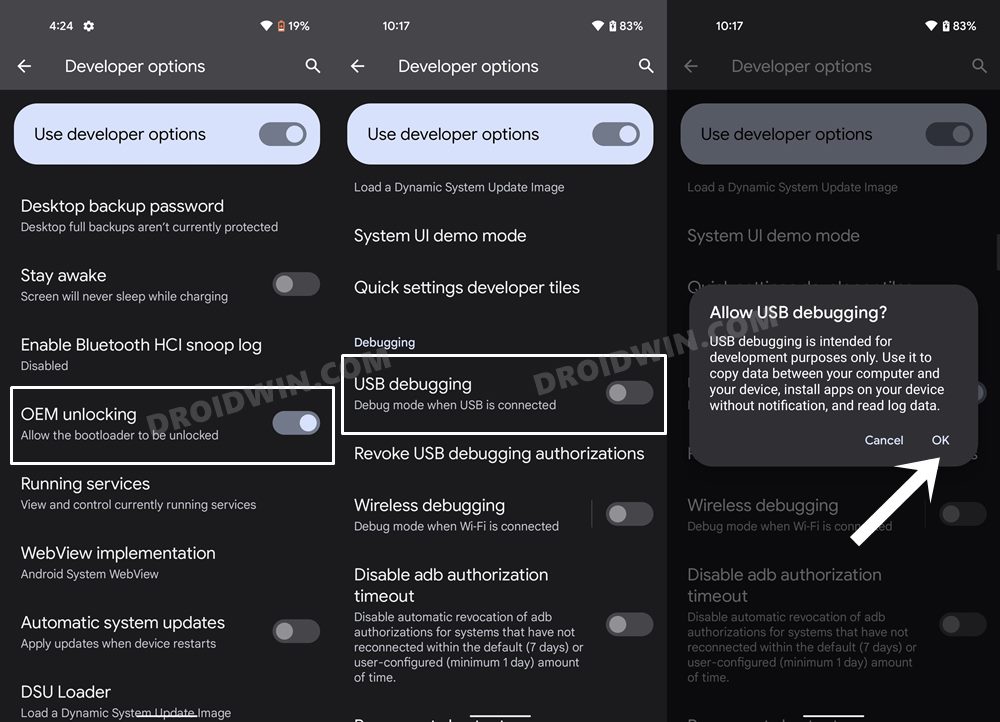
So head over to Settings > About Phone > Tap on Build Number 7 times > Go back to Settings > System > Advanced > Developer Options > Enable USB Debugging and OEM Unlocking.
STEP 3: Boot Nubia Device to Fastboot Mode
- Now connect your device to the PC via USB cable. Make sure USB Debugging is enabled.
- Then head over to the platform-tools folder, type in CMD in the address bar, and hit Enter. This will launch the Command Prompt.
- Type in the following command in the CMD window to boot your device to Fastboot Mode adb reboot bootloader
- To verify the Fastboot connection, type in the below command and you should get back the device ID, as shown in the image. fastboot devices
- You may now proceed with the steps to unlock the bootloader on your Nubia device. Follow along.
STEP 4: Unlock Bootloader on Nubia Device
- Unlocking the bootloader on Nubia devices is a little bit different. You will first have to get hold of your device’s model number as it will be used in the unlock command. So search it online from a trustworthy site and copy it down somewhere.
- Now execute the below command in the CMD window. Make sure to replace the ModelNumber keyword with your device actual model number: fastboot oem nubia_unlock NUBIA_ModelNumber
- For example, if you’re planning to unlock the bootloader of Nubia Red Magic 3 whose model number is NX629J, then the above command will transform to: fastboot oem nubia_unlock NUBIA_NX629J
- As soon as you execute the above command, you “might” get a confirmation on your device. So use the Volume keys to select “YES”/”Unlock the Bootloader”/or any other related options and press the Power key to confirm it.
- Your device will now undergo a wipe and subsequently, its bootloader will be unlocked.[Facing Issues? Check out the FAQ below].
- Finally, you may now use the below command to reboot your device to the OS: fastboot reboot
If the aforementioned command didn’t manage to unlock the bootloader on your device, then you may try using any one of the two universal unlock commands listed below [Case 1 or Case 2], or the combination of the universal command+Nubia Unlock Command [Case 3].
- [Case 1] First off, try this command: fastboot oem unlock
- [Case 2] If that didn’t work out, then try using this command: fastboot flashing unlock
- [Case 3] If both the above commands didn’t work out, then you will have to execute the below two commands, one after the other: fastboot oem nubia_unlock NUBIA_Model Number fastboot flashing unlock
- For example, if you are unlocking the bootloader on Nubia Red Magic 6, then the above commands will change to: fastboot oem nubia_unlock NUBIA_NX669J fastboot flashing unlock
- As before, you might get a confirmation message on your Nubia device. So use the Volume keys to select Unlock the Bootloader option, and the Power key to confirm it.
- The unlocking process shall now start and could take a couple of minutes. Once done, you may reboot your device via the below command: fastboot reboot
- How to Root Android 12 via Magisk patched boot.img (without TWRP)
- How to Pass SafetyNet on Rooted Android 12
- Pass SafetyNet test after installing Xposed or EdXposed
- How to Install TWRP Recovery on Android

- DAY 2 years ago Reply How do I use this to unlock my Nubia watch Sw1003? It only has the power button. You can’t navigate the menu once it’s pulled up on the watch.
- Aniks 3 years ago Reply Nubia 6r doesn’t unlock with this commands
- Olimpo903 4 years ago Reply does it work with new MyOS?
- Olimpo903 4 years ago Reply is android sdk really necessary?
- Olimpo903 4 years ago Reply can we only use powershell admin??
(Cancel Reply)
Δ
