How to Unlock Bootloader on any OnePlus Device
In this guide, we will show you the steps to unlock the bootloader on your OnePlus device. While it’s hard not to recall the early times when this OEM reigned supreme, however, users were quite optimistic this time around with the eleventh iteration of the device. So did it manage to do justice and make us fall back on the nostalgia factor? Well, not exactly.
While it does offer top-of-a-end specs sheet, which might be the best in this price range, however, there is one glaring omission that is sure to ruffle a few feathers- the lack of wireless charging on a flagship device might not be welcomed by many. Along with that, the new ColorOS ecosystem isn’t something worth craving for either.
Fortunately, as far as the latter one is concerned, we could easily escape from the shackles of Oppo and tweak the device as per our liking. All that is needed is to unlock the bootloader on your OnePlus. And in this guide, we will show you how to do just that. So without further ado, let’s get started.
- Benefits and Risks of Bootloader Unlocking
- How to Unlock Bootloader on OnePlus STEP 1: Install Android SDK STEP 2: Enable USB Debugging and OEM Unlocking STEP 3: Boot OnePlus to Fastboot Mode STEP 4: Install Fastboot Drivers STEP 5: Unlock the Bootloader on OnePlus
Benefits and Risks of Bootloader Unlocking
Unlocking the bootloader is the gateway to extract maximum benefits of Android’s open-source ecosystem. For example, you will be able to install a custom ROM or flash a custom recovery like TWRP. Likewise, you will also be able to get access to the system partition as well as administrative privileges by rooting your device via Magisk.
This will then allow you to flash Magisk Modules , Xposed Framework , Substratum Themes , Viper4Android among others. Likewise, you will also be able to flash OxygenOS on top of ColorOS. However, carrying out these tweaks brings in a few uninvited risks as well. To begin with, it will wipe off all the data and could nullify the device’s warranty as well.
Along the same lines, it will degrade the Widevine L1 certification to L3, thereby preventing you from streaming content in HD [ FIXED ]. The SafetyNet will be triggered as well [ FIXED ], thereby preventing you from using banking apps [ FIXED ]. So if that’s well and good then let’s get started with the steps to unlock the bootloader on OnePlus.
How to Unlock Bootloader on OnePlus

The below process will wipe off all the data from your device. So please take a complete device backup beforehand. Droidwin and its members wouldn’t be held responsible in case of a thermonuclear war, your alarm doesn’t wake you up, or if anything happens to your device and data by performing the below steps.
STEP 1: Install Android SDK

First and foremost, you will have to install the Android SDK Platform Tools on your PC. This is the official ADB and Fastboot binary provided by Google and is the only recommended one. So download it and then extract it to any convenient location on your PC. Doing so will give you the platform tools folder, which will be used throughout this guide.
STEP 2: Enable USB Debugging and OEM Unlocking
Next up, you will have to enable USB Debugging and OEM Unlocking on your device. The former will make your device recognizable by the PC in ADB mode. This will then allow you to boot your device to Fastboot Mode. On the other hand, OEM Unlocking is required to carry out the bootloader unlocking process.
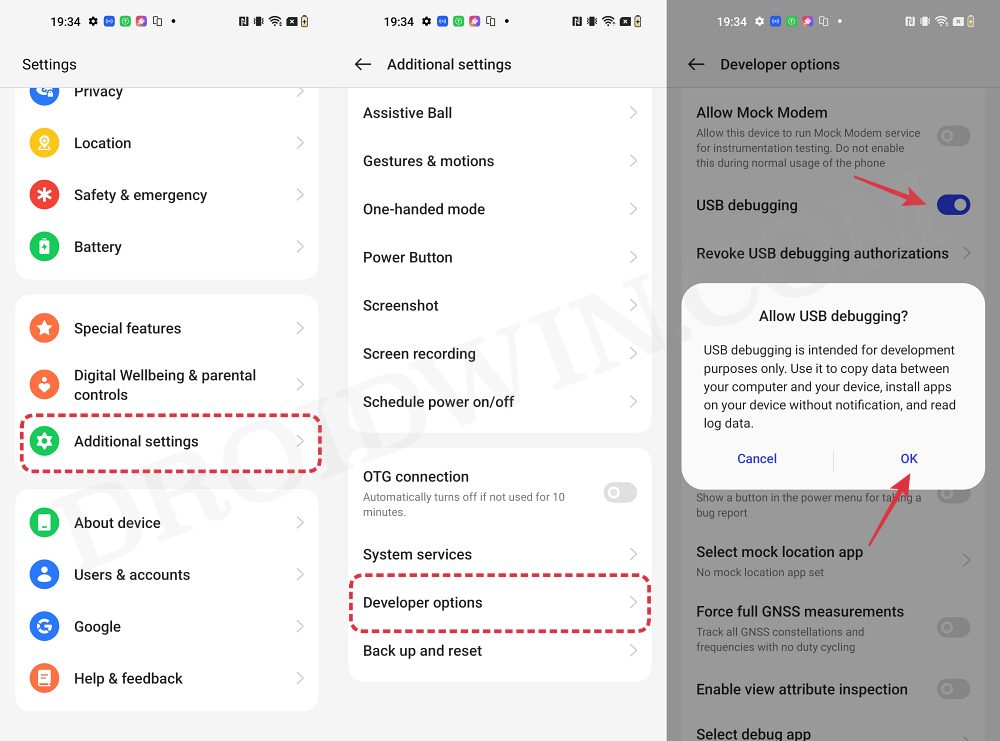
So head over to Settings > About Phone > Tap on Build Number 7 times > Go back to Settings > System > Advanced > Developer Options > Enable USB Debugging and OEM Unlocking.
STEP 3: Boot OnePlus to Fastboot Mode
- Connect your device to the PC via a USB cable. Make sure USB Debugging is enabled.
- Then head over to the platform-tools folder, type in CMD in the address bar, and hit Enter. This will launch the Command Prompt.
- Type in the following command in the CMD window to boot your device to Fastboot Mode adb reboot bootloader
- Now type in the below command to verify the Fastboot Connection fastboot devices
- If you get a device ID followed by the fastboot keyword, then the connection stands successful and you may now proceed ahead to unlock the bootloader on your OnePlus device.
STEP 4: Install Fastboot Drivers
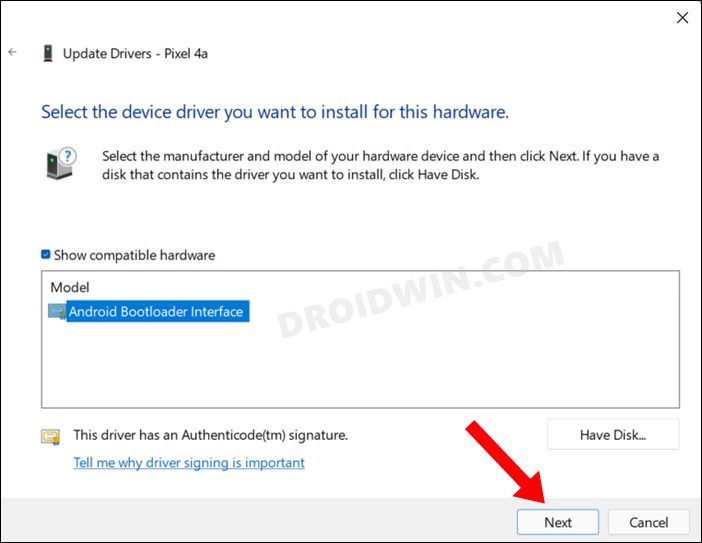
Next up, you will have to install the Fastboot Drivers so that your PC is able to identify the connected device in Fastboot Mode. So please check out our guide on How to Install Fastboot Drivers in Windows 11 .
STEP 5: Unlock the Bootloader on OnePlus
- Type in the below command in the CMD window that is opened inside the platform-tools fastboot flashing unlock
- At this point in time, you will get a confirmation message on your device. Use the Volume keys to select the Unlock the Bootloader option and hit the Power key to confirm.
- The device will undergo a reset and then the bootloader will be unlocked. Do keep in mind that the first boot might take up to a minute, this is completely normal.
- Furthermore, you will have to log in to Google ID and set up your device from scratch, since a wipe has taken place. That’s it.
- How to Enable 5G in OnePlus Phones [2 Methods]
- How to Enable Factory Mode on any OnePlus Device
- Enable Greyed out OEM Unlock in OnePlus Carrier Locked T-Mobile
- How to Enable VoLTE and VoWiFi on any OnePlus Device

- Bryan Sams 1 month ago Reply Hello Sadique. Nice article, it might work for most one plus products (phones) It will not work for a Oneplus 2 pad or the #3 version (Tablet)ver Opd 2403 North American version. I have spent over 4 days trying to get into my bootloader tried every piece of software out there nothing unlocks it. I believe the boot loader is locked there the device firmware and you need an unlock code from one plus. Called them they will not give it to me. So it’s confirmed you need a boot code (stinks) I did hooked up my older Motorola phone up and it instantly recognized the phone and displayed the phone and serial number. Not happy since lineageOS says they can boot into this tablet. I bought based on their description specifically mentioned my exact model Opd2403 could be flashed. Some help would be appreciated Thanks.
- l 2 years ago Reply i did fastboot flashing lock after fastboot flashing unlock, now device keeps looping and wont boot up
- Marcos Cintron 4 years ago Reply I tried fastboot OEM unlock and I get this message PS C:\platform-tools> fastboot oem unlock … FAILED (remote: Please flash unlock token first.) finished. total time: 0.008s PS C:\platform-tools> mehmet 3 years ago Reply hello, were you able to solve this problem?
- Marcos Cintron 4 years ago Reply when trying to put fastboot flashing unlock command I get this message please advice: PS C:\platform-tools> fastboot flashing unlock usage: fastboot [ ] commands: update reflash device from update.zip flashall flash boot, system, vendor and if found, recovery flash [ ] write a file to a flash partition erase erase a flash partition format[:[][:[]] format a flash partition. Can override the fs type and/or size the bootloader reports. getvar display a bootloader variable boot [ [ ] ] download and boot kernel flash:raw boot [ [ ] ] create bootimage and flash it devices list all connected devices continue continue with autoboot reboot reboot device normally reboot-bootloader reboot device into bootloader help show this help message options: -w erase userdata and cache (and format if supported by partition type) -u do not first erase partition before formatting -s specify device serial number or path to device port -l with “devices”, lists device paths -p specify product name -c override kernel commandline -i specify a custom USB vendor id -b specify a custom kernel base address. default: 0x10000000 -n specify the nand page size. default: 2048 -S [K|M|G] automatically sparse files greater than size. 0 to disable PS C:\platform-tools>
- Jason 5 years ago Reply On Windows 10 I had issues with nothing being shown when running ‘fastboot devices’ and in device manager, the ‘Android’ device was under ‘Other Devices’ and had a yellow ! next to it. This forum post helped me install the correct OnePlus drivers so I could then run ‘fastboot devices’ HeySiri 5 years ago Reply Thanks, you saved me 👍 Sadique Hassan 5 years ago Reply Hi Jason, thanks for pointing it out. Will update my guide accordingly. However, it’s really strange that OnePlus still provides unsigned drivers! HeySiri 5 years ago Reply Can you integrate the XDA post link into the article? I also had the same problem as SADIQUE HASSAN and after hours of trying thanks to his comment I solved
- massel 5 years ago Reply hi, after “fastboot flashing unlock” i got only a commands list in cmd an no message confirm on phone… with the “fastboot oem unlock” i got the message on the phone. which is now correct? Sadique Hassan 5 years ago Reply While both the commands are known to work, but most newer Android devices accept the fastboot flashing unlock command. As to why the fastboot oem unlock command didn’t work out for you, I have some research to do it seems. If other users also come with this issue, then I would be able to better document this issue. In the meantime, you were able to successfully unlock the bootloader via the fastboot oem unlock command?
(Cancel Reply)
Δ
