How to Unlock Bootloader on Nubia Red Magic 8 Pro
In this guide, we will show you the steps to unlock the bootloader on your Nubia Red Magic 8 Pro. The Red series from Nubia is among the most underrated players in the flagship category, mainly due to its regional restrictions. But owing to the powerful spec sheet that it beholds and its intriguing in-house OS, users from across the globe have been exporting this device in large numbers.
If we shift our attention towards custom development, then although it isn’t the most active player in this domain, still there are a plethora of mods that you could welcome abode onto your device. But before you could carry out any of these tweaks, you’ll have to checkmark an important prerequisite off the list- the bootloader on your Nubia Red Magic 8 Pro needs to be unlocked. And in this guide, we will show you how to do just that. Follow along.
- Benefits and Risks of Bootloader Unlocking
- How to Unlock Bootloader on Nubia Red Magic 8 Pro STEP 1: Install Android SDK STEP 2: Enable USB Debugging and OEM Unlocking STEP 3: Boot Nubia Red Magic 8 Pro to Fastboot Mode STEP 4: Install Fastboot Drivers STEP 5: Unlock the Bootloader on Nubia Red Magic 8 Pro
Benefits and Risks of Bootloader Unlocking
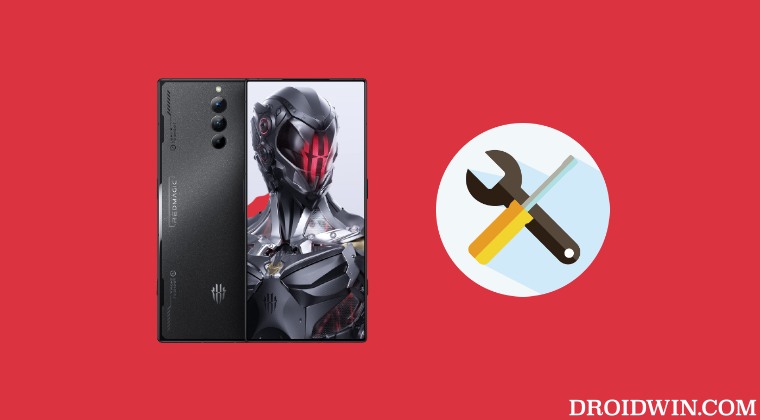
Unlocking the bootloader is the gateway to extract maximum benefits of Android’s open-source ecosystem. For example, you will be able to install a custom ROM or flash a custom recovery like TWRP. Likewise, you will also be able to get access to the system partition as well as administrative privileges by rooting your device via Magisk.
This will then allow you to flash Magisk Modules , Xposed Framework , Substratum Themes , Viper4Android among others. Likewise, you will also be able to flash OxygenOS on top of ColorOS. However, carrying out these tweaks brings in a few uninvited risks as well. To begin with, it will wipe off all the data and could nullify the device’s warranty as well.
Along the same lines, it will degrade the Widevine L1 certification to L3, thereby preventing you from streaming content in HD [ FIXED ]. The SafetyNet will be triggered as well [ FIXED ], thereby preventing you from using banking apps [ FIXED ]. So if that’s well and good then let’s get started with the steps to unlock the bootloader on Nubia Red Magic 8 Pro
How to Unlock Bootloader on Nubia Red Magic 8 Pro
The process will wipe off all the data from your device. So please take a complete device backup beforehand. Droidwin and its members wouldn’t be held responsible in case of a thermonuclear war, your alarm doesn’t wake you up, or if anything happens to your device and data by performing the below steps.
STEP 1: Install Android SDK

First and foremost, you will have to install the Android SDK Platform Tools on your PC. This is the official ADB and Fastboot binary provided by Google and is the only recommended one. So download it and then extract it to any convenient location on your PC. Doing so will give you the platform tools folder, which will be used throughout this guide.
STEP 2: Enable USB Debugging and OEM Unlocking
Next up, you will have to enable USB Debugging and OEM Unlocking on your device. The former will make your device recognizable by the PC in ADB mode. This will then allow you to boot your device to Fastboot Mode. On the other hand, OEM Unlocking is required to carry out the bootloader unlocking process. So head over to Settings > About Phone > Tap on Build Number 7 times > Go back to Settings > System > Advanced > Developer Options > Enable USB Debugging and OEM Unlocking.
STEP 3: Boot Nubia Red Magic 8 Pro to Fastboot Mode
- Connect your device to the PC via a USB cable. Make sure USB Debugging is enabled.
- Then head over to the platform-tools folder, type in CMD in the address bar, and hit Enter. This will launch the Command Prompt.
- Type in the following command in the CMD window to boot your device to Fastboot Mode adb reboot bootloader
- Now type in the below command to verify the Fastboot Connection fastboot devices
- If you don’t get a serial ID, then you’ll have to install the Fastboot Drivers on your PC.
STEP 4: Install Fastboot Drivers
Next up, you will have to install the Fastboot Drivers so that your PC is able to identify the connected device in Fastboot Mode. So please check out our guide on How to Install Fastboot Drivers in Windows 11 .
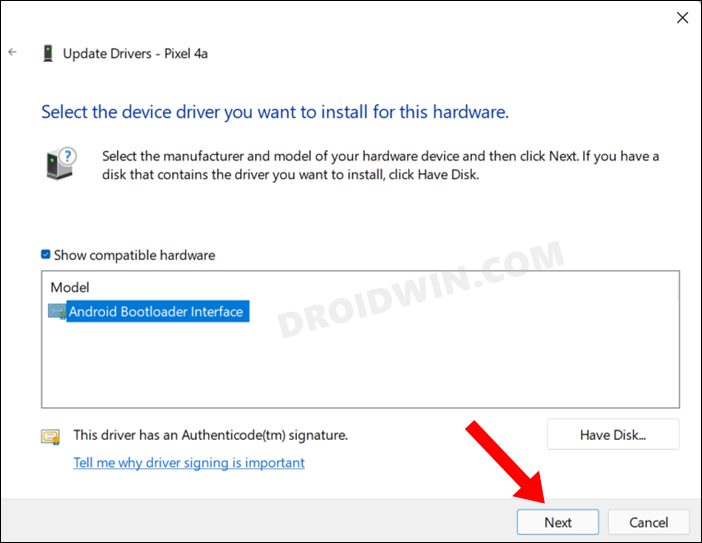
STEP 5: Unlock the Bootloader on Nubia Red Magic 8 Pro
- Type in the below command in the CMD window that is opened inside the platform-tools fastboot flashing unlock
- At this point in time, you will get a confirmation message on your device. Use the Volume keys to select the Unlock the Bootloader option and hit the Power key to confirm it.
- The device will undergo a reset and then the bootloader will be unlocked. Do keep in mind that the first boot might take up to a minute, this is completely normal.
- Furthermore, you will have to log in to Google ID and set up your device from scratch, since a wipe has taken place. That’s it.
- Fix Red Magic 8 Fingerprint not working after Bootloader Unlocking
- Unbrick Nubia Red Magic 6/6 Pro/6R via Fastboot Commands
- How to Root Nubia Red Magic 6/6 Pro/6R via Magisk
- How to Root Nubia Red Magic 5G via Magisk

- serkan sadioğulları 2 years ago Reply My red magic 8s pro device, I am typing the commands you wrote, the commands are not working, the software is up to date “FAILED (remote: unknown command) finished. I get the “total time: -0.000s” warning and it doesn’t work.
(Cancel Reply)
Δ
Fix Red Magic 8 Pro Fingerprint not working on Unlock Bootloader
In this guide, we will show you the steps to fix the issue of fingerprint not working in Nubia Red Magic 8 Pro after unlocking the bootloader. Removing the barrier to gain entry to custom development has its fair share of issues, most of which have already been documented beforehand. Among them, is the tripping of Knox on Samsung and voiding the warranty across a few OEMs that most of you might already be aware of.
But when it comes to Nubia, there is another major caveat attached. Fingerprint unlock might no longer work on your Nubia Red Magic 8 Pro after unlocking its bootloader. In some cases, you might not be able to use any security measures, including the likes of PIN and password. With that said, there does exist a nifty workaround that could help you mitigate this issue. So without further ado, let’s check it out.
- Fix Red Magic 8 Pro Fingerprint not working after Bootloader Unlocking FIX 1: Re-Calibrate Fingerprint FIX 2: ReFlash in FastbootD Mode
- UPDATE
Fix Red Magic 8 Pro Fingerprint not working after Bootloader Unlocking
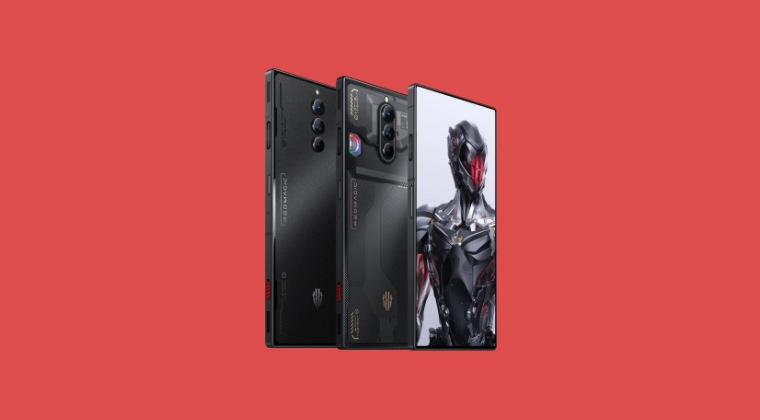
It is recommended that you go through each of the below-mentioned workarounds and then try the one which is in sync with your requirement. So with that in mind, let’s get started. Droidwin and its members wouldn’t be held responsible in case of a thermonuclear war, your alarm doesn’t wake you up, or if anything happens to your device and data by performing the below steps.
FIX 1: Re-Calibrate Fingerprint
Make sure to carry out the below steps in a dark room or under minimal light. Moroever, it is highly recommended that you carry out this fingerprint recalibration task wearing a lattice glove as it tends to give the maximum success rate.
- Delete the data of the In-Display FingerPrint system app.
- Then bring up the dialer and type in the below code: *#9959#
- Now checkmark Calibration and uncheck Performance. Then Tap on Start and wait till you get Pass.
- Then tap Next in the circle and wait for Pass [put anything black non-reflective and then retry if you are failing].
- Now press NEXT. Then place your thumb in a vertical position and press on the circle. Make sure that your thumb is covering the darker part of the circle
- Carry out this task until you see Pass in green [this could take even up to 50 tries!].
- Once done, check if it fixes the issue of Red Magic 8 Pro Fingerprint not working after Bootloader Unlocking.
FIX 2: ReFlash in FastbootD Mode
- To begin with, download the stock firmware for your device from below: V2.21 China: Download V2.18 China: Download V3.18 (V318) Asia: Download V4.18 (418) Europe: Download
- Make sure to download the same version that is currently installed on your device.
- Once downloaded, extract it to any convenient location on your PC. You will now get the payload.bin file.
- Load it to the Fastboot Enhance Tool , select the init_boot, system.img, and vendor.img and hit Extract Image.
- Once extracted, transfer system.img, and vendor.img to the platform-tools folder whereas transfer init_boot.img to your device.
- Now download and install the Magisk App on your device.
- Then launch it and tap on the Install button next to Magisk.
- After that, choose ‘Select and Patch a File’, and navigate to the stock init_boot.img file, and select it.
- Then tap on the Let’s Go button situated at the top right.
- The init_boot.img file will now be patched and placed under the Downloads folder on your device. Transfer it to the platform tools folder on your PC.
- Once done, reset your device from the Settings menu and then restart it.
- During the initial setup, it will ask to enter fingerprint/password, skip all of them.
- Now enable USB Debugging and connect your phone to your PC via a USB cable.
- Then download and extract Android SDK Platform Tools on your PC.
- Now type in CMD inside the platform-tools folder address bar and hit Enter:
- Then execute the below command to boot your device to the Fastboot Mode: adb reboot bootloader
- Now type in the below command to unlock the critical partitions on your device fastboot flashing unlock_critical
- Once done, type in the below command to boot your device to the OS: fastboot reboot
- Skip the initial setup, enable USB Debugging, and type in the below command to boot your device to FastbootD Mode adb reboot fastboot
- We will now have to flash patched init_boot, vendor, and system. So execute the below three commands in the CMD window: fastboot flash init_boot magisk_patched_init_boot.img fastboot system system.img fastboot vendor vendor.img
- Once done, use the below command to boot your device to the OS: fastboot reboot
- During the initial setup, skip the fingerprint/PIN/password.
- Now go to Settings > Password and Security and set the desired PIN/Password.
- The lock screen should now work without any issues.
UPDATE
If the aforementioned method didn’t work, then you could also buy an optical fingerprint calibration tool to get this job done.
- How to Root Nubia Red Magic 6/6 Pro/6R via Magisk
- Unbrick Nubia Red Magic 6/6 Pro/6R via Fastboot Commands
- How to Unlock Bootloader on any Nubia Device
- How to Root Nubia Red Magic 5G via Magisk
(Cancel Reply)
Δ
