How to Unlock Bootloader on OnePlus 10 Pro [Video]
In this guide, we will show you the steps to unlock the bootloader on your OnePlus 10 Pro. This time around, OnePlus has first launched the Pro variant of the device while the generic one is yet to make its way. Apart from that, there are quite a few other ‘firsts’ as well. While the large 6.7-inch display with an adaptive refresh rate from 1hz to 120hz and 80W fast charge is more than welcome, it is the underlying ColorOS 12.1 out of the box that isn’t. However, if you are one of those tech enthusiasts then you have a handy way out.
You could easily flash a customized firmware onto your device and give your device a fresh new outlook. Apart from that, you also have the option to gain administrative privileges and root your device via Magisk. This will then allow you to flash the desired modules and tweaks onto your device. However, before you do so, you need to checkmark an important requirement of the list- the bootloader on your OnePlus 10 Pro needs to be unlocked. And in this guide, we will show you how to do just that.
- Benefits and Risks of Bootloader Unlocking
- How to Unlock Bootloader on OnePlus 10 Pro Install Android SDK Enable USB Debugging and OEM Unlocking Install Fastboot Drivers Boot OnePlus 10 Pro to Fastboot Mode Unlock the Bootloader on OnePlus 10 Pro
Benefits and Risks of Bootloader Unlocking
Unlocking the bootloader is the gateway to extract maximum benefits of Android’s open-source ecosystem. For example, you will be able to install a custom ROM or flash a custom recovery like TWRP. Likewise, you will also be able to get access to the system partition as well as administrative privileges by rooting your device via Magisk. This will then allow you to flash Magisk Modules , Xposed Framework , Substratum Themes , Viper4Android among others. Likewise, you will also be able to flash OxygenOS on top of ColorOS.
However, carrying out these tweaks brings in a few uninvited risks as well. To begin with, it will wipe off all the data and could nullify the device’s warranty as well. Along the same lines, it will degrade the Widevine L1 certification to L3, thereby preventing you from streaming content in HD [ FIXED ]. The SafetyNet will be triggered as well [ FIXED ], thereby preventing you from using banking apps [ FIXED ]. So if that’s well and good then let’s get started with the steps to unlock the bootloader on OnePlus 10 Pro
How to Unlock Bootloader on OnePlus 10 Pro

The below process will wipe off all the data from your device. So please take a complete device backup beforehand. Droidwin and its members wouldn’t be held responsible in case of a thermonuclear war, your alarm doesn’t wake you up, or if anything happens to your device and data by performing the below steps.
Install Android SDK

First and foremost, you will have to install the Android SDK Platform Tools on your PC. This is the official ADB and Fastboot binary provided by Google and is the only recommended one. So download it and then extract it to any convenient location on your PC. Doing so will give you the platform-tools folder, which will be used throughout this guide.
Enable USB Debugging and OEM Unlocking
Next up, you will have to enable USB Debugging and OEM Unlocking on your device. The former will make your device recognizable by the PC in ADB mode. This will then allow you to boot your device to Fastboot Mode. On the other hand, OEM Unlocking is required to carry out the bootloader unlocking process.
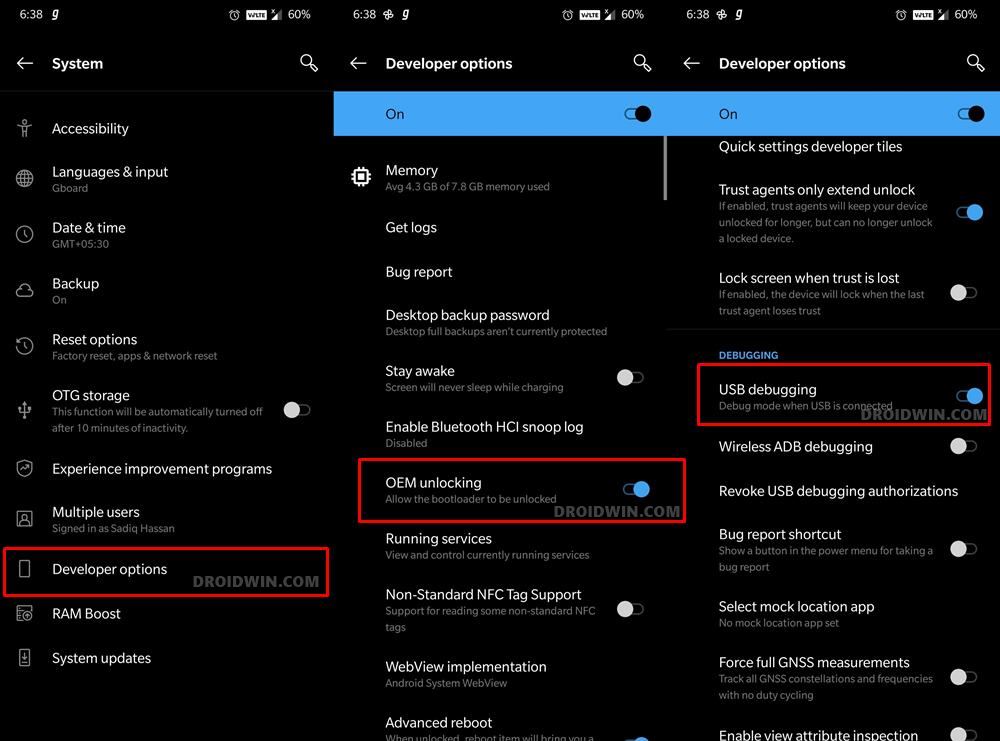
So head over to Settings > About Phone > Tap on Build Number 7 times > Go back to Settings > System > Advanced > Developer Options > Enable USB Debugging and OEM Unlocking.
Install Fastboot Drivers
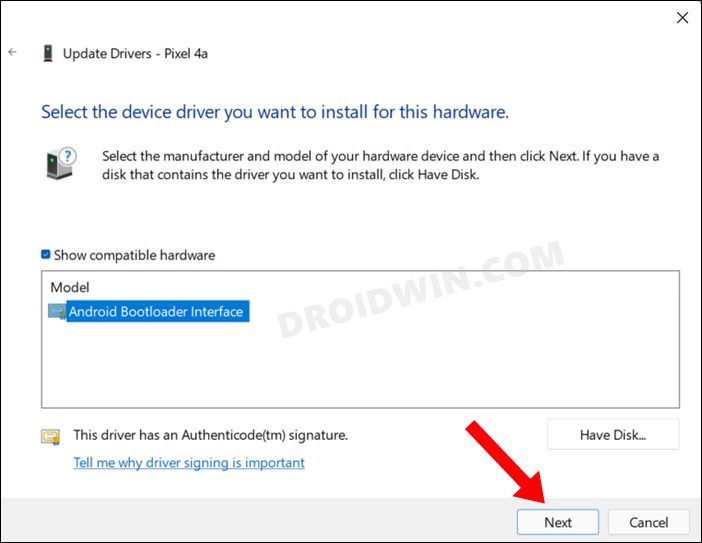
next up, you will also have to install the Fastboot Drivers so that your PC is able to identify the connected device in Fastboot Mode. So please check out our guide on How to Install Fastboot Drivers in Windows 11 .
Boot OnePlus 10 Pro to Fastboot Mode
- Connect your device to the PC via a USB cable. Make sure USB Debugging is enabled.
- Then head over to the platform-tools folder, type in CMD in the address bar, and hit Enter. This will launch the Command Prompt.
- Type in the following command in the CMD window to boot your device to Fastboot Mode adb reboot bootloader
- Now type in the below command to verify the Fastboot Connection fastboot devices
- If you get a device ID followed by the fastboot keyword, then the connection stands successful and you may now proceed ahead to unlock the bootloader on your OnePlus 10 Pro.
Unlock the Bootloader on OnePlus 10 Pro
- Type in the below command in the CMD window that is opened inside the platform-tools fastboot flashing unlock
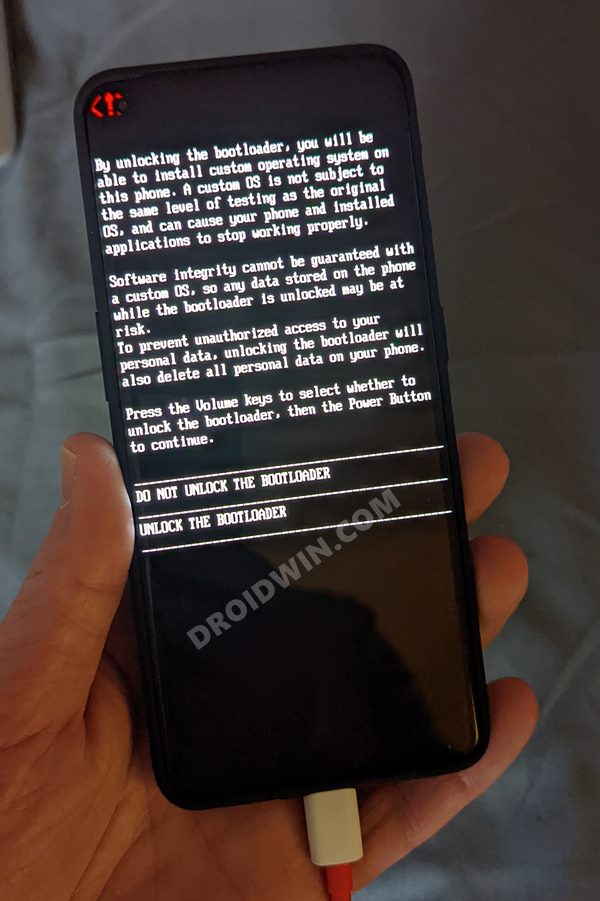
- At this point in time, you will get a confirmation message on your device. Use the Volume keys to select the Unlock the Bootloader option and hit the Power key to confirm it.
- The device will undergo a reset and then the bootloader will be unlocked. Do keep in mind that the first boot might take up to a minute, this is completely normal.
- Furthermore, you will have to log in to Google ID and set up your device from scratch, since a wipe has taken place. That’s it.
- How to Enable Factory Mode in any OnePlus Device
- Root OnePlus Running ColorOS 12 Android 12 via Magisk
- How to Root Android 12 via Magisk patched boot.img (without TWRP)
- How to Hide Root from Apps via Magisk DenyList [Android 12]

- laramie 3 years ago Reply remote please flash unlock token first Kyle 2 years ago Reply indeed! Ryan 2 years ago Reply same, it says i need an unlock token
- Paul Hedges 4 years ago Reply If you get a device ID followed by the fastboot keyword, then the connection stands successful and you may now proceed ahead to unlock the bootloader on your OnePlus 10 Pro. what happens if I don’t get the device id? Sadique Hassan 3 years ago Reply Hi Paul, it seems the Fastboot Drivers are missing from your PC. Please install it using this guide: https://droidwin.com/how-to-install-fastboot-drivers-in-windows-11 I have also added a video for your reference. Please check it out. Ren 3 years ago Reply I experience the same thing. Fastboot devices doesn’t show any devices. Did you get it working? Sadique Hassan 3 years ago Reply Hi Ren, it seems the Fastboot Drivers are missing from your PC. Please install it using this guide: How to Install Fastboot Drivers in Windows 11 I have also added a video for your reference. Please check it out.
(Cancel Reply)
Δ
