How to Unzip Various 7Z Files [.7z.001 .7z.002 .7z.003] into One
- How to Unzip Various 7Z Files [.7z.001 .7z.002 .7z.003] into One The Prerequisite METHOD 1: The Shorter One METHOD 2: The Longer One
How to Unzip Various 7Z Files [.7z.001 .7z.002 .7z.003] into One
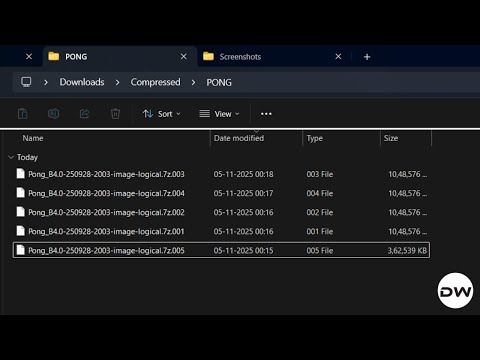
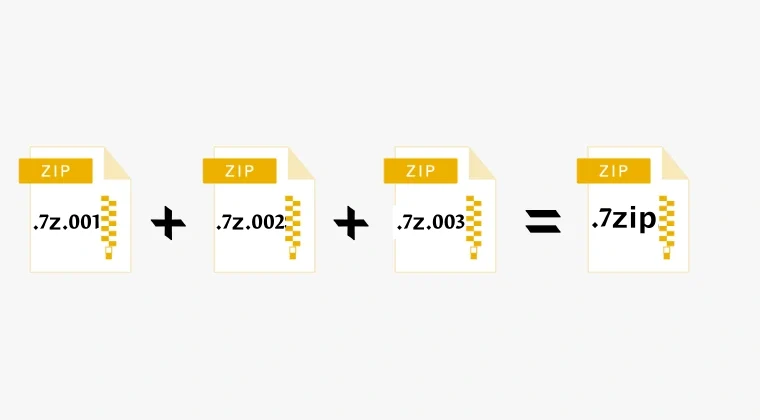
First and foremost, if the files are named as .7z.001.7z .7z.002.7z .7z.003.7z, then please remove the .7z from the end of each file such that it becomes .7z.001 .7z.002 .7z.003. For that, just right-click on the file and choose Rename. You’ll also get a prompt asking if you really want to change the file extension, just click on Yes/OK. Once done, you may then refer to either of the two methods given below to extract these files.
The Prerequisite
Both the methods given below require you to have the 7-Zip software installed on your PC. So do so and then try out the method that is in sync with your requirement.
METHOD 1: The Shorter One
- Place all the .7z.001 .7z.002 .7z.003 files in one single folder, and it’s recommended that the folder has those 7Z files only.
- Then right-click on the .7z.001 file and select Show More Options > 7-Zip> Extract to Filename.
- Even though you have chosen only the first file, 7ZIP will automatically extract all the .7z files present in that folder. Pretty interesting, right?
METHOD 2: The Longer One
- To begin with, select all the .7z files [.7z.001 .7z.002 .7z.003].
- Then right-click on them and select Show More Options > 7-Zip> Extract to *.
- 7-Zip will now extract all the files one after another, though it might take a tad bit longer than the first method.
- How to Unzip Various ZIP Files [.zip.001 .zip.002 .zip.003] into One
- Unzip Error in Magisk Module: How to Fix
- Cannot Install Shamiko: Unzip Error/Installation Failed [Fixed]
- Fix content of unzipped folder is automatically deleted on Mac

(Cancel Reply)
Δ
