How to Use App Lock on Samsung Galaxy Devices
Let’s get one thing straight- Secure Folder is not App Lock and can never replace it either. We have seen tons of debate going on across Reddit and Samsung forums, but there’s no point in arguing over it. Instead, let’s show you a nifty method using which you can use the App Lock feature on your Samsung Galaxy device.
- How to Use App Lock on Samsung Galaxy Devices Features Usage Instructions
How to Use App Lock on Samsung Galaxy Devices
There are quite a few apps available on the Play Store that will help you get this job done. However, I decided to go ahead with the one I found on GitHub. Here are a few reasons why:
Features
- It’s an open-source app.
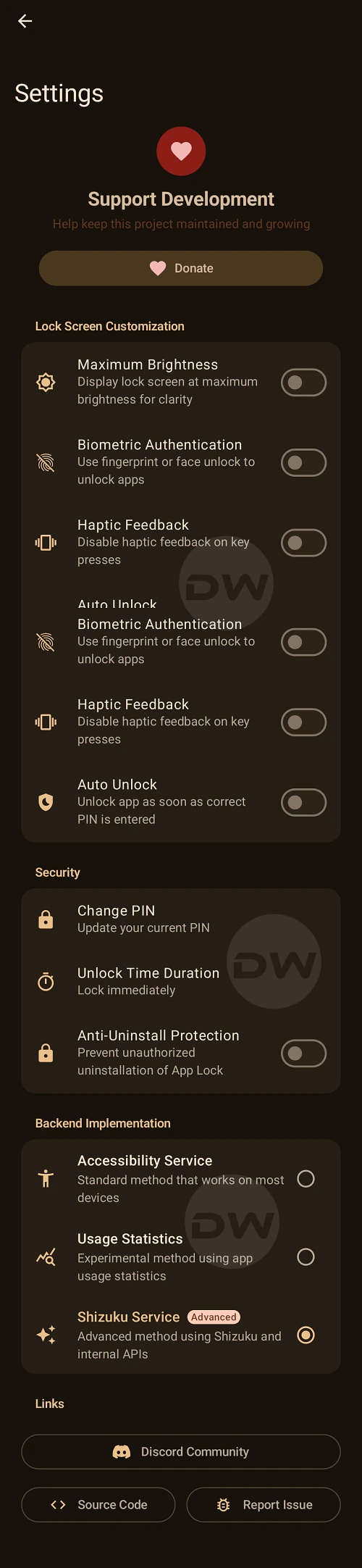
- Apart from the usual PIN and Pattern, it also offers biometrics in the form of Fingerprint.
- There’s also an auto-lock feature, which will relock the phone after a specific time period has elapsed [chosen by you].
- You can also prevent the app from being uninstalled. So if someone gets hold of your device, they cannot simply remove this app from your device and get hold of the locked app.
- It works on Custom ROMs as well.
- If we talk about downsides, well, the initial setup is a tad bit lengthy. However, it’s just a one-time setup; after that, it’s just a breeze!
Usage Instructions
- To begin with, download & install AppLock from GitHub.
- After that, download, install, and set up the Shizuku app.
- Now install the Install With Options from GitHub as well.
- Open InstallwithOptions and tap on “Allow all the time” in the Shizuku prompt.
- Then check the option “Allow Restricted Permission”.
- Now tap on Choose Files, select AppLock, and hit Install.
- Now launch AppLock, go through its setup screen, and grant it the required permissions.
- These are Display over other apps, Disable Battery Optimization, and Notification Permission.
- Then choose the Shizuku service under the App Detection Method and click Next.
- While you can choose the other two modes as well, but the Shizuku method offers the most advanced and fail-safe app lock mechanism.
- Now tap Allow all the time in the Shizuku prompt that appears > Next.
- Then create a new password, confirm it, and hit Next.
- Now, enable the toggle next to the desired app that needs to be locked.
- You may switch between PIN/Password/ Fingerprint, enable Auto Unlock as well as Auto Uninstall Protection, and carry out a few under-the-hood tweaks from the app’s Settings menu.
- Finally, you may now uninstall Shizuku [if you choose any other App Detection Method] and Install With Option.
- Fix Samsung: Cannot Go Back to Original DPI/Leave Tablet Mode
- Easily Remove Bootloader Unlock Warning on Samsung Devices
- How to Hide Swipe Back Gesture Icon on Samsung [Without Root]
- How to Boot Samsung to Recovery Mode from the Download Mode

(Cancel Reply)
Δ
