How to Use Google Pay [GPay] in Rooted Android
In this guide, we will show you the steps to use Google Pay [GPay] on your rooted Android device. One of the biggest perks of having an open-source ecosystem like Android is the plethora of goodies that it brings in with it. Once you checkmark the first prerequisite of an unlocked bootloader, you will be in a position to welcome a plethora of tweaks onto your device.
Among them, it is the inability to gain administrative privileges by rooting your device via Magisk that has forever been the preferred tweak for tech enthusiasts. However, it is just one side of the coin. Unlocking the bootloader or rooting your device trips the Safety Net. As a result, all the apps and games that are dependent on it will refuse to function on such a device.
While it is mostly done from the security point of view, as an unlocked bootloader device is more prone to attacks, however, the user who has carried out all these tweaks is already aware of the risks involved and has voluntarily proceeded with the steps. So it should ultimately be the choice of the end-user whether or not they wish to run banking and payment apps on their device or not.
At the very most, the app developers could notify the user and gain their acknowledgment that they are trying out their app on an unlocked/rooted device at their own risk. But while [unfortunately] that isn’t the case, you could still use Google Pay [GPay] on your rooted Android device using a nifty workaround. And in this guide, we will show you how to do just that. Follow along.
- How to Use Google Pay [GPay] on Rooted Android Devices NEW METHOD [RECOMMENDED] OLD METHOD STEP 1: Pass SafetyNet STEP 2: Enable Zygisk and Enforce DenyList STEP 3: Configure DenyList STEP 4: Hide Magisk App STEP 5: Delete Play Service and Play Store Data
How to Use Google Pay [GPay] on Rooted Android Devices

Before starting, please take a complete device backup beforehand. Droidwin and its members wouldn’t be held responsible in case of a thermonuclear war, your alarm doesn’t wake you up, or if anything happens to your device and data by performing the below steps.
It is highly recommended that you root your device via APatch instead of Magisk. In which case, you’ll have to skip STEPS 2, 3, 4, and 5 given below.
NEW METHOD [RECOMMENDED]

- To begin with, pass the Strong Integrity Test [recommended].
- Then launch Magisk > go to Settings > tap on Hide the Magisk app.
- Give it any random name of your choice and hit OK.
- Now launch Magisk > go to Settings > Configure Denylist.
- Select the following apps: Google Play Store, Google Services Framework, Google Play Services, Google Pay [GPay].
- Next, download, install, and set up Hide My Applist . Then restart your device.
- Now launch the HMA > go to Template Manage > Create a blacklist template.
- Name it root. Then tap on Edit List next to 0 Apps Invisible.
- Choose all the apps belonging to the root domain from the list.
- Then go to App Manage > Google Pay [GPay] > Enable Hide > Using 0 templates > select the root template > OK.
- Now launch KSUWebUI > Tricky Store > check the Google Pay [GPay] app.
- If it’s missing, then tap on the hamburger menu > Add System App > type the below package name and hit Add. com.google.android.apps.nbu.paisa.user
- GPay will now be shown in the app list. So long-press on it and select the green circle. Then hit Save.
- Finally, delete the data of Google Play Store, Google Services Framework, Google Play Services, and Google Pay [GPay].
- Next up, restart your device and check out the result.
- If GPay is not working, then go to the below location: data/adb/modules/playintegrityfix
- Open the custom.pif.json file, add the following values at the end, and save it. // Advanced Properties “spoofBuild”: “1”, “spoofProps”: “1”, “spoofProvider”: “1”, “spoofSignature”: “0”, “spoofVendingSdk”: “0”, “verboseLogs”: “0”
- Again, delete the data of Google Play Store, Google Services Framework, Google Play Services, and Google Pay [GPay].
- See if GPay is working now or not. If not, then you’ll have to spoof/fake the Bootloader Unlock status to Locked .
- Once done, delete the data of Google Play Store, Google Services Framework, Google Play Services, and Google Pay [GPay].
- Finally, restart your device and check out the result. You’ll be able to add Credit/Debit cards without any issues in the app.
- How to Run Banking Apps on Rooted Android Device [10 Methods]
- How to Run National Bank of Egypt App [NBE] on a Rooted Device
- Yes, You Can Now Run Rooted Apps Without Rooting Your Device!
- How to Set up and Run Shizuku [Wireless Debugging, Root & ADB]
OLD METHOD
STEP 1: Pass SafetyNet
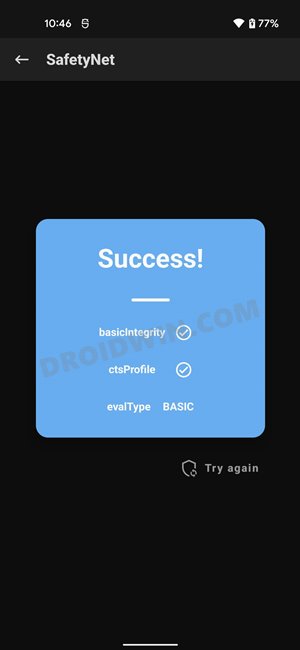
First and foremost, your device should have passed the SafetyNet Test either via Universal SafetyNet Fix or Magisk Hide Props Config module. If that isn’t the case, then do so via the instructions given in this guide- How to Pass SafetyNet on Rooted Android . UPDATE: You should now pass Strong Play Integrity instead.
STEP 2: Enable Zygisk and Enforce DenyList
- Launch the Magisk App on your device tap on the Settings icon situated at the top right.
- After that, scroll to the Magisk section and enable the toggle next to Zygisk and Enforce Deny List.
- Now restart the device for the changes to take place. Also, verify that Zygisk status is YES under Magisk.
STEP 3: Configure DenyList
- Under the Magisk Settings menu, tap on Configure DenyList.
- Now, checkmark Google Pay/GPay in order to hide root from it.
- After that, tap on the overflow icon situated at the top right and select Show System App.
- Now checkmark Google Play Protect Services, Google Play Services, Google Play Store. and Google Service Framework.
STEP 4: Hide Magisk App
- Go to the Magisk settings menu and tap on Hide the Magisk App.
- Then give it the desired name of your choice and tap OK.
- The hiding process will now begin. Once done, it will ask whether you wish to have the app shortcut on the home screen.
- For ease of convenience, you may select Yes and then tap on the Add to Home Screen button.
STEP 5: Delete Play Service and Play Store Data
- Head over to Settings > Apps > See All Apps.
- Then select Google Play Service and go to its Storage and Cache section.
- After that, tap on Manage Space > Clear All Data.
- Once that is done, go back and select Google Play Store.
- Then go to the Storage and Cache section and tap on Clear Storage > OK.
- Finally, restart your device for the changes to take place. You will now be able to use the Google Pay app on your rooted device without any issues.
- How to Install or Update Magisk to version 24- Welcome Zygisk!
- Fix Google Pay rooted or running uncertified software on Android 12L
- How to Remove Navigation Bar Gesture Pill on Android 12 Without Root
- How to Install OTA Updates in Rooted Android Device

- helias 3 years ago Reply Hello, I did all this on a new Xiaomi 12t pro, my device passes safetynet, but Google Pay / Wallet still says: “this phone can’t be set up to tap to pay”.
- damn 3 years ago Reply I did all the above and safetynet still can detect the rooted phone. You can check with https://play.google.com/store/apps/details?id=rikka.safetynetchecker&hl=en&gl=US Sadique Hassan 3 years ago Reply Hi mate, could you please let me knwo oyur device name and whci device you have chosen for fingerprint spoofing
- denis 3 years ago Reply Hello There. I´ve read all your posts, back and forth and I think I am missing something. I also did the “how to pass safetynet” , and its working . I dont know when, but now GooglePay changed to Google Wallet ? I deleted it, reinstalled it, cleared all the caches and data from Google apps that you mentioned. Only thing I could not find is Google Framework Services… After all your steps being followed, Google pay still says that my phone is rooted. I am using android 12 with Beyondrom .
(Cancel Reply)
Δ
