How to View Hidden Network Adapter in Windows 11
In this guide, we will show you various methods to enable and view the hidden Network Adapter on your Windows 11 PC. The Network Adapter Card is responsible for establishing the wireless network connection on your PC. Be it for establishing a Bluetooth connection or helping you access a WiFi network, none of them would be possible without a NAC. Although your PC has a single NAC card, yet in the Device Manager, you might be able to get hold of a plethora of them.
These would include the numerous WAN Miniports, WiFi- either 802.11/B/G/N for 2.4GHz or 802.11a/c for 5GHz, Bluetooth, and even virtual adapters, in case you are or have used a Virtual Machine like VMWare. However, even then, the list might not be complete, and a few adapters might be missing. These are generally those adapters that you wouldn’t need to interact with on a daily basis.
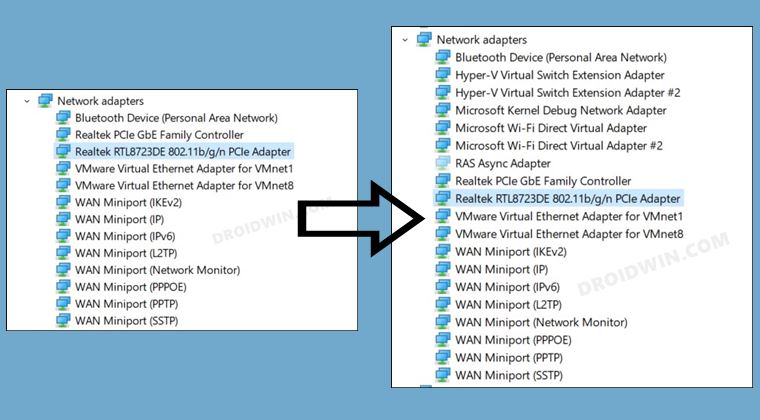
These might include the likes of Kernel Debug Network Adapter, and Hyper-V Virtual Switch. But when the need arises, how could you view or enable the hidden Network Adapter on your Windows 11 PC? Well, there exist a quick and nifty method of carrying out the said task. So without further ado, let’s check it out.
How to View Hidden Network Adapter in Windows 11
- To begin with, launch Device Manager from the Start Menu.
- Then go to View and select Show Hidden Devices.
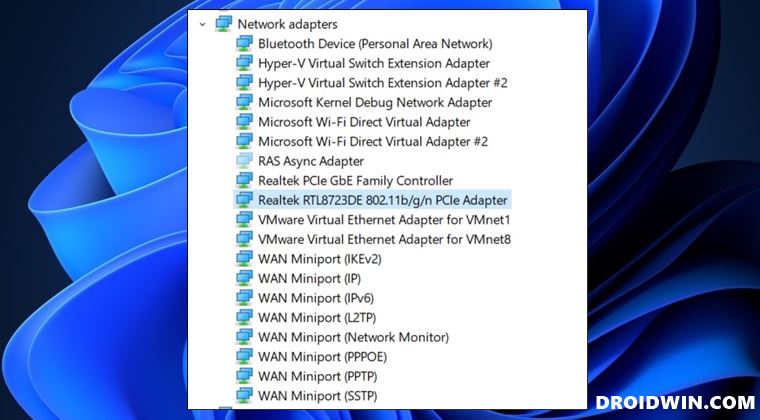
- The Device Manager will now refresh and it would ‘unhide’ all the hidden devices.
- Now expand the Network Adapter section and you will be able to view the hidden adapters.
- You could now perform the desired task on this hidden adapter.
- Just right-click on it and select the desired option from the menu.
- How to Enable or Disable Network Adapters in Windows 11
- How to Change Network Priority in Windows 11
- Guide to Fix Internet or WiFi Not Working in Windows 11
- How to Hide Items from the Settings menu in Windows [3 Methods]

(Cancel Reply)
Δ
