identityservicesd init.ess.apple.com Chinese Servers [Fix]
In this guide, we will make you aware of a potential workaround to fix the issue of identityservicesd trying to make outgoing connections to servers in China using the h ostname init.ess.apple.com, with several IP addresses listed. As per the users, t here’s no reason on their part to make any connection to the Chinese servers.
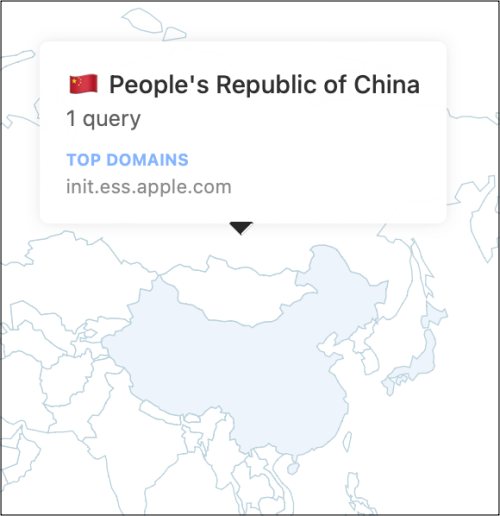
When users are trying to use iCloud, they are repeatedly asked to enter both their Mac password as well as Apple ID. The issue has popped up all of a sudden after installing the latest macOS 17.1 update. Moreover, some of the IP addresses seem to be related to China Telecom or China Unicom. Their IP addresses are:
112.240.57.248

113.5.170.192

124.239.244.193

218.60.20.177

61.161.1.46
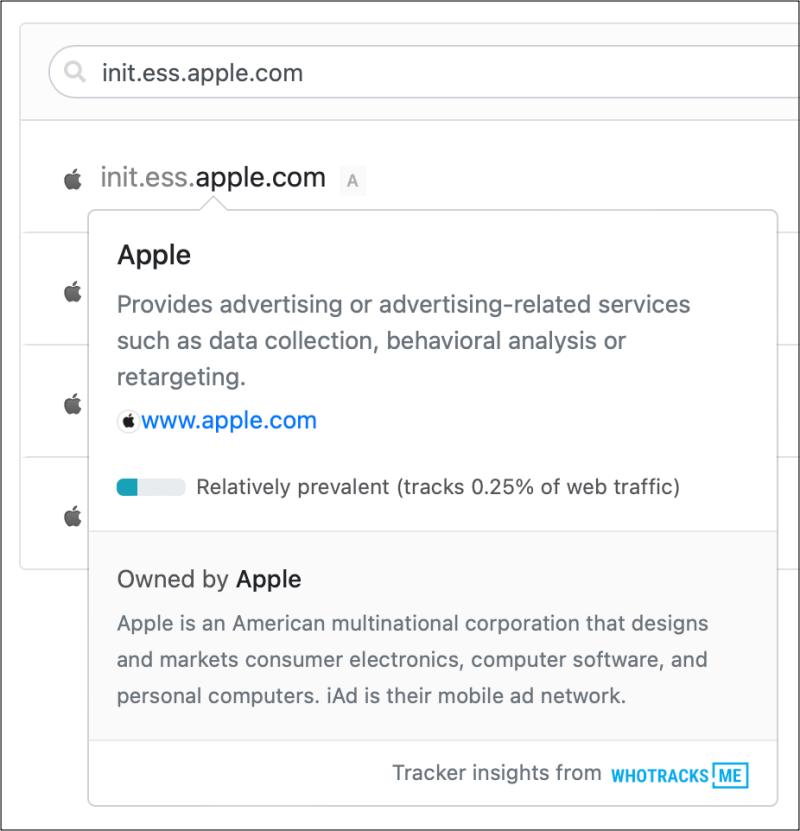
In some cases, the router tends to automatically block the connection to these Chinese servers, but that isn’t the case with all users. Hence they are left wondering whether their Mac or iCloud account has been compromised. While the account isn’t necessarily “hacked”, but still, let’s be on the safer side of the fence and address this identityservicesd init.ess.apple.com Chinese Servers issue once and for all. Follow along.
Fix identityservicesd init.ess.apple.com Chinese Servers
As of now, your best course of action is to disable identityservicesd. However, this service is used by FaceTime and iMessage. So only proceed ahead if you are ready for this trade-off.
- First off, head over to Launchpad > Others > Terminal.
- Then type in the below two commands and hit Enter. launchctl bootout gui/501/com.apple.identityservicesd launchctl disable gui/501/com.apple.identityservicesd
Now that the identityservicesd is disabled, it should no longer be able to make outgoing connections to servers in China using the hostname init.ess.apple.com. As far as the official stance on this matter is concerned, the developers have yet to acknowledge this issue, let alone give out any ETA for the rollout of a fix. As and when any of these two things happen, we will update this guide accordingly. In the meantime, the aforementioned workarounds are your best bet.
- Touch ID is not working on macOS Sonoma
- Safari Crashing/Not Working on macOS Sonoma [Fixed]
- How to Turn off Caps Lock Icon on macOS Sonoma [Video]
- Keyboard Latency/Delay in macOS Sonoma: How to Fix

- Leg 2 years ago Reply Please reverse the mirror from me as the medical magnets in me are killing me end me a reminder remidee to escape leginfected@gmail.com Love you
(Cancel Reply)
Δ
